> ## Documentation Index
> Fetch the complete documentation index at: https://docs.kelviq.com/llms.txt
> Use this file to discover all available pages before exploring further.
# Plans
> Configure pricing, features, and deliverables
A plan is the commercial package you offer to customers. It bundles your pricing logic with the actual value you deliver, such as software downloads, community access, or feature limits.
You can create multiple plans for a single product. For example, you might have a "Starter" plan for hobbyists and a "Pro" plan for businesses.
For sales-led pricing, see [Create an Enterprise plan](/product-catalog/create-an-enterprise-plan). It covers both reusable Enterprise tiers and bespoke customer amounts.
## Plan structure
Every plan consists of configurable components that define what the user gets.
Define the cost. Choose between recurring subscriptions (monthly/yearly) or one-time lifetime payments.
Issue software licenses. Generate unique keys upon purchase and enforce activation limits.
Set limits. Control access to specific features, API quotas, or seat limits via the SDK.
Attach files. Upload software binaries, e-books, or course content.
Grant access. Direct customers to private Discord servers or Notion templates.
## Plan lifecycle
You manage plans through a simple status flow.
* **Draft**
The default state for new plans. These are not visible to customers.
* **Published**
The plan is live and checkout is enabled.
* **Unpublished changes**
A draft version of an existing published plan. You are editing a copy, so your live plan remains safe until you hit publish again.
* **Archived**
The plan is hidden from new customers but remains active for existing subscribers.
***
## Create a plan
You create plans directly inside a product container.
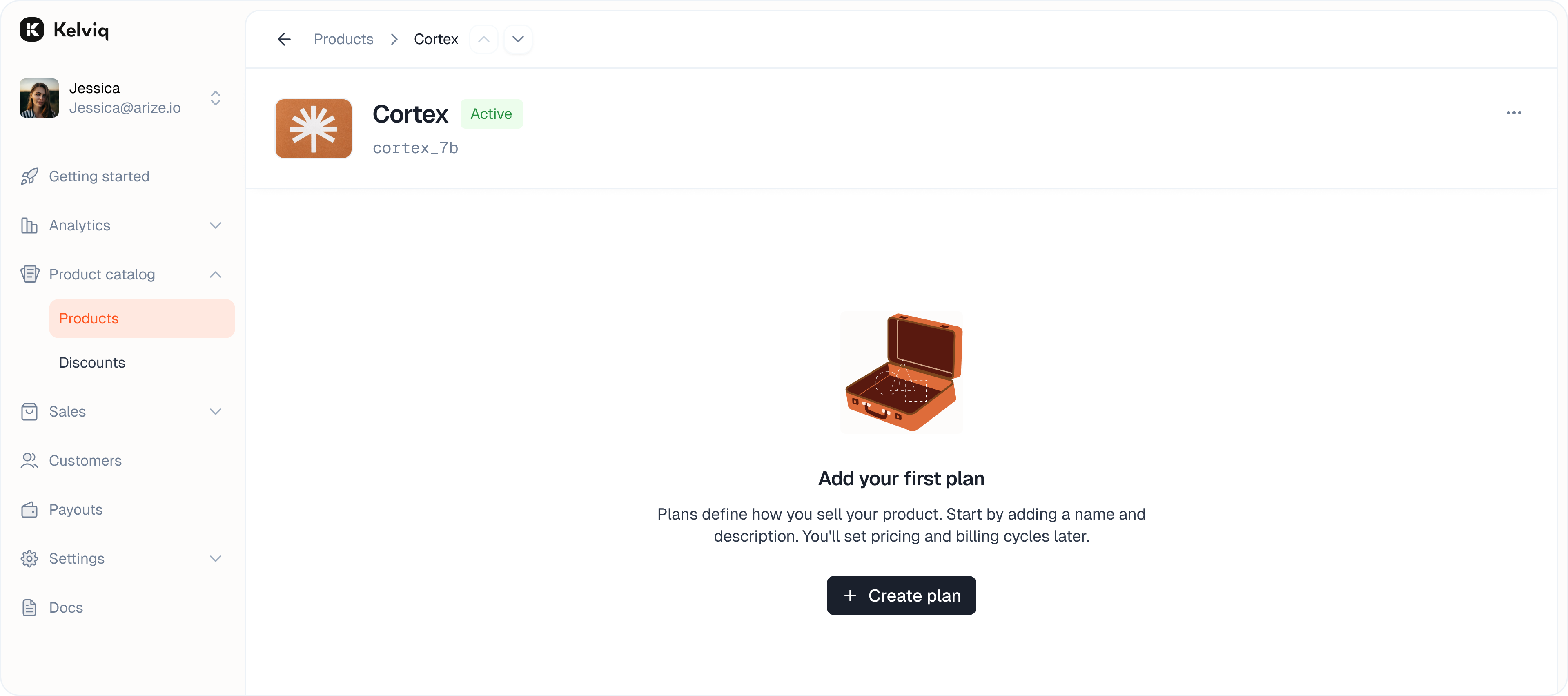
Navigate to the **Product detail page** and click **+ Create plan**.
 Fill in the plan details.
* **Plan name:** The public name (e.g. "Pro", "Starter").
* **Identifier:** The unique ID used in your code. You can override the auto-generated ID.
* **Description:** Optional text shown on invoices and checkout.
Fill in the plan details.
* **Plan name:** The public name (e.g. "Pro", "Starter").
* **Identifier:** The unique ID used in your code. You can override the auto-generated ID.
* **Description:** Optional text shown on invoices and checkout.
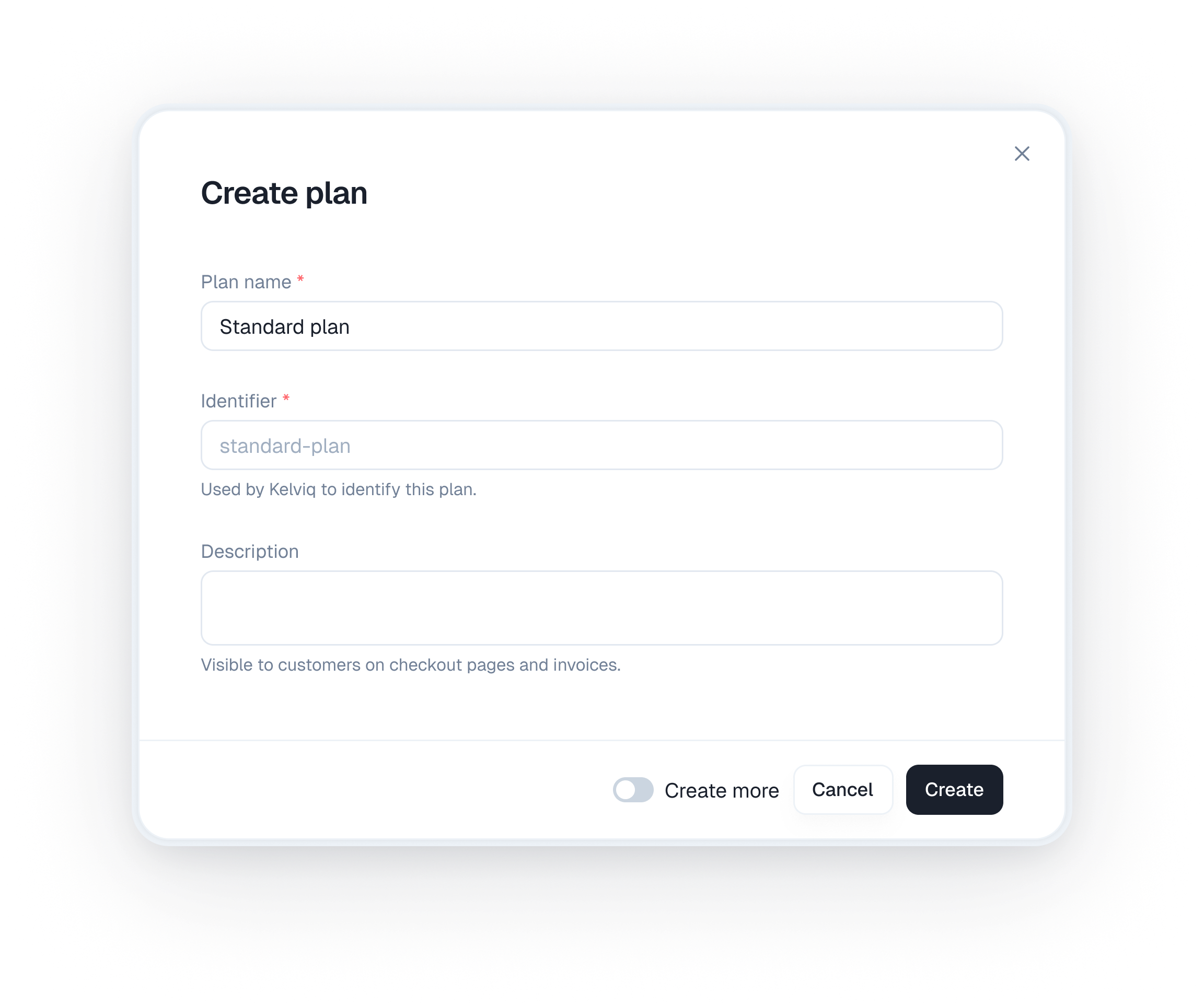 Enable the **Create more** toggle to quickly add multiple plans in a row without closing the modal.
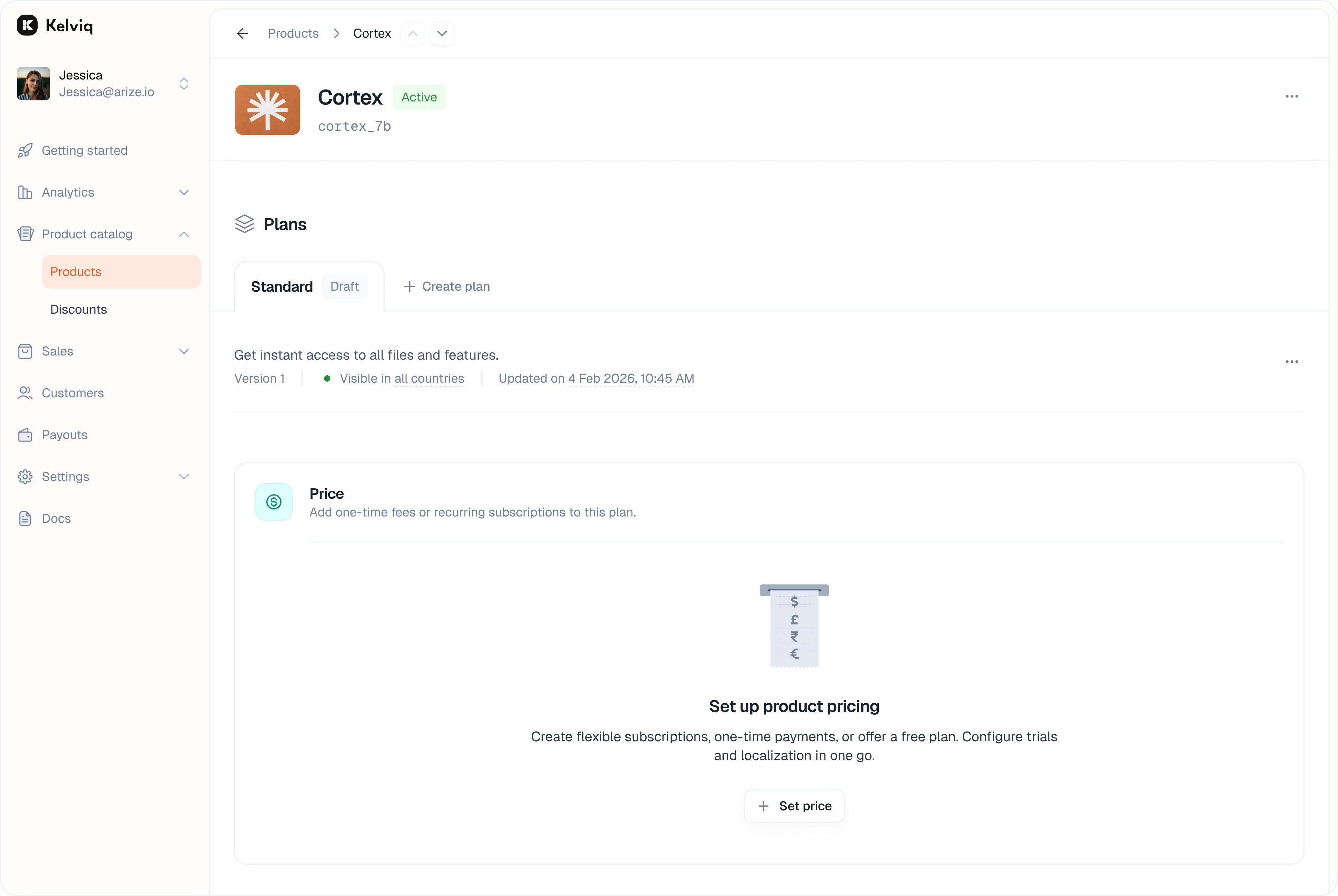
Click **Create**. The plan will appear in your list with a **Draft** badge.
***
## Configure pricing
Click on any draft plan to enter the configuration view. The first step is to set how you charge.
## Pricing models
Once your plan draft exists you can configure how you charge. We split these into dedicated guides.
* [One time payments](/product-catalog/one-time-payments)
* [Subscriptions](/product-catalog/subscriptions)
* [Enterprise and bespoke plans](/product-catalog/create-an-enterprise-plan)
* [Seat based pricing](/product-catalog/seat-based-pricing)
* [Usage based pricing](/product-catalog/usage-based-billing)
* [Free plans and trials](/product-catalog/free-and-trials)
* [Location based pricing](/product-catalog/location-based-pricing)
Enable the **Create more** toggle to quickly add multiple plans in a row without closing the modal.
Click **Create**. The plan will appear in your list with a **Draft** badge.
***
## Configure pricing
Click on any draft plan to enter the configuration view. The first step is to set how you charge.
## Pricing models
Once your plan draft exists you can configure how you charge. We split these into dedicated guides.
* [One time payments](/product-catalog/one-time-payments)
* [Subscriptions](/product-catalog/subscriptions)
* [Enterprise and bespoke plans](/product-catalog/create-an-enterprise-plan)
* [Seat based pricing](/product-catalog/seat-based-pricing)
* [Usage based pricing](/product-catalog/usage-based-billing)
* [Free plans and trials](/product-catalog/free-and-trials)
* [Location based pricing](/product-catalog/location-based-pricing)
 ### Free vs. Paid
Use the toggle in the top right to switch between a free or paid plan.
### Free vs. Paid
Use the toggle in the top right to switch between a free or paid plan.
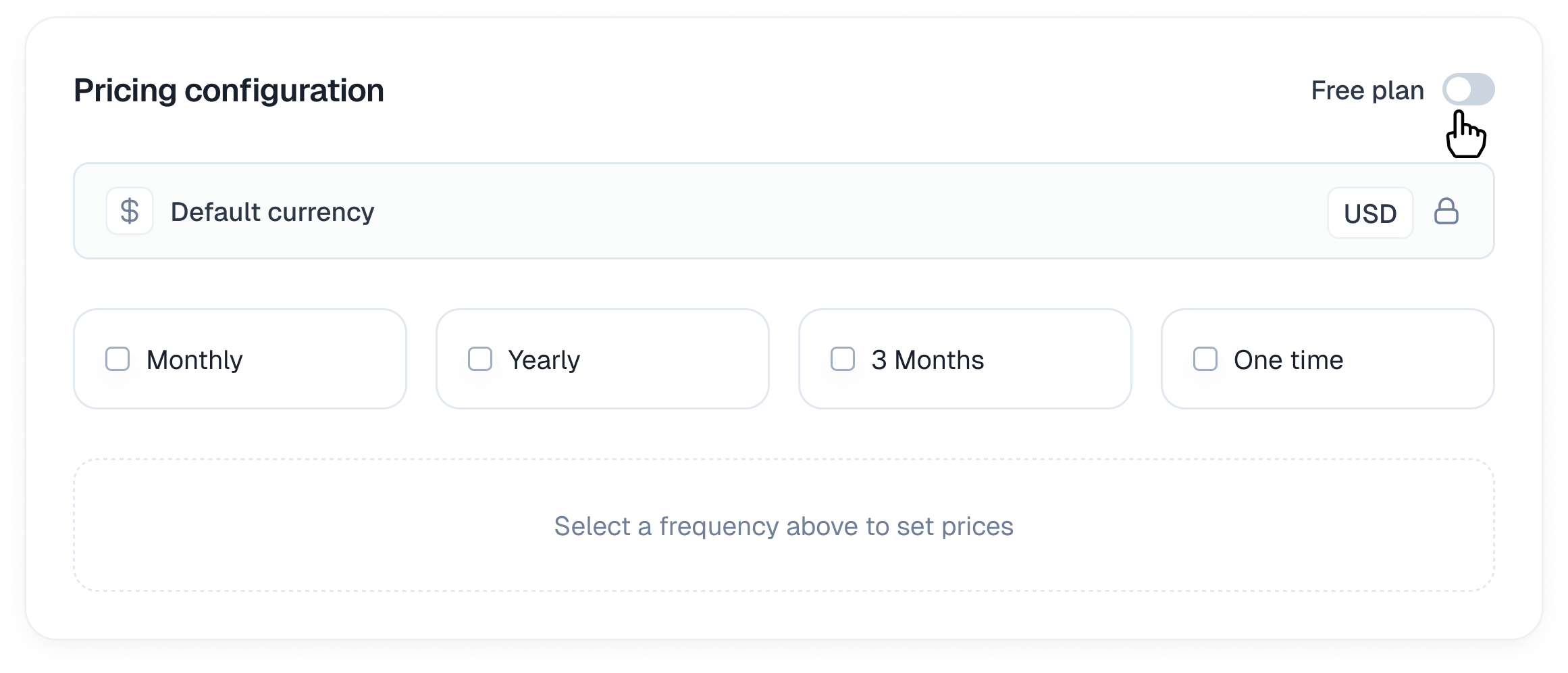 * **Free plan:** Users are not charged. Useful for lead magnets or open-source tiers.
* **Paid plan:** Unlocks the billing configuration options below.
### Billing cycles
Select the intervals you want to offer. You can enable multiple intervals for a single plan.
* **Free plan:** Users are not charged. Useful for lead magnets or open-source tiers.
* **Paid plan:** Unlocks the billing configuration options below.
### Billing cycles
Select the intervals you want to offer. You can enable multiple intervals for a single plan.
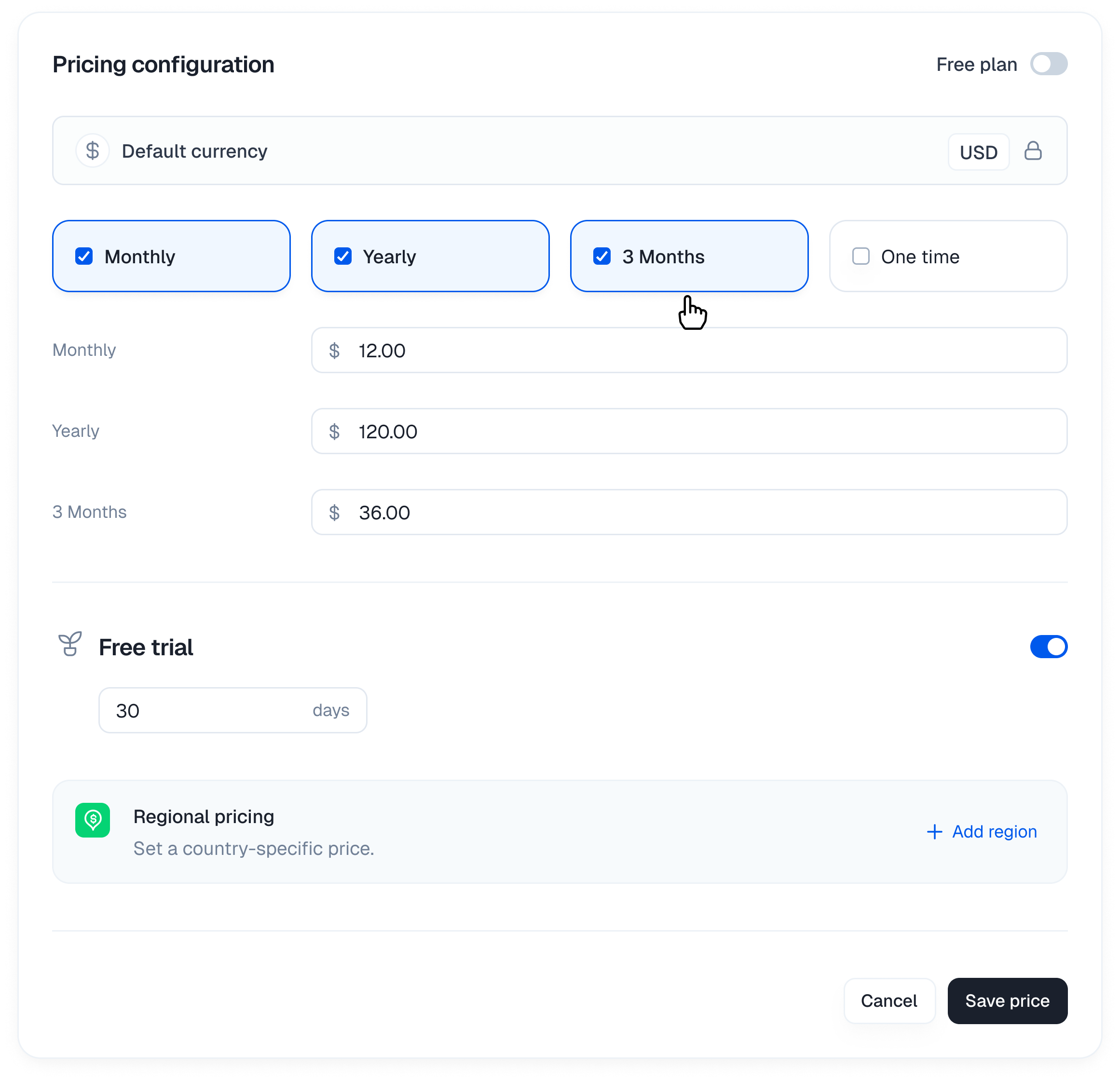 * **28 days:** A recurring four-week subscription.
* **Monthly / Yearly:** Standard recurring subscriptions.
* **3 Months:** Quarterly billing.
* **6 Months:** Billing twice a year.
* **One time:** A single non-recurring payment (lifetime deal).
The 28-day period is useful when you need a consistent four-week renewal schedule rather than a calendar-month renewal.
To test a renewal without waiting for a full month, use a daily billing interval in Sandbox mode. See [Test a subscription renewal](/guides/sandbox#test-a-subscription-renewal).
### Location based pricing
You can set specific prices for different countries rather than relying on auto-conversion.
1. Click **+ Add localized price**.
2. Select the currency (e.g. EUR, INR).
3. Enter the price for that market.
***
## Add deliverables
Configure what the customer receives immediately after purchase. These assets are delivered directly via the customer portal or email.
### Digital downloads
Upload files that are securely delivered after purchase.
1. Expand the **Digital downloads** accordion.
2. Drag and drop your files (up to 5GB total).
3. Customers will see these in their portal immediately after checkout.
### License keys
If you are selling software that requires activation, you can issue unique license keys.
1. Expand the **License keys** accordion.
2. **Activation limit:** Set how many machines or instances can use a single key (e.g. 1 for personal, 5 for team).
3. **License duration:** Define how long the key remains valid (e.g. 1 Year).
### External links
Provide access to resources hosted elsewhere.
1. Expand the **Links** accordion.
2. Add the **Link name** (e.g. Private Discord community).
3. Add the **Link URL**.
***
## Feature & limits
Configure feature access, usage quotas, and API limits.
* **Toggle features:** Turn specific capabilities on or off (e.g. "SSO Access").
* **Numeric limits:** Set quotas (e.g. "5 Projects", "10,000 API calls").
***
## Publishing & Versioning
We protect your live customers by creating a separate version when you edit a plan.
### How it works
* **Safe editing**
When you edit a **Published** plan, we automatically create a new **Unpublished** version. Your live plan remains untouched so customers can keep buying without interruption.
* **Unpublished changes**
You will see a yellow badge indicating you are working on a draft version. You can make as many changes as you want here without affecting the live site.
* **Publishing**
When you click **Publish**, this new version replaces the old one.
### Pushing updates
Because the new version replaces the old one, you need to decide what happens to your current subscribers.
When you click **Publish**, we will ask you to confirm the rollout strategy.
* **For price changes:** You decide whether to grandfather existing users on the old price or migrate them to the new one.
* **For feature changes:** You decide whether to push the new entitlements to existing users immediately or keep them on their legacy configuration.
If you grandfather existing customers, they keep their current price and only new customers see the updated price. If you migrate existing customers, the new price applies to their future renewals.
Most recurring card and debit-card payments do not require the customer to approve the new price again. Some payment methods have additional rules. For example, an Indian UPI AutoPay mandate may require the customer to approve a renewal when the updated amount exceeds the applicable regulatory threshold.
If you change your mind while editing, you can click **Discard** to delete the unpublished version and revert to the live state.
### Plan actions
Click the **⋯** menu next to the **Publish updates** button to access additional options.
| Action | Description |
| ---------------------------------- | --------------------------------------------------------------------------------- |
| **Edit** | Open the plan configuration to make changes |
| **Get Link** | Copy the direct checkout link for this plan |
| **Restrict by country** | Limit which countries can purchase this plan |
| **Archive** | Hide the plan from new customers while keeping it active for existing subscribers |
| **Restore last published version** | Discard unpublished changes and revert to the live version |
| **See last published version** | Preview what customers currently see on the live plan |
* **28 days:** A recurring four-week subscription.
* **Monthly / Yearly:** Standard recurring subscriptions.
* **3 Months:** Quarterly billing.
* **6 Months:** Billing twice a year.
* **One time:** A single non-recurring payment (lifetime deal).
The 28-day period is useful when you need a consistent four-week renewal schedule rather than a calendar-month renewal.
To test a renewal without waiting for a full month, use a daily billing interval in Sandbox mode. See [Test a subscription renewal](/guides/sandbox#test-a-subscription-renewal).
### Location based pricing
You can set specific prices for different countries rather than relying on auto-conversion.
1. Click **+ Add localized price**.
2. Select the currency (e.g. EUR, INR).
3. Enter the price for that market.
***
## Add deliverables
Configure what the customer receives immediately after purchase. These assets are delivered directly via the customer portal or email.
### Digital downloads
Upload files that are securely delivered after purchase.
1. Expand the **Digital downloads** accordion.
2. Drag and drop your files (up to 5GB total).
3. Customers will see these in their portal immediately after checkout.
### License keys
If you are selling software that requires activation, you can issue unique license keys.
1. Expand the **License keys** accordion.
2. **Activation limit:** Set how many machines or instances can use a single key (e.g. 1 for personal, 5 for team).
3. **License duration:** Define how long the key remains valid (e.g. 1 Year).
### External links
Provide access to resources hosted elsewhere.
1. Expand the **Links** accordion.
2. Add the **Link name** (e.g. Private Discord community).
3. Add the **Link URL**.
***
## Feature & limits
Configure feature access, usage quotas, and API limits.
* **Toggle features:** Turn specific capabilities on or off (e.g. "SSO Access").
* **Numeric limits:** Set quotas (e.g. "5 Projects", "10,000 API calls").
***
## Publishing & Versioning
We protect your live customers by creating a separate version when you edit a plan.
### How it works
* **Safe editing**
When you edit a **Published** plan, we automatically create a new **Unpublished** version. Your live plan remains untouched so customers can keep buying without interruption.
* **Unpublished changes**
You will see a yellow badge indicating you are working on a draft version. You can make as many changes as you want here without affecting the live site.
* **Publishing**
When you click **Publish**, this new version replaces the old one.
### Pushing updates
Because the new version replaces the old one, you need to decide what happens to your current subscribers.
When you click **Publish**, we will ask you to confirm the rollout strategy.
* **For price changes:** You decide whether to grandfather existing users on the old price or migrate them to the new one.
* **For feature changes:** You decide whether to push the new entitlements to existing users immediately or keep them on their legacy configuration.
If you grandfather existing customers, they keep their current price and only new customers see the updated price. If you migrate existing customers, the new price applies to their future renewals.
Most recurring card and debit-card payments do not require the customer to approve the new price again. Some payment methods have additional rules. For example, an Indian UPI AutoPay mandate may require the customer to approve a renewal when the updated amount exceeds the applicable regulatory threshold.
If you change your mind while editing, you can click **Discard** to delete the unpublished version and revert to the live state.
### Plan actions
Click the **⋯** menu next to the **Publish updates** button to access additional options.
| Action | Description |
| ---------------------------------- | --------------------------------------------------------------------------------- |
| **Edit** | Open the plan configuration to make changes |
| **Get Link** | Copy the direct checkout link for this plan |
| **Restrict by country** | Limit which countries can purchase this plan |
| **Archive** | Hide the plan from new customers while keeping it active for existing subscribers |
| **Restore last published version** | Discard unpublished changes and revert to the live version |
| **See last published version** | Preview what customers currently see on the live plan |