> ## Documentation Index
> Fetch the complete documentation index at: https://docs.kelviq.com/llms.txt
> Use this file to discover all available pages before exploring further.
# Seat based pricing
> Charge teams for the number of seats they purchase
Seat based pricing ties the subscription price to the number of people who can use an account. A team that buys eight seats pays for eight, even if only six are occupied today.
This guide covers seats purchased in advance. The chosen quantity is included when you create checkout, and your application uses the resulting entitlement as its team-size limit.
If you want to bill for the number of seats that were actually active during the month, use [pay as you go](/product-catalog/pay-as-you-go) instead. Report the active-seat total with `SET` and let Kelviq bill it at the end of the period.
## How the price is calculated
A plan can consist entirely of seat charges or combine them with a fixed base price.
```text theme={null}
Monthly base price: $20
Price per seat: $12
Seats purchased: 8
Monthly subtotal: $20 + ($12 × 8) = $116
```
Kelviq carries the seat quantity from checkout into the subscription. The resulting entitlement tells your application how many seats the customer purchased.
## Create the seat feature
These steps create a Meter feature specifically for seats. For the general dashboard and API workflows, see [Create a feature in Kelviq](/product-catalog/create-a-feature).
1. Open **Product catalog → Features**.
2. Click **Create feature**.
3. Enter a clear name such as `Seats`.
4. Use a stable identifier such as `seats`.
5. Select **Meter** as the feature type.
6. Set the singular unit to `seat` and the plural unit to `seats`.
7. Create the feature.
Use a Meter feature rather than a Customizable feature. Kelviq can attach a price to the Meter feature and accept its quantity during checkout.
Purchased-seat pricing does not require usage reports. Although Seats is a Meter feature, its billable quantity comes from checkout and subscription updates.
## Add the seat price to a plan
1. Open the product and edit the plan you want to sell.
2. Make the plan **Paid** and select its billing periods, such as Monthly and Yearly.
3. Enter the plan's base price. Use this for the fixed part of the subscription, if any.
4. Open **Usage charges**.
 5. Select the `seats` feature.
6. For **Billing model**, choose **Advance commitment**. The customer is purchasing the seats before using them.
7. For **Pricing model**, choose **Flat** for a standard per-seat price.
8. Enter the price per unit for every billing period. For example, use `$12` under Monthly and `$120` under Yearly.
9. Save the price and publish the plan.
5. Select the `seats` feature.
6. For **Billing model**, choose **Advance commitment**. The customer is purchasing the seats before using them.
7. For **Pricing model**, choose **Flat** for a standard per-seat price.
8. Enter the price per unit for every billing period. For example, use `$12` under Monthly and `$120` under Yearly.
9. Save the price and publish the plan.
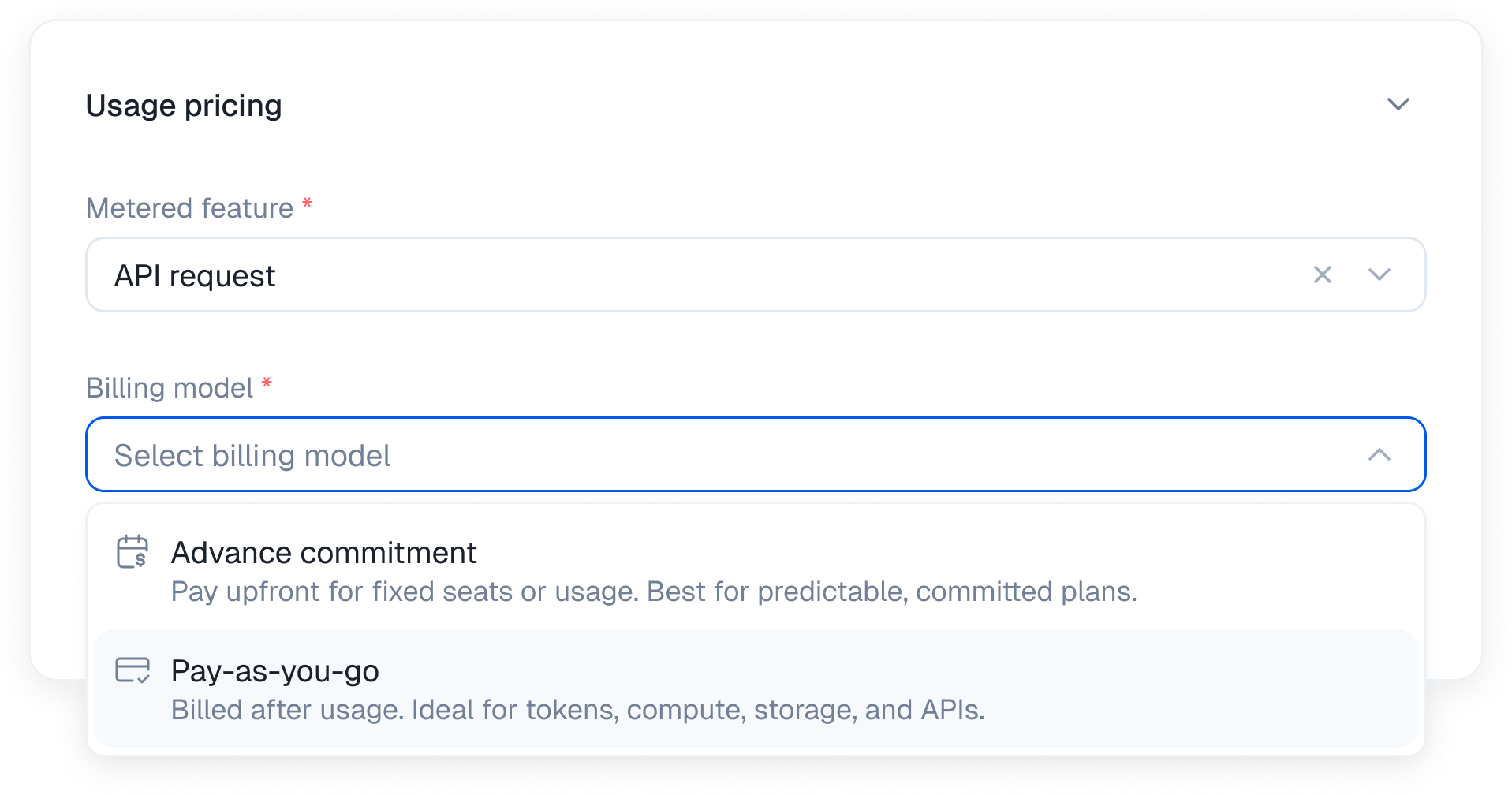 The seat rate belongs under Usage charges even though this is not usage billed in arrears. **Advance commitment** is what makes the selected quantity an upfront seat purchase.
## Other ways to price seats
Most teams start with one price per seat. You can also sell seats in packages, lower the rate at higher quantities, or charge a fixed amount for each range.
| Pricing model | Seat calculation | Example |
| ------------- | ------------------------------------------------- | --------------------------------------------- |
| Flat | Every seat has the same price | 8 seats × $12 = $96 |
| Package | Seats are sold in fixed-size packs | \$50 for each block of 5 seats |
| Tiered | Each range of seats uses its own rate | Seats 1–10 at $15, then seats 11–25 at $12 |
| Volume | The final seat count sets the rate for every seat | 1–10 seats at $15 each; 11+ seats at $12 each |
| Stair-step | The seat count selects one fixed charge | $100 for up to 10 seats; $220 for up to 25 |
See [Usage based pricing](/product-catalog/usage-based-billing) for the calculation rules for Package, Tiered, Volume, and Stair-step pricing.
## Send the seat count to checkout
Kelviq's pricing UI can show a quantity input for a priced Meter feature. If you build your own pricing page, send the selected seat count in the checkout request.
### Node.js
```ts theme={null}
import { CHARGE_PERIOD_CHOICES, Kelviq } from "@kelviq/node-sdk";
const client = new Kelviq({
accessToken: process.env.KELVIQ_SERVER_API_KEY!,
});
const seatCount = 8;
const session = await client.checkout.createSession({
planIdentifier: "team-plan",
chargePeriod: CHARGE_PERIOD_CHOICES.MONTHLY,
customerId: "customer_001",
successUrl: "https://app.example.com/billing/success",
features: [
{
identifier: "seats",
quantity: seatCount,
},
],
});
return Response.redirect(session.checkoutUrl);
```
### REST API
```bash theme={null}
curl --request POST \
--url https://api.kelviq.com/api/v1/checkout/ \
--header "Authorization: Bearer $KELVIQ_SERVER_API_KEY" \
--header "Content-Type: application/json" \
--data '{
"planIdentifier": "team-plan",
"chargePeriod": "MONTHLY",
"customerId": "customer_001",
"successUrl": "https://app.example.com/billing/success",
"features": [
{
"identifier": "seats",
"quantity": 8
}
]
}'
```
The `features` array uses the feature identifier, not its dashboard UUID. `quantity` is the number of seats the customer wants to purchase.
Create the checkout session on your backend. Validate that the quantity is a positive whole number, and never expose the Server API Key in browser code.
See [Create a checkout session](/api-reference/checkout/create-a-checkout-session) for the full request schema.
## Enforce the purchased limit
After payment and subscription creation, read the customer's seat entitlement from your backend. For a Meter feature, `usageLimit` is the purchased capacity.
```ts theme={null}
const entitlement = await client.entitlements.getEntitlement({
customerId: "customer_001",
featureId: "seats",
});
const purchasedSeats = entitlement?.usageLimit ?? 0;
const activeMembers = await db.teamMember.count({
where: { teamId: "team_001", status: "active" },
});
if (activeMembers >= purchasedSeats) {
throw new Error("No seats available. Add another seat before inviting a member.");
}
```
Check the limit when the team owner sends or accepts an invitation. A frontend-only check is easy to bypass, so keep the final enforcement on your server.
`hasAccess` answers whether the customer can use the feature. It does not tell you whether one more team member fits. Compare your active member count with `usageLimit` for that decision.
## Change the seat count
Use the subscription update endpoint when a customer adds or removes seats. Send the complete new quantity, not the difference from the old quantity.
```ts theme={null}
import { CHARGE_PERIOD_CHOICES } from "@kelviq/node-sdk";
await client.subscriptions.update({
subscriptionId: "dffaf07e-4517-47db-ba3a-59a05aa2d465",
planIdentifier: "team-plan",
chargePeriod: CHARGE_PERIOD_CHOICES.MONTHLY,
features: [
{
identifier: "seats",
quantity: 12,
},
],
});
```
The update request still needs `planIdentifier` and `chargePeriod`, even when the plan is not changing. After the request succeeds, read the entitlement again before making the additional capacity available.
Before reducing a subscription below the current team size, ask the customer to remove or deactivate members. Otherwise, the subscription and your application's active-member count will disagree.
See [Update a subscription](/api-reference/subscriptions/update-a-subscription) for the complete API request.
## Purchased seats versus active seats
Choose one source of truth for billing.
| Model | Where the quantity comes from | When the customer pays |
| --------------- | --------------------------------- | ---------------------------------- |
| Purchased seats | Checkout and subscription updates | At the start of the billing period |
| Active seats | Usage reported by your backend | At the end of each monthly period |
For active-seat billing, configure the Seats feature as Pay as you go and send the current active-seat total with `SET`. Do not send both a purchased quantity and usage reports for the same seat charge, or the two models will conflict.
## Seats are not license activations
A seat normally represents a member of a team or workspace. A license activation represents a device or software installation.
Use seat based pricing when the customer pays for people who can join an account. Use [license keys](/product-catalog/license-keys) when you need to limit how many devices can activate downloaded software. A single customer may use both, but they should have separate limits.
## Test in sandbox
1. Switch the dashboard to Sandbox.
2. Create the Seats feature and a seat based plan there.
3. Create a checkout session with a small quantity, such as 3.
4. Confirm that checkout shows the expected base and seat charges.
5. Complete the test payment.
6. Read the `seats` entitlement and confirm that its limit matches the purchased quantity.
7. Update the subscription to 5 seats and check the entitlement again.
Sandbox and production use separate catalog data and API keys. See [Sandbox](/guides/sandbox) before moving the integration to production.
## Troubleshooting
### The total does not change with the seat count
Confirm that Seats is a Meter feature, that it has a price under Usage charges, and that the checkout request includes the exact `seats` identifier in `features`.
### The quantity input is missing
Publish the latest version of the plan and check that the seat feature is enabled and priced for the selected billing period.
### The entitlement has the wrong limit
Check that the checkout, customer, plan, and API key belong to the same environment. Then inspect the checkout or subscription request and confirm that `quantity` contains the complete desired seat count.
### A team can exceed its purchased seats
Kelviq stores the entitlement, but your application must enforce it when members are invited or activated. Compare the active-member count with `usageLimit` on your backend.
### A seat reduction would leave too many active members
Do not remove members automatically unless your product explicitly promises that behavior. Ask a team owner to choose which members lose access, then submit the lower quantity.
The seat rate belongs under Usage charges even though this is not usage billed in arrears. **Advance commitment** is what makes the selected quantity an upfront seat purchase.
## Other ways to price seats
Most teams start with one price per seat. You can also sell seats in packages, lower the rate at higher quantities, or charge a fixed amount for each range.
| Pricing model | Seat calculation | Example |
| ------------- | ------------------------------------------------- | --------------------------------------------- |
| Flat | Every seat has the same price | 8 seats × $12 = $96 |
| Package | Seats are sold in fixed-size packs | \$50 for each block of 5 seats |
| Tiered | Each range of seats uses its own rate | Seats 1–10 at $15, then seats 11–25 at $12 |
| Volume | The final seat count sets the rate for every seat | 1–10 seats at $15 each; 11+ seats at $12 each |
| Stair-step | The seat count selects one fixed charge | $100 for up to 10 seats; $220 for up to 25 |
See [Usage based pricing](/product-catalog/usage-based-billing) for the calculation rules for Package, Tiered, Volume, and Stair-step pricing.
## Send the seat count to checkout
Kelviq's pricing UI can show a quantity input for a priced Meter feature. If you build your own pricing page, send the selected seat count in the checkout request.
### Node.js
```ts theme={null}
import { CHARGE_PERIOD_CHOICES, Kelviq } from "@kelviq/node-sdk";
const client = new Kelviq({
accessToken: process.env.KELVIQ_SERVER_API_KEY!,
});
const seatCount = 8;
const session = await client.checkout.createSession({
planIdentifier: "team-plan",
chargePeriod: CHARGE_PERIOD_CHOICES.MONTHLY,
customerId: "customer_001",
successUrl: "https://app.example.com/billing/success",
features: [
{
identifier: "seats",
quantity: seatCount,
},
],
});
return Response.redirect(session.checkoutUrl);
```
### REST API
```bash theme={null}
curl --request POST \
--url https://api.kelviq.com/api/v1/checkout/ \
--header "Authorization: Bearer $KELVIQ_SERVER_API_KEY" \
--header "Content-Type: application/json" \
--data '{
"planIdentifier": "team-plan",
"chargePeriod": "MONTHLY",
"customerId": "customer_001",
"successUrl": "https://app.example.com/billing/success",
"features": [
{
"identifier": "seats",
"quantity": 8
}
]
}'
```
The `features` array uses the feature identifier, not its dashboard UUID. `quantity` is the number of seats the customer wants to purchase.
Create the checkout session on your backend. Validate that the quantity is a positive whole number, and never expose the Server API Key in browser code.
See [Create a checkout session](/api-reference/checkout/create-a-checkout-session) for the full request schema.
## Enforce the purchased limit
After payment and subscription creation, read the customer's seat entitlement from your backend. For a Meter feature, `usageLimit` is the purchased capacity.
```ts theme={null}
const entitlement = await client.entitlements.getEntitlement({
customerId: "customer_001",
featureId: "seats",
});
const purchasedSeats = entitlement?.usageLimit ?? 0;
const activeMembers = await db.teamMember.count({
where: { teamId: "team_001", status: "active" },
});
if (activeMembers >= purchasedSeats) {
throw new Error("No seats available. Add another seat before inviting a member.");
}
```
Check the limit when the team owner sends or accepts an invitation. A frontend-only check is easy to bypass, so keep the final enforcement on your server.
`hasAccess` answers whether the customer can use the feature. It does not tell you whether one more team member fits. Compare your active member count with `usageLimit` for that decision.
## Change the seat count
Use the subscription update endpoint when a customer adds or removes seats. Send the complete new quantity, not the difference from the old quantity.
```ts theme={null}
import { CHARGE_PERIOD_CHOICES } from "@kelviq/node-sdk";
await client.subscriptions.update({
subscriptionId: "dffaf07e-4517-47db-ba3a-59a05aa2d465",
planIdentifier: "team-plan",
chargePeriod: CHARGE_PERIOD_CHOICES.MONTHLY,
features: [
{
identifier: "seats",
quantity: 12,
},
],
});
```
The update request still needs `planIdentifier` and `chargePeriod`, even when the plan is not changing. After the request succeeds, read the entitlement again before making the additional capacity available.
Before reducing a subscription below the current team size, ask the customer to remove or deactivate members. Otherwise, the subscription and your application's active-member count will disagree.
See [Update a subscription](/api-reference/subscriptions/update-a-subscription) for the complete API request.
## Purchased seats versus active seats
Choose one source of truth for billing.
| Model | Where the quantity comes from | When the customer pays |
| --------------- | --------------------------------- | ---------------------------------- |
| Purchased seats | Checkout and subscription updates | At the start of the billing period |
| Active seats | Usage reported by your backend | At the end of each monthly period |
For active-seat billing, configure the Seats feature as Pay as you go and send the current active-seat total with `SET`. Do not send both a purchased quantity and usage reports for the same seat charge, or the two models will conflict.
## Seats are not license activations
A seat normally represents a member of a team or workspace. A license activation represents a device or software installation.
Use seat based pricing when the customer pays for people who can join an account. Use [license keys](/product-catalog/license-keys) when you need to limit how many devices can activate downloaded software. A single customer may use both, but they should have separate limits.
## Test in sandbox
1. Switch the dashboard to Sandbox.
2. Create the Seats feature and a seat based plan there.
3. Create a checkout session with a small quantity, such as 3.
4. Confirm that checkout shows the expected base and seat charges.
5. Complete the test payment.
6. Read the `seats` entitlement and confirm that its limit matches the purchased quantity.
7. Update the subscription to 5 seats and check the entitlement again.
Sandbox and production use separate catalog data and API keys. See [Sandbox](/guides/sandbox) before moving the integration to production.
## Troubleshooting
### The total does not change with the seat count
Confirm that Seats is a Meter feature, that it has a price under Usage charges, and that the checkout request includes the exact `seats` identifier in `features`.
### The quantity input is missing
Publish the latest version of the plan and check that the seat feature is enabled and priced for the selected billing period.
### The entitlement has the wrong limit
Check that the checkout, customer, plan, and API key belong to the same environment. Then inspect the checkout or subscription request and confirm that `quantity` contains the complete desired seat count.
### A team can exceed its purchased seats
Kelviq stores the entitlement, but your application must enforce it when members are invited or activated. Compare the active-member count with `usageLimit` on your backend.
### A seat reduction would leave too many active members
Do not remove members automatically unless your product explicitly promises that behavior. Ask a team owner to choose which members lose access, then submit the lower quantity.