> ## Documentation Index
> Fetch the complete documentation index at: https://docs.kelviq.com/llms.txt
> Use this file to discover all available pages before exploring further.
# Subscriptions
> Set up recurring billing and understand renewals and failed payments
Subscriptions are the default for traditional SaaS products. You charge customers on a regular schedule to maintain access to your application.
## Set up recurring billing
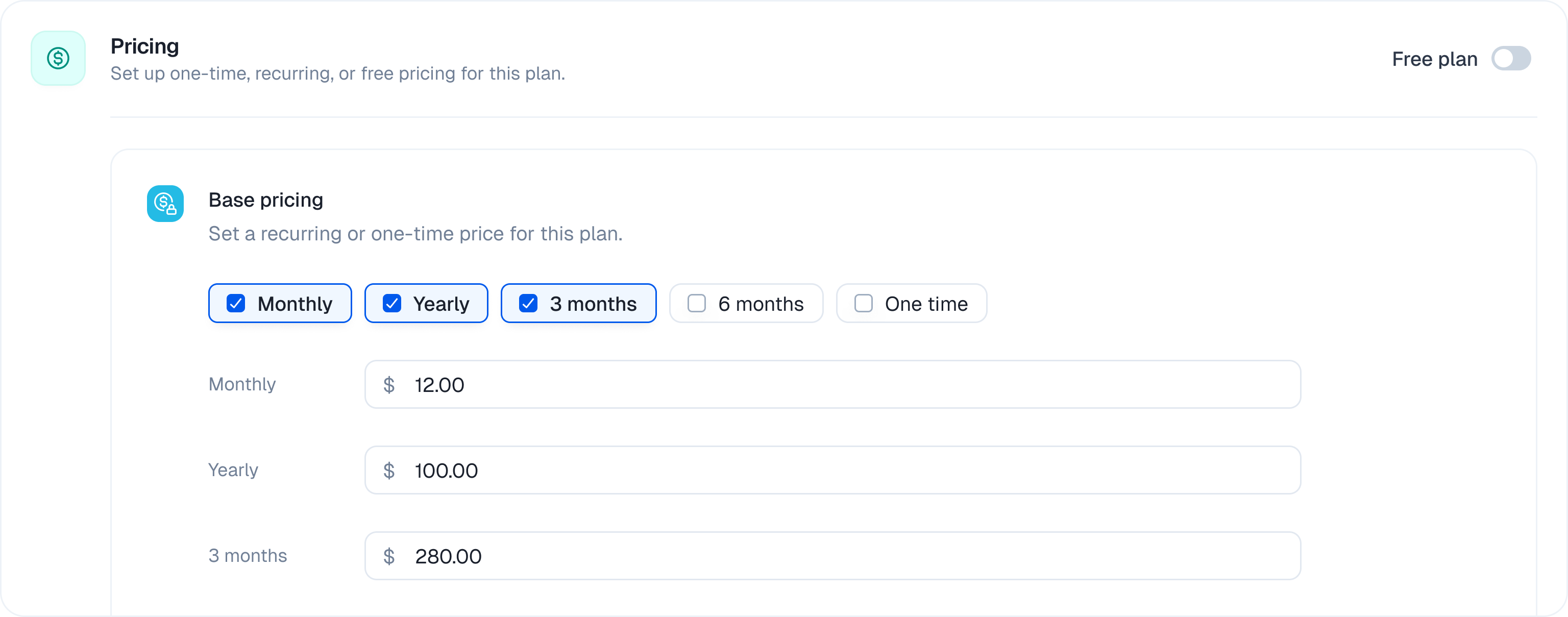 1. Open a draft plan and make sure it is set to **Paid**.
2. Under **Billing cycles**, select the recurring intervals you want to offer, such as **28 days**, **Monthly**, **3 Months**, **6 Months**, or **Yearly**.
3. Enter the price for each interval.
4. Click **Save**.
You can enable multiple intervals on one plan. Customers choose among the enabled intervals at checkout.
A 28-day subscription renews every four weeks. It is not the same as a calendar-month subscription. If the **28 days** option is not visible for your organization, contact Kelviq support to have it enabled.
## Subscription lifecycle
Kelviq handles recurring payments automatically. This includes:
* Charging the saved payment method at the end of each billing cycle
* Sending receipts and tax invoices
* Retrying failed card payments
* Applying prorated charges when a customer changes plans during a billing cycle
Check the current subscription status with the Kelviq SDK or API. If your application needs event notifications, use [webhooks](/guides/webhooks).
## Change a subscription
By default, plan upgrades and downgrades take effect immediately. As soon as the change is processed, Kelviq applies the new plan and its feature limits.
For a paid change, you can wait until payment succeeds before activating the new plan. Pass `paymentBehavior: "activate_on_payment"` when you update the subscription:
```json theme={null}
{
"planIdentifier": "premium-plan",
"chargePeriod": "MONTHLY",
"paymentBehavior": "activate_on_payment"
}
```
Omit `paymentBehavior` to keep the default immediate-update behavior.
### Wait for payment before changing access
`activate_on_payment` keeps the customer's current subscription active while payment for the change is pending. This prevents an unpaid plan change from replacing working access.
| Payment stage | Current subscription | Updated subscription |
| ----------------------------------------------------------------------------------- | ----------------------- | ------------------------------- |
| A saved card is charged successfully without customer action | Changes to `superseded` | Changes to `active` |
| UPI, a 3DS card, or another method requires customer action | Remains `active` | Starts as `incomplete` |
| The customer completes payment | Changes to `superseded` | Changes to `active` |
| The immediate charge fails, or the customer does not complete payment before expiry | Remains `active` | Changes to `incomplete_expired` |
Card payments that do not require authentication are usually completed during the update request, so the status change can happen immediately. When the payment method requires customer action, continue using the existing subscription until the updated subscription becomes `active`.
A successful update API response does not always mean the new plan is active. When you use `activate_on_payment`, check the subscription status or the customer's current entitlements before granting access to the new plan.
### Upgrades
Kelviq prorates the price change against the time left in the current billing period. It credits the unused portion of the old plan, charges for the remaining portion of the new plan, and collects the net difference.
With `activate_on_payment`, Kelviq waits for that payment to succeed before activating the upgraded plan.
For example, if a customer moves from a $100 monthly plan to a $200 monthly plan halfway through the period, the approximate calculation is:
| Item | Amount |
| ------------------------------ | -----------: |
| Unused half of the old plan | -\$50 credit |
| Remaining half of the new plan | \$100 charge |
| Net amount collected | \$50 |
The exact amount depends on when the upgrade is processed. Existing usage counters are retained and evaluated against the new plan's limits.
### Downgrades
Under the default payment behavior, downgrades also apply immediately. If the customer has unused value on the higher-priced plan, Kelviq converts it to account credit and applies that credit to future invoices.
An immediate downgrade can lower a customer's limits below their current usage. Check the customer's entitlements after the change and decide how your application should handle any over-limit state.
## Cancel a subscription
When cancelling, choose whether the subscription should end immediately or at the end of the current billing period. A plan downgrade and a subscription cancellation are separate actions: the downgrade follows the payment behavior you choose, while the cancellation follows the timing option you select.
## Refund a cancelled subscription
Kelviq does not automatically refund unused time when a subscription is cancelled mid-period. You decide whether to issue a full refund, a partial refund, or no refund.
For a usage-based subscription, calculate the refund under your own policy using the customer's consumed usage and remaining time. Kelviq does not currently calculate usage-adjusted refunds for you. Once you decide the amount, open the corresponding order in the dashboard and issue the full or partial refund there.
## Failed subscription payments
A failed automatic card payment does not cancel the customer's payment authorization. Kelviq can use the same authorization for later attempts and future billing cycles.
If the customer pays the failed card invoice manually, automatic payments remain active. Kelviq will still use the saved payment method for the next billing cycle.
### Card payment retries
When an automatic card payment fails, the subscription moves to `past_due`. Kelviq retries the payment up to eight times over the next 14 days. If recovery is unsuccessful, Kelviq cancels the subscription.
After each failed attempt, Kelviq emails the customer a link to pay the invoice. The customer can also use the [Customer Portal](/customer-portal/managing-payment-methods) to update their payment method.
You do not need to schedule retries, send card payment links, or ask the customer to set up automatic payments again. Kelviq handles this recovery flow.
This retry schedule applies only to cards. Kelviq does not retry a failed non-card renewal or send a recovery payment link. The subscription is canceled after the payment fails.
1. Open a draft plan and make sure it is set to **Paid**.
2. Under **Billing cycles**, select the recurring intervals you want to offer, such as **28 days**, **Monthly**, **3 Months**, **6 Months**, or **Yearly**.
3. Enter the price for each interval.
4. Click **Save**.
You can enable multiple intervals on one plan. Customers choose among the enabled intervals at checkout.
A 28-day subscription renews every four weeks. It is not the same as a calendar-month subscription. If the **28 days** option is not visible for your organization, contact Kelviq support to have it enabled.
## Subscription lifecycle
Kelviq handles recurring payments automatically. This includes:
* Charging the saved payment method at the end of each billing cycle
* Sending receipts and tax invoices
* Retrying failed card payments
* Applying prorated charges when a customer changes plans during a billing cycle
Check the current subscription status with the Kelviq SDK or API. If your application needs event notifications, use [webhooks](/guides/webhooks).
## Change a subscription
By default, plan upgrades and downgrades take effect immediately. As soon as the change is processed, Kelviq applies the new plan and its feature limits.
For a paid change, you can wait until payment succeeds before activating the new plan. Pass `paymentBehavior: "activate_on_payment"` when you update the subscription:
```json theme={null}
{
"planIdentifier": "premium-plan",
"chargePeriod": "MONTHLY",
"paymentBehavior": "activate_on_payment"
}
```
Omit `paymentBehavior` to keep the default immediate-update behavior.
### Wait for payment before changing access
`activate_on_payment` keeps the customer's current subscription active while payment for the change is pending. This prevents an unpaid plan change from replacing working access.
| Payment stage | Current subscription | Updated subscription |
| ----------------------------------------------------------------------------------- | ----------------------- | ------------------------------- |
| A saved card is charged successfully without customer action | Changes to `superseded` | Changes to `active` |
| UPI, a 3DS card, or another method requires customer action | Remains `active` | Starts as `incomplete` |
| The customer completes payment | Changes to `superseded` | Changes to `active` |
| The immediate charge fails, or the customer does not complete payment before expiry | Remains `active` | Changes to `incomplete_expired` |
Card payments that do not require authentication are usually completed during the update request, so the status change can happen immediately. When the payment method requires customer action, continue using the existing subscription until the updated subscription becomes `active`.
A successful update API response does not always mean the new plan is active. When you use `activate_on_payment`, check the subscription status or the customer's current entitlements before granting access to the new plan.
### Upgrades
Kelviq prorates the price change against the time left in the current billing period. It credits the unused portion of the old plan, charges for the remaining portion of the new plan, and collects the net difference.
With `activate_on_payment`, Kelviq waits for that payment to succeed before activating the upgraded plan.
For example, if a customer moves from a $100 monthly plan to a $200 monthly plan halfway through the period, the approximate calculation is:
| Item | Amount |
| ------------------------------ | -----------: |
| Unused half of the old plan | -\$50 credit |
| Remaining half of the new plan | \$100 charge |
| Net amount collected | \$50 |
The exact amount depends on when the upgrade is processed. Existing usage counters are retained and evaluated against the new plan's limits.
### Downgrades
Under the default payment behavior, downgrades also apply immediately. If the customer has unused value on the higher-priced plan, Kelviq converts it to account credit and applies that credit to future invoices.
An immediate downgrade can lower a customer's limits below their current usage. Check the customer's entitlements after the change and decide how your application should handle any over-limit state.
## Cancel a subscription
When cancelling, choose whether the subscription should end immediately or at the end of the current billing period. A plan downgrade and a subscription cancellation are separate actions: the downgrade follows the payment behavior you choose, while the cancellation follows the timing option you select.
## Refund a cancelled subscription
Kelviq does not automatically refund unused time when a subscription is cancelled mid-period. You decide whether to issue a full refund, a partial refund, or no refund.
For a usage-based subscription, calculate the refund under your own policy using the customer's consumed usage and remaining time. Kelviq does not currently calculate usage-adjusted refunds for you. Once you decide the amount, open the corresponding order in the dashboard and issue the full or partial refund there.
## Failed subscription payments
A failed automatic card payment does not cancel the customer's payment authorization. Kelviq can use the same authorization for later attempts and future billing cycles.
If the customer pays the failed card invoice manually, automatic payments remain active. Kelviq will still use the saved payment method for the next billing cycle.
### Card payment retries
When an automatic card payment fails, the subscription moves to `past_due`. Kelviq retries the payment up to eight times over the next 14 days. If recovery is unsuccessful, Kelviq cancels the subscription.
After each failed attempt, Kelviq emails the customer a link to pay the invoice. The customer can also use the [Customer Portal](/customer-portal/managing-payment-methods) to update their payment method.
You do not need to schedule retries, send card payment links, or ask the customer to set up automatic payments again. Kelviq handles this recovery flow.
This retry schedule applies only to cards. Kelviq does not retry a failed non-card renewal or send a recovery payment link. The subscription is canceled after the payment fails.