> ## Documentation Index
> Fetch the complete documentation index at: https://docs.kelviq.com/llms.txt
> Use this file to discover all available pages before exploring further.
# Orders
> Track revenue and manage individual customer purchases
The **Orders** page is your central hub for transaction history. It shows a real-time list of every purchase made through your checkout.
Navigate to **Sales > Orders** in the sidebar to access it.
 ## The order list
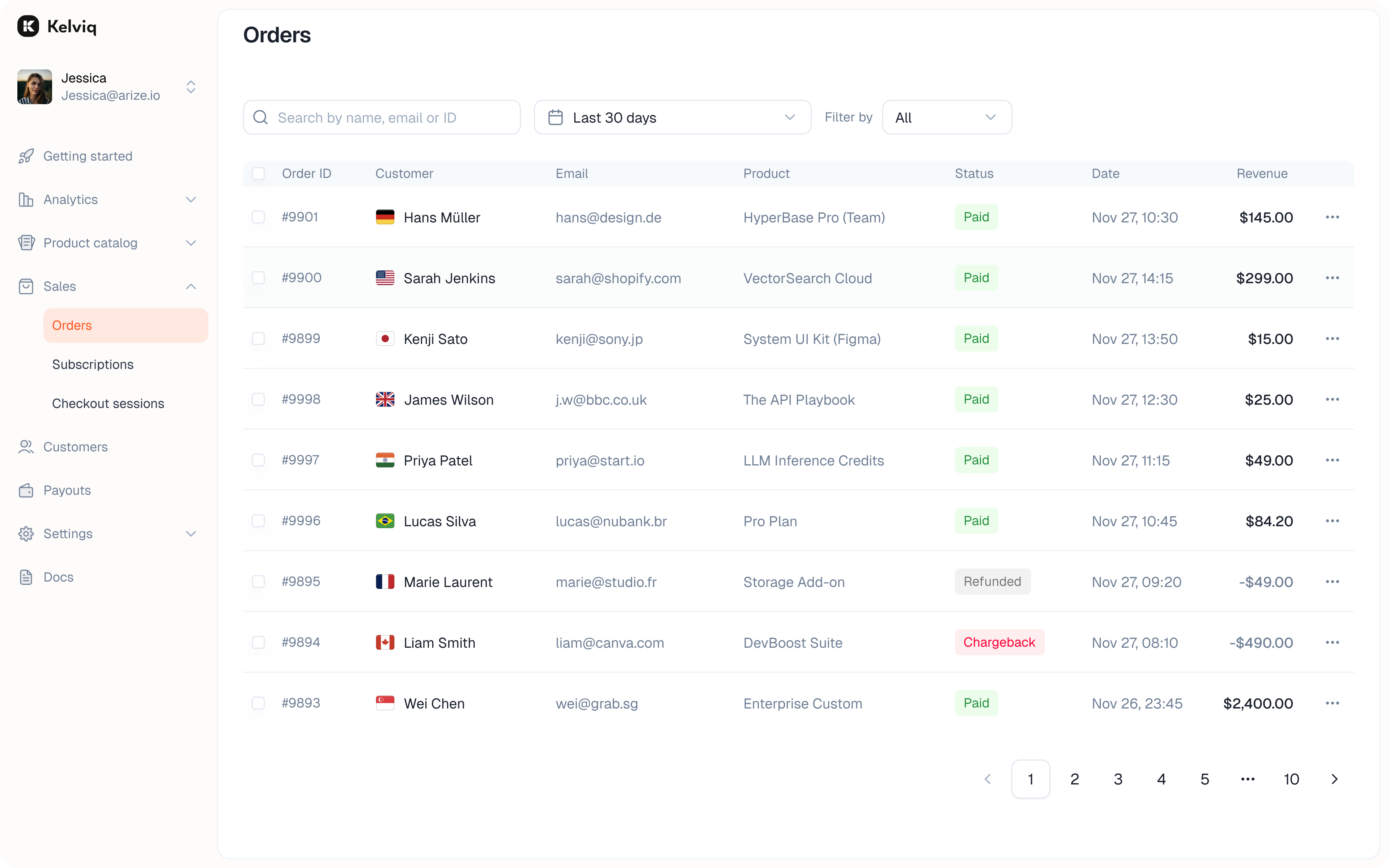
The main view provides a high-level summary of your incoming revenue. You can see:
* **Customer:** Email address of the buyer.
* **Product:** What they purchased.
* **Status:** The current state (Paid, Refunded, Chargeback).
* **Date:** When the order was placed.
* **Revenue:** The total amount captured.
### Filtering
You can filter the list to find specific transactions.
* **Date range:** Select specific days or months.
* **Status:** Filter by Paid, Refunded, or Chargeback.
### Quick actions
Click the **three-dot menu (...)** on any row to perform quick actions without opening the full details.
## The order list
The main view provides a high-level summary of your incoming revenue. You can see:
* **Customer:** Email address of the buyer.
* **Product:** What they purchased.
* **Status:** The current state (Paid, Refunded, Chargeback).
* **Date:** When the order was placed.
* **Revenue:** The total amount captured.
### Filtering
You can filter the list to find specific transactions.
* **Date range:** Select specific days or months.
* **Status:** Filter by Paid, Refunded, or Chargeback.
### Quick actions
Click the **three-dot menu (...)** on any row to perform quick actions without opening the full details.
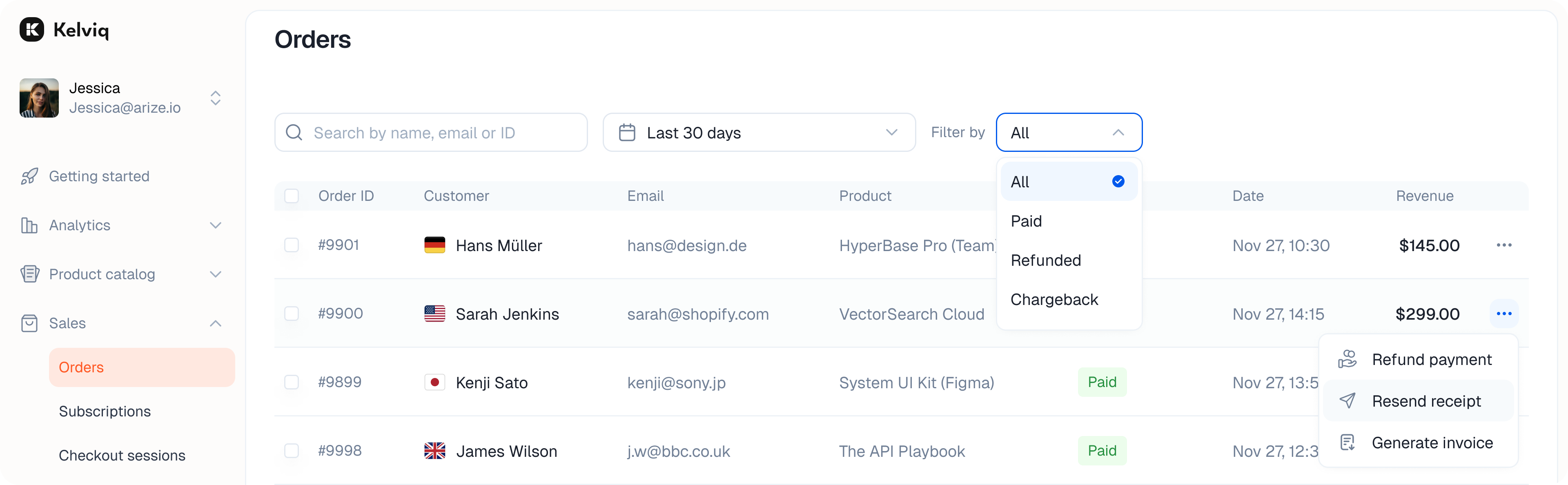 * **Refund payment:** Initiate a full or partial refund.
* **Send receipt:** Resend the email receipt to the customer.
* **Generate invoice:** Download the official invoice for the transaction.
***
## Order details
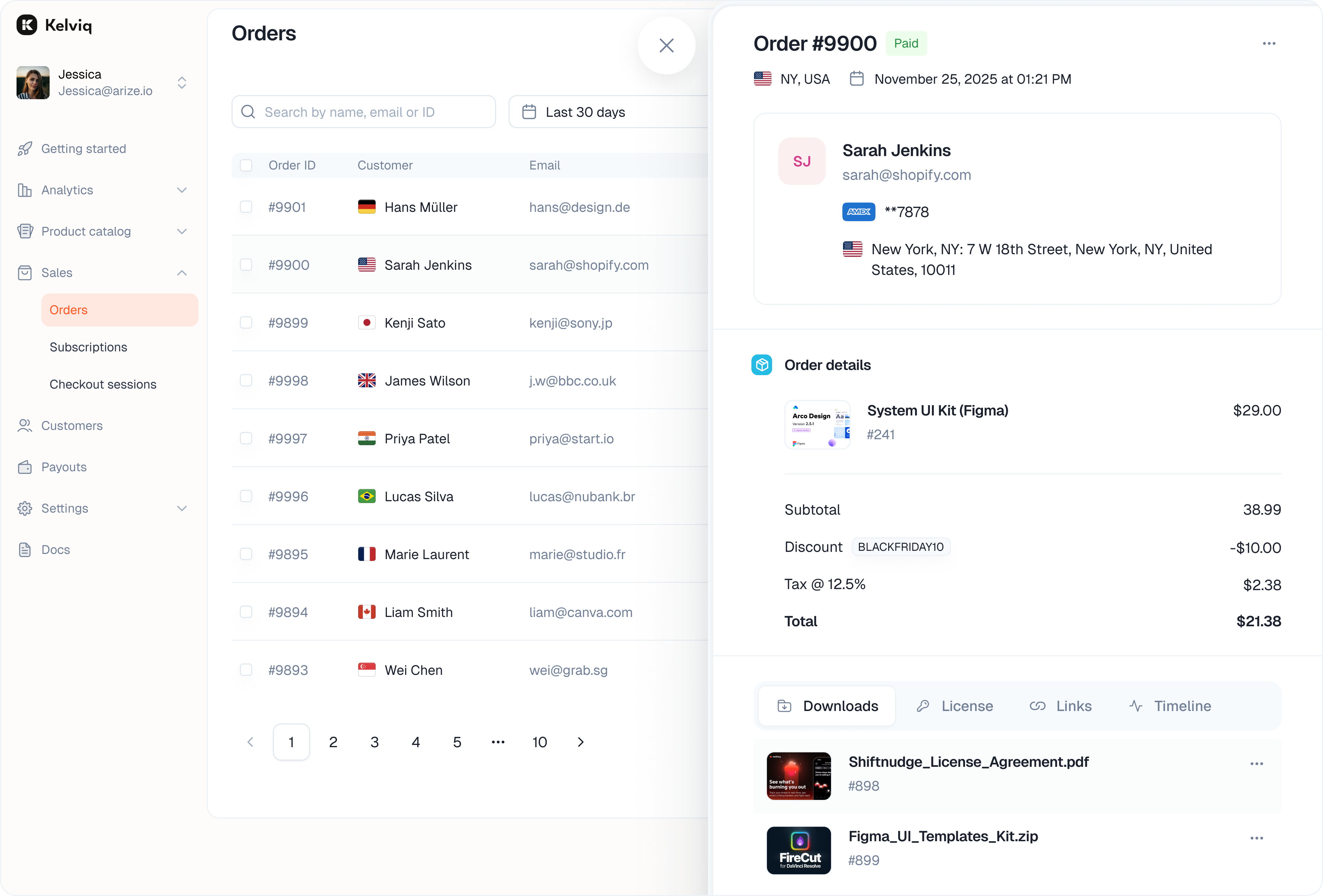
Click on any row to open the **Order Drawer**. This panel gives you complete control over that specific transaction.
* **Refund payment:** Initiate a full or partial refund.
* **Send receipt:** Resend the email receipt to the customer.
* **Generate invoice:** Download the official invoice for the transaction.
***
## Order details
Click on any row to open the **Order Drawer**. This panel gives you complete control over that specific transaction.
 ### Overview
The default view shows the core transaction data.
* **Customer details:** Name, email, and IP address.
* **Payment info:** Credit card last-4, banking details, and billing address.
* **Order summary:** Line items, taxes (VAT/GST), discounts applied, and the total charge.
### Deliverables
Manage exactly what this specific customer received.
* **Licenses:**
View the generated license key. You can edit activation limits, change the expiry date, or deactivate the key entirely if you suspect abuse.
* **Downloads:**
See which files the customer has access to. You can remove or hide specific files for this order if you need to revoke access to a particular asset.
* **Links:**
View the external links shared with this customer.
### Subscription
If the order is tied to a recurring plan, a **Subscription** tab will appear.
* Click the subscription ID to see the full billing history.
* Check upcoming renewal dates and past invoices.
* See if other products were bundled in the same plan.
### Timeline
The timeline acts as an audit log for the order. It tracks every event chronologically.
### Overview
The default view shows the core transaction data.
* **Customer details:** Name, email, and IP address.
* **Payment info:** Credit card last-4, banking details, and billing address.
* **Order summary:** Line items, taxes (VAT/GST), discounts applied, and the total charge.
### Deliverables
Manage exactly what this specific customer received.
* **Licenses:**
View the generated license key. You can edit activation limits, change the expiry date, or deactivate the key entirely if you suspect abuse.
* **Downloads:**
See which files the customer has access to. You can remove or hide specific files for this order if you need to revoke access to a particular asset.
* **Links:**
View the external links shared with this customer.
### Subscription
If the order is tied to a recurring plan, a **Subscription** tab will appear.
* Click the subscription ID to see the full billing history.
* Check upcoming renewal dates and past invoices.
* See if other products were bundled in the same plan.
### Timeline
The timeline acts as an audit log for the order. It tracks every event chronologically.
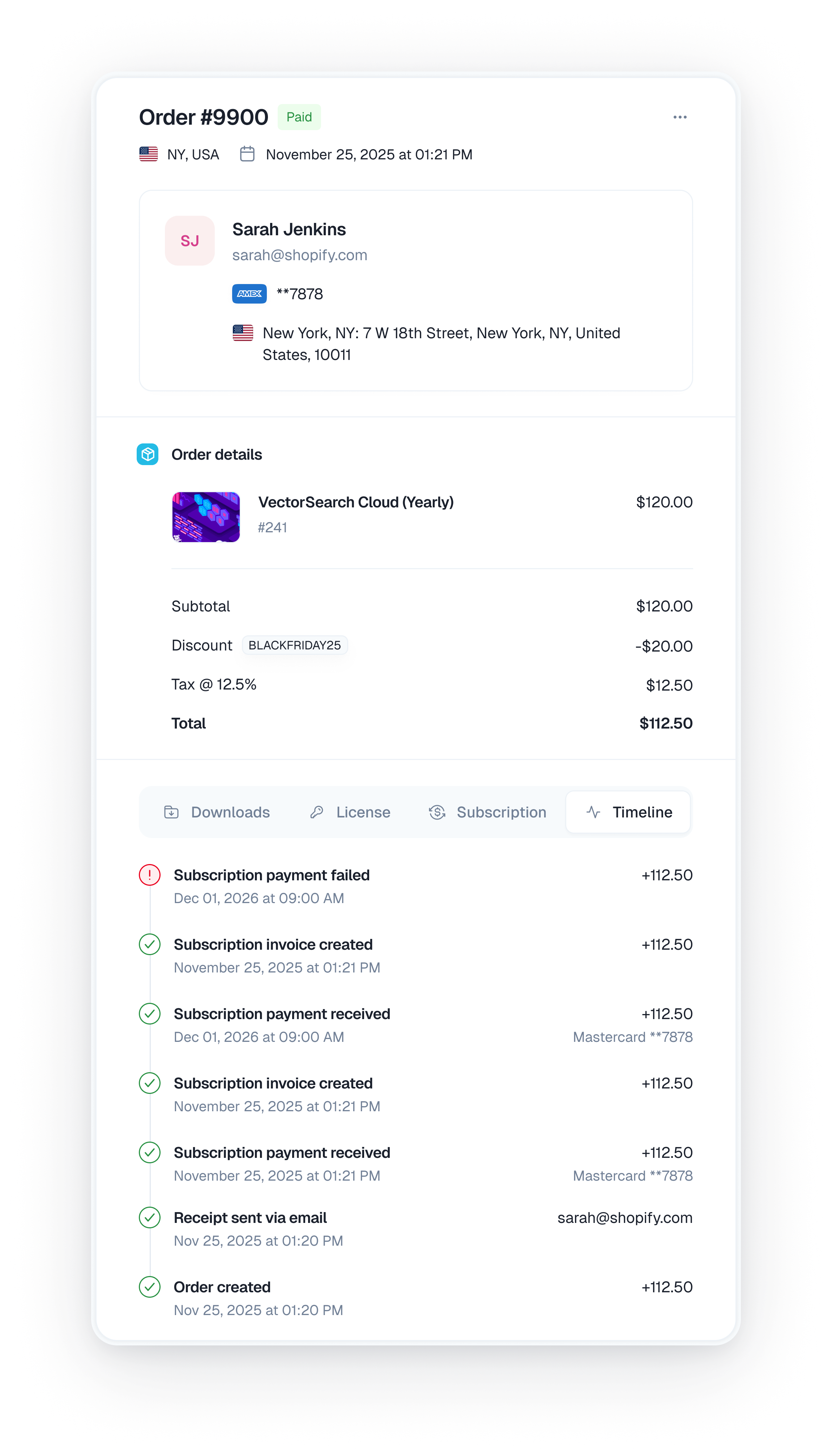 * Order created
* Receipts and invoices sent
* Payment success or failure
* Subscription creation
This is useful for debugging customer issues, such as verifying if they actually received their receipt email.
* Order created
* Receipts and invoices sent
* Payment success or failure
* Subscription creation
This is useful for debugging customer issues, such as verifying if they actually received their receipt email.