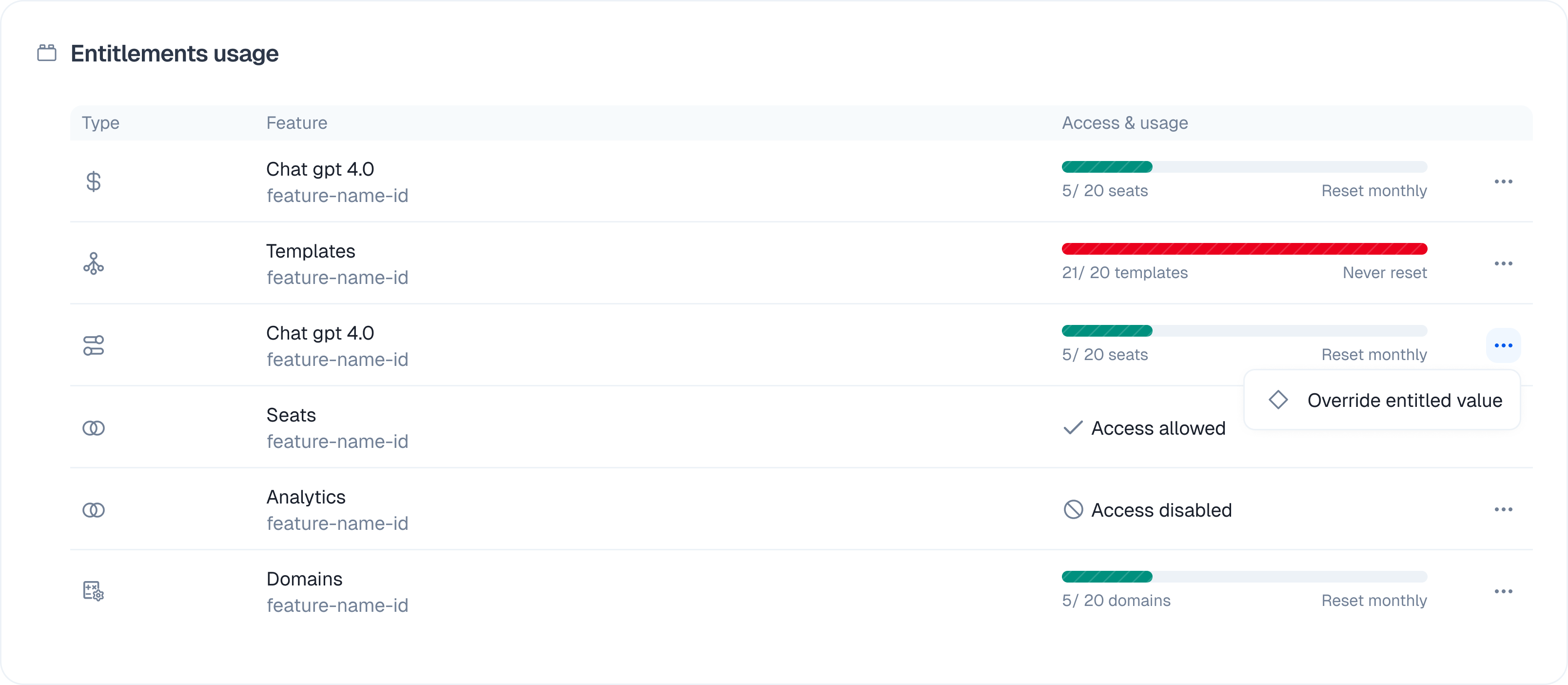
View customer list
Select Customers in the main navigation to see your list. You can do a few things here.- Search by name, email, or identifier.
- Add a new customer with the button in the top right.
- Manage a customer by clicking their row to see details.
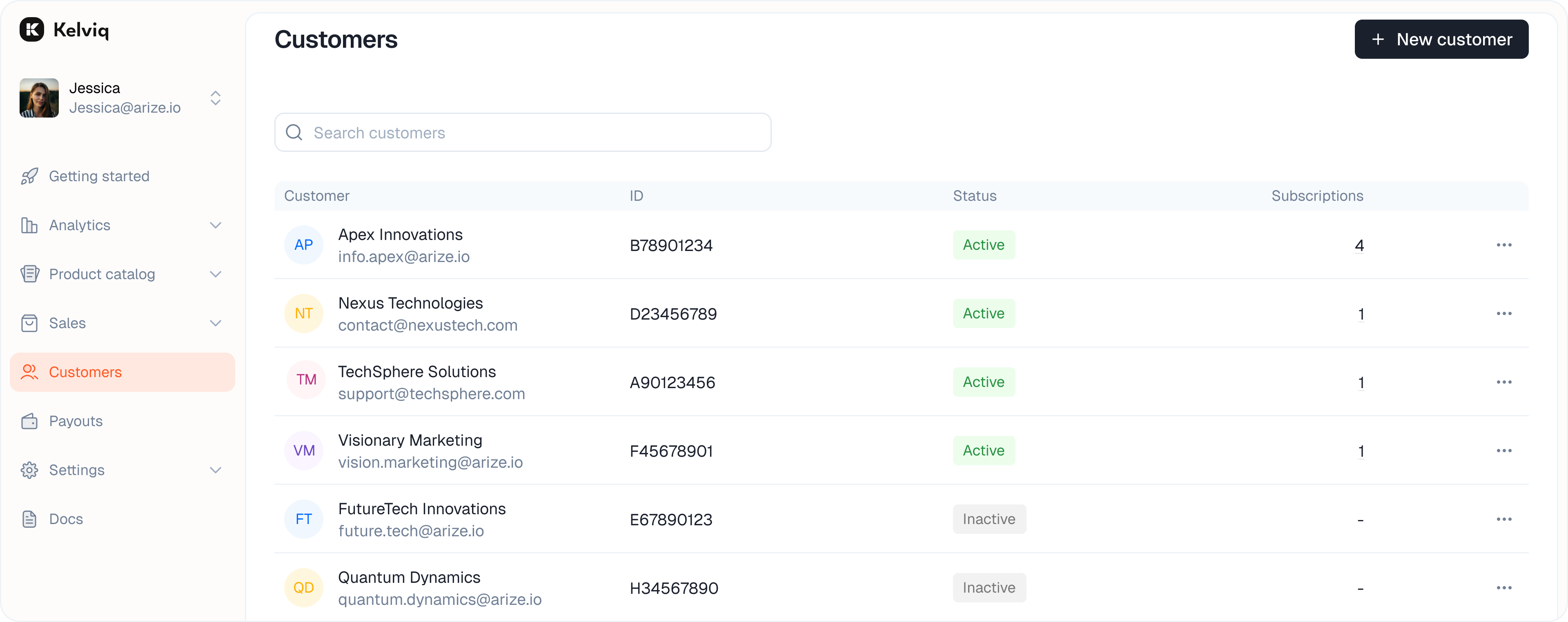
Add a new customer
You can create records manually.1
Open the modal
Click + New customer in the top right of the list page.
2
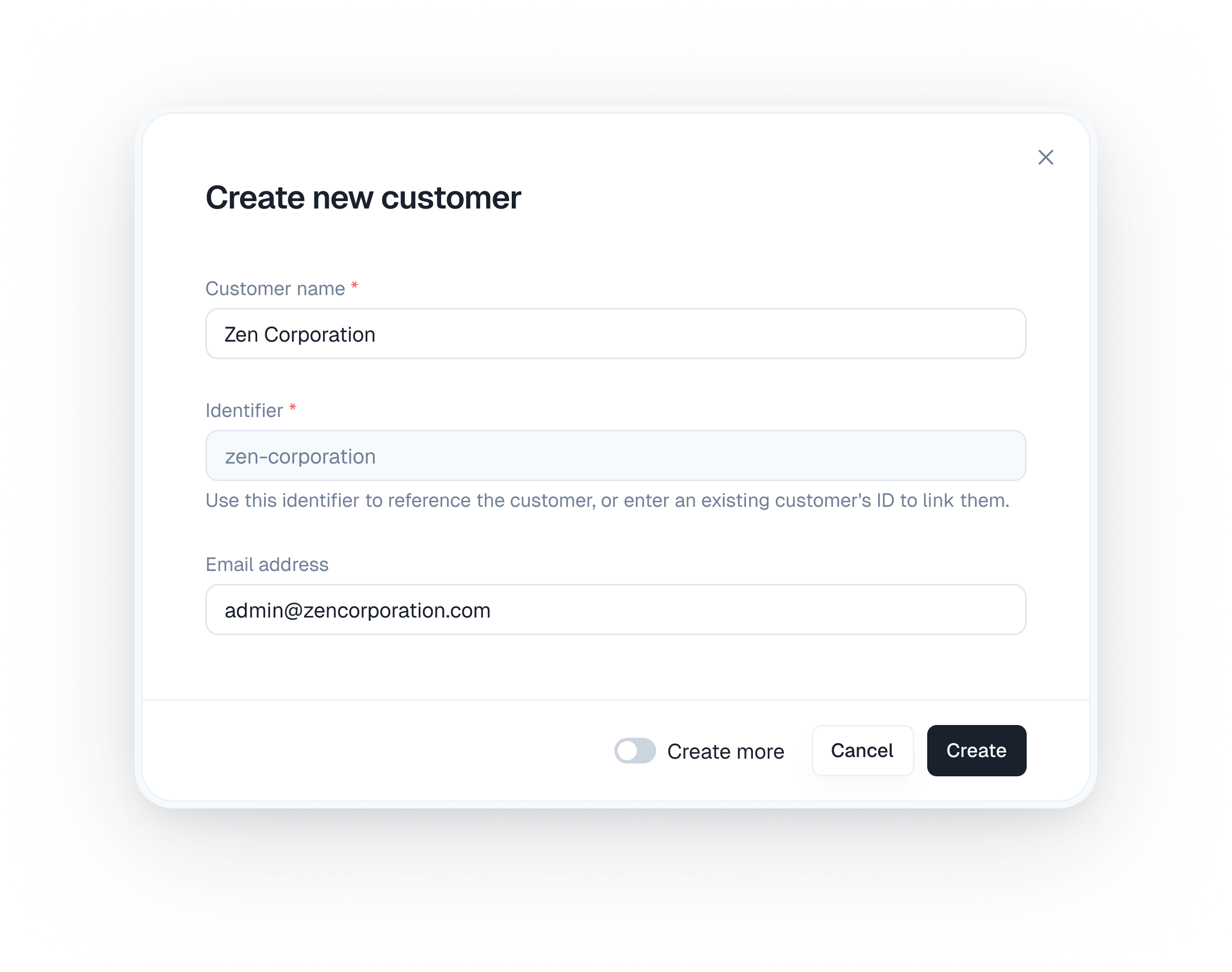
Fill in details
You need to provide a few key pieces of info.
- Customer name is required. Use the person’s full name or company name.
- Identifier is the unique ID the API uses. We auto-generate this based on the name, but you can edit it. Linking this to the ID in your own database is usually a good idea.
- Email address is optional.
3
Create
Click Create to finish.If you are adding a batch of people, toggle on Create more. This keeps the window open so you can add the next one immediately.
More than one customer record can use the same email address, but every record must have a unique Identifier. The API calls this value
customerId.When recreating a test customer, you can reuse the email address, but you must provide a new Identifier. An Identifier cannot be reused after its customer is archived. If you receive a customer already exists error, check the Identifier first.Manage existing customers
You can edit details or revoke access from the list view.Edit a customer
Click the three dots on the right side of the customer row and select Edit.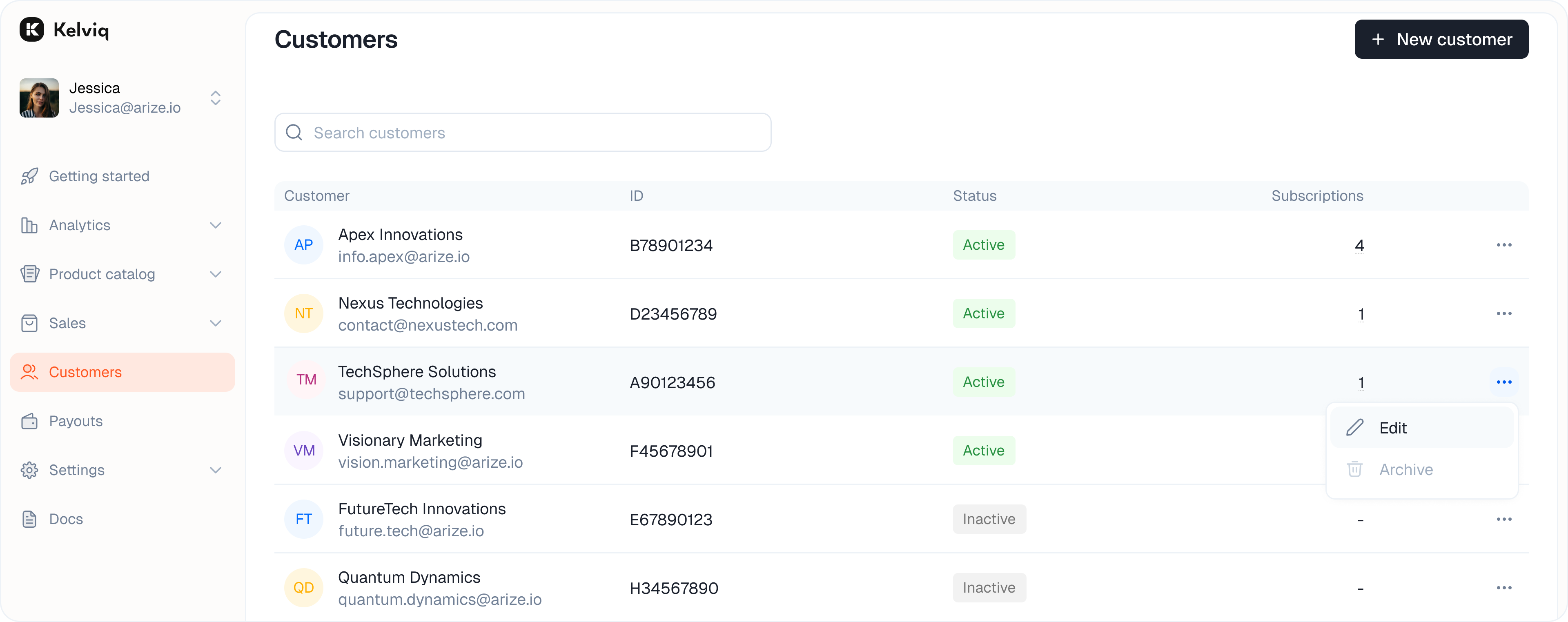
Archive a customer
Archiving makes a customer inactive and revokes their access. Click the three dots and select Archive.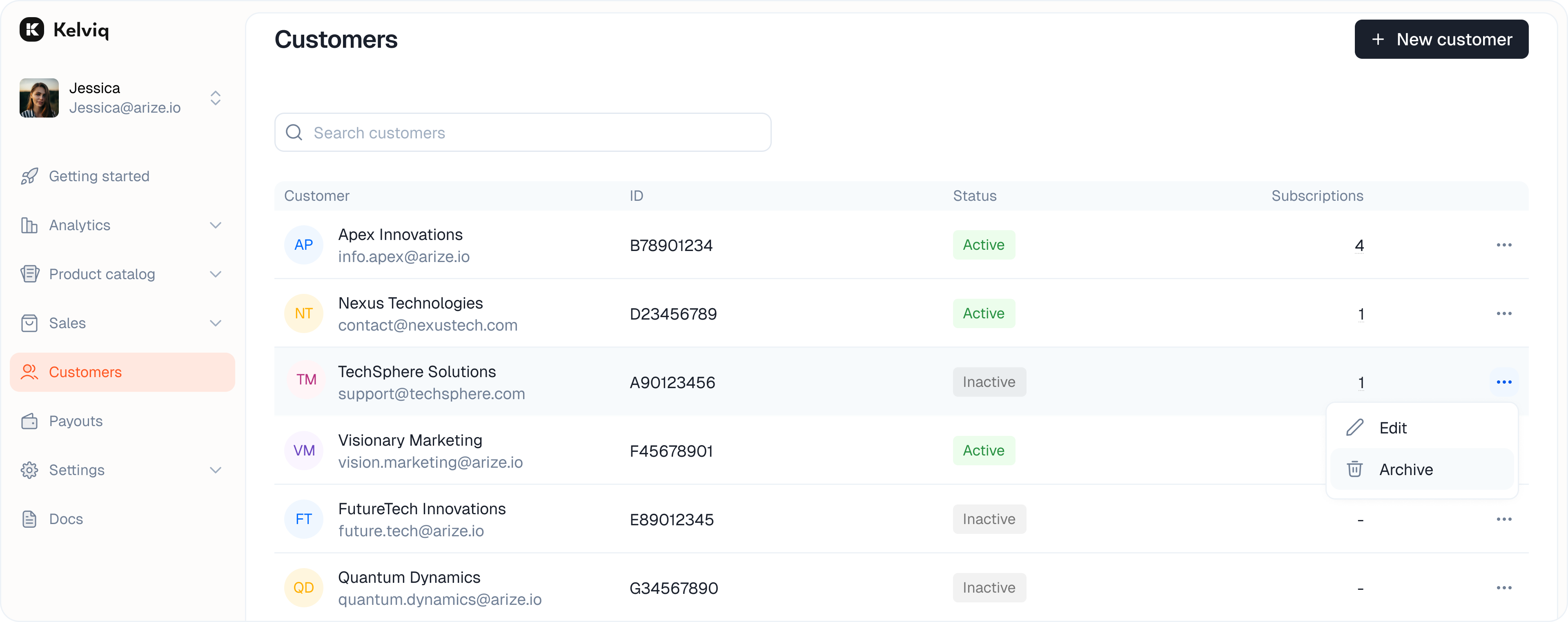
Customer details
Click on any customer row to open their full profile. This page holds the source of truth for that user. You can see their unique Billing ID and timestamps for when they joined or were last updated.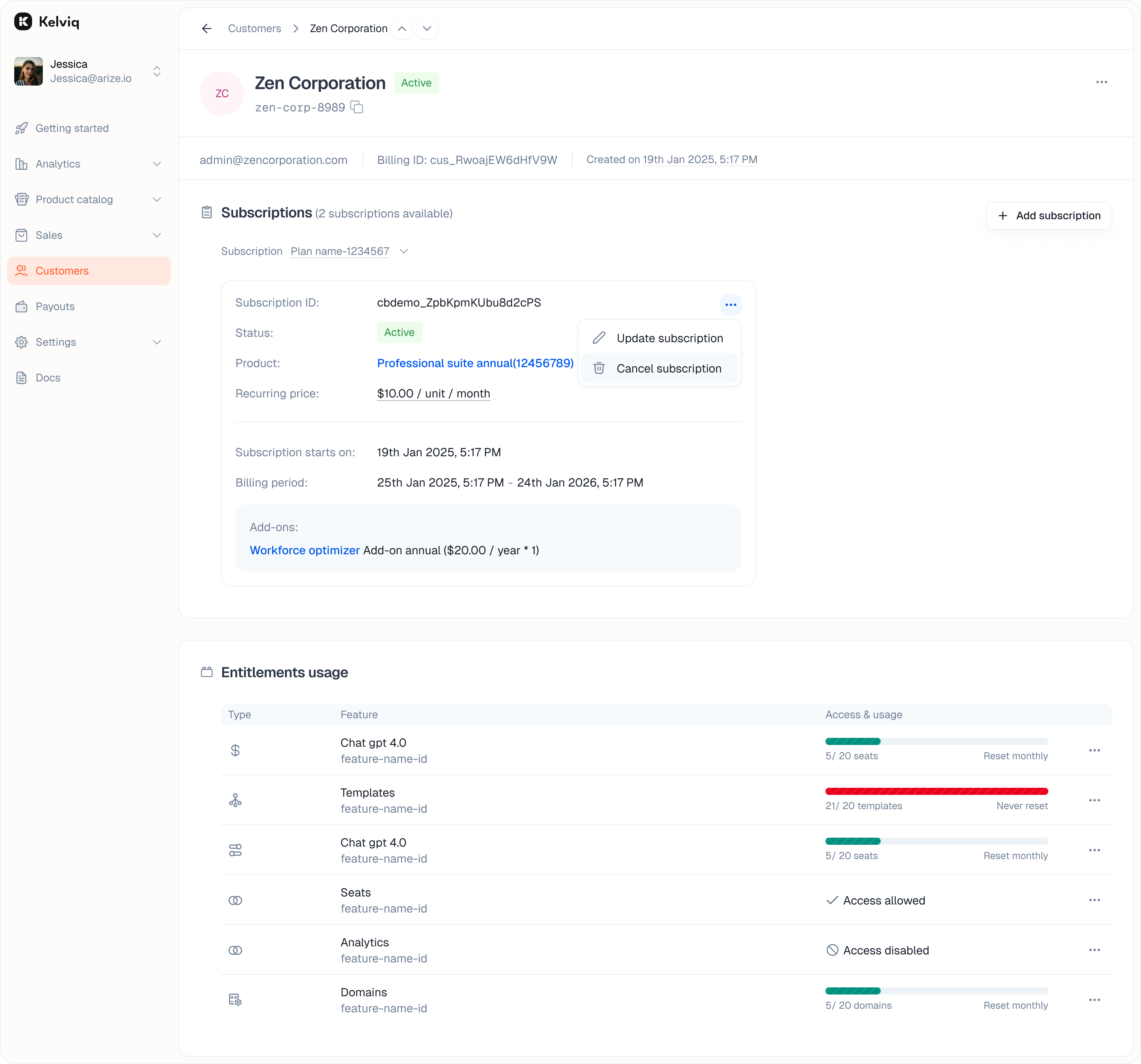
Subscriptions
This section lists active and past plans. It shows the status, such as Active or Canceled, and the relevant dates. For a cancelled subscription, the date it was cancelled appears alongside the status.Files, links, and license keys
The customer detail page shows the deliverables the customer received through their plans:- Files — View and download digital files available to the customer.
- Links — Open private or external resource links attached to the plan.
- License keys — View issued license keys and use the available license-management controls.
Entitlements
This view shows exactly what the customer can do right now based on their plan. Overrides You often need to make exceptions for specific users. You can do that here without changing the underlying plan.- Change the value of a specific feature.
- Update the usage limit for a metered feature.