

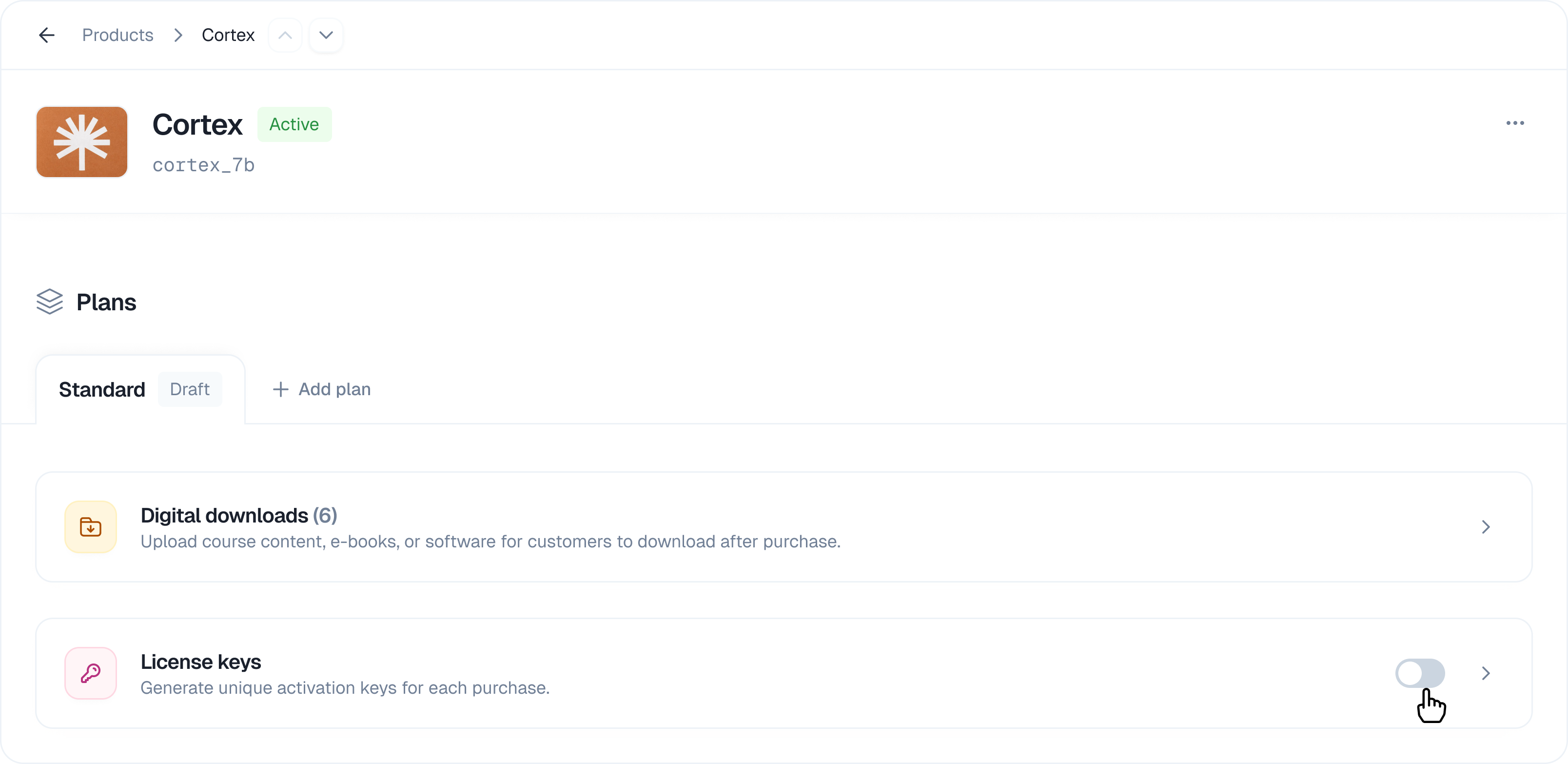
1. Enabling Licenses on a Plan
License keys are configured at the plan level. When enabled, every order placed for that plan will automatically generate a unique license key for the customer.How to Enable Licenses
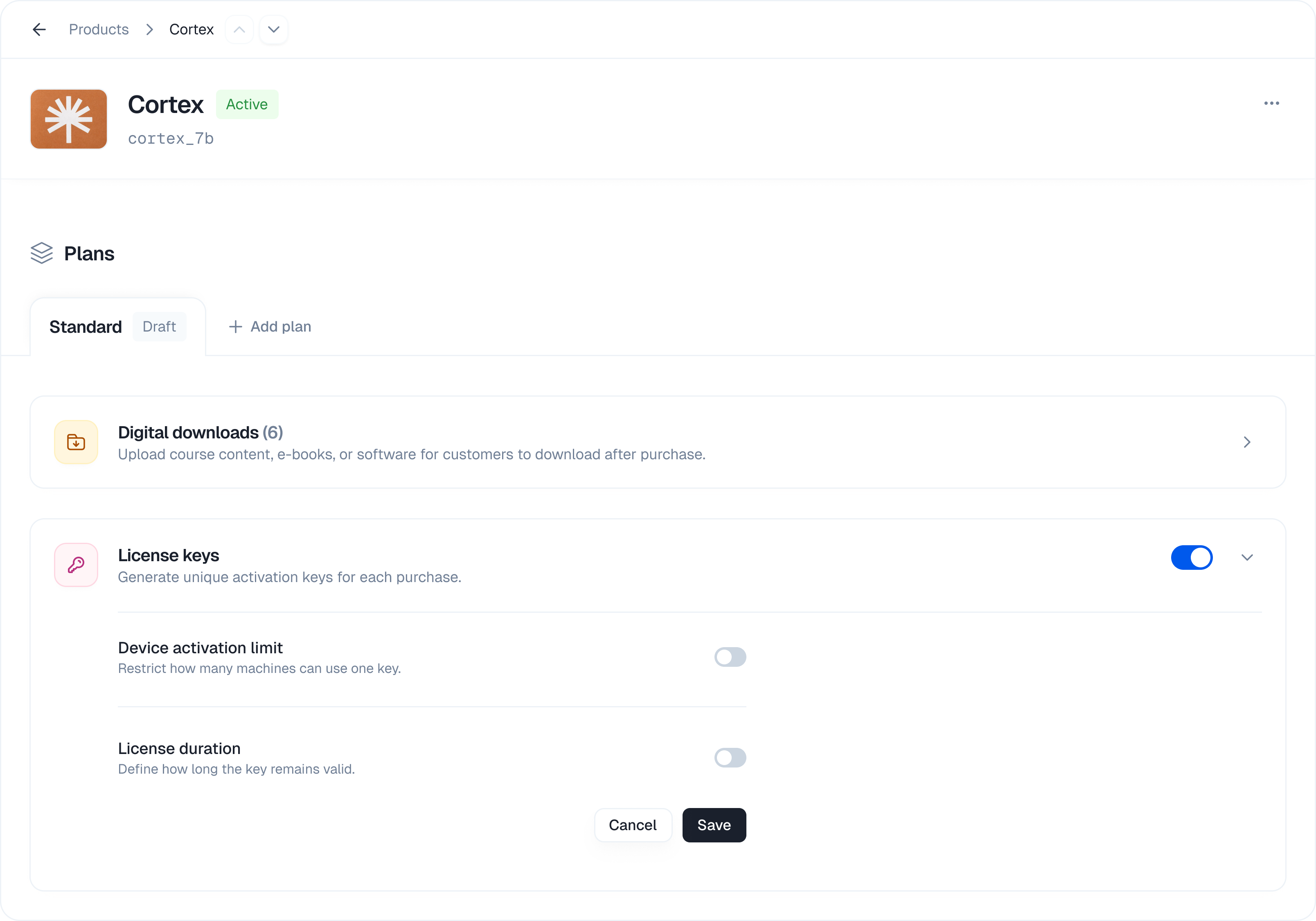
- Navigate to Products → Select your product → Select the plan you want to configure
- Scroll down to the License keys section
- Toggle the switch to enable license keys
Configuration Options
Once enabled, you can configure the following settings:Activation Limit
Control how many times a single license key can be activated across different devices.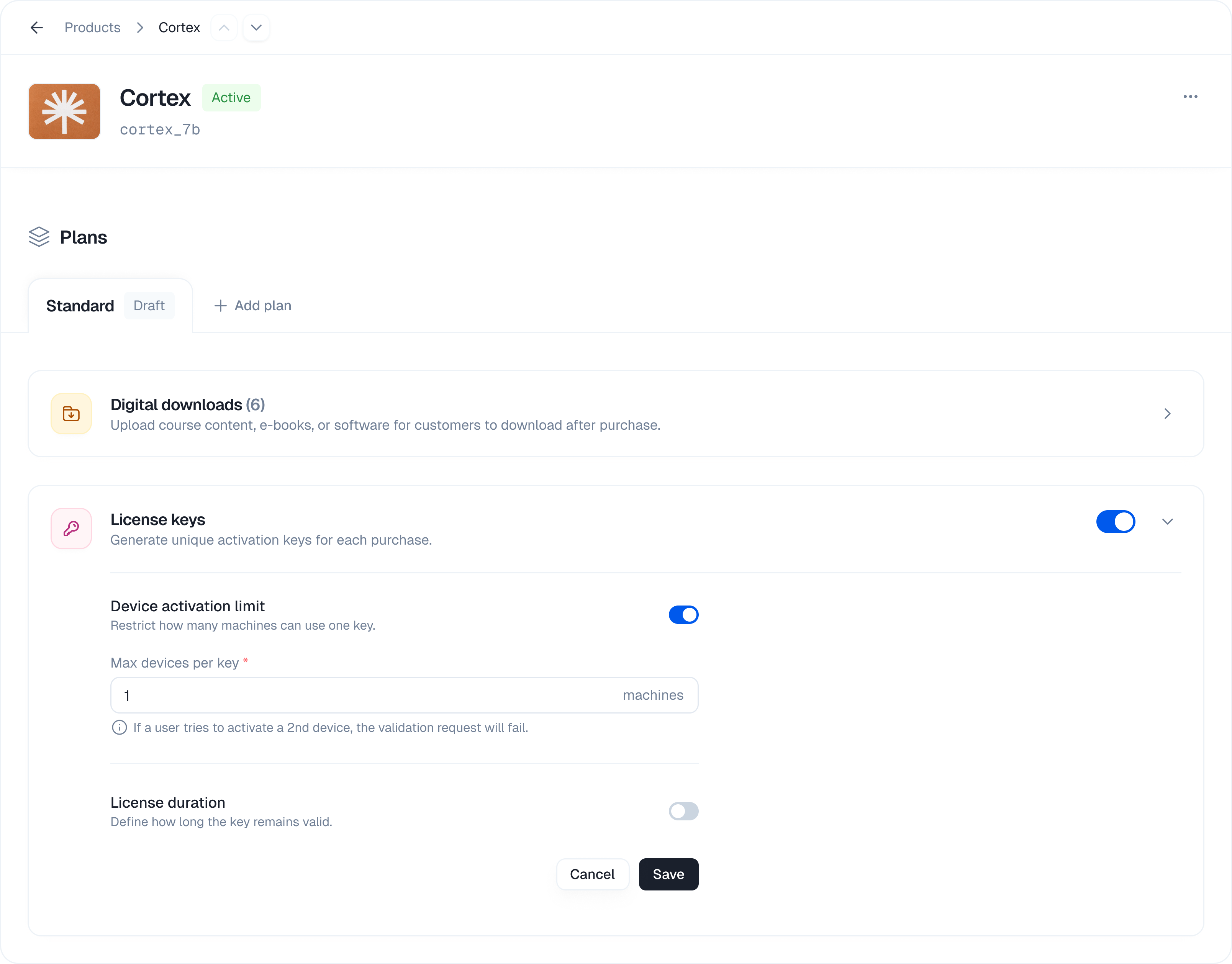
Use case: Set a limit of 3 if you want customers to use the license on up to 3 computers.
License Expiry
Define how long the license key remains valid after purchase.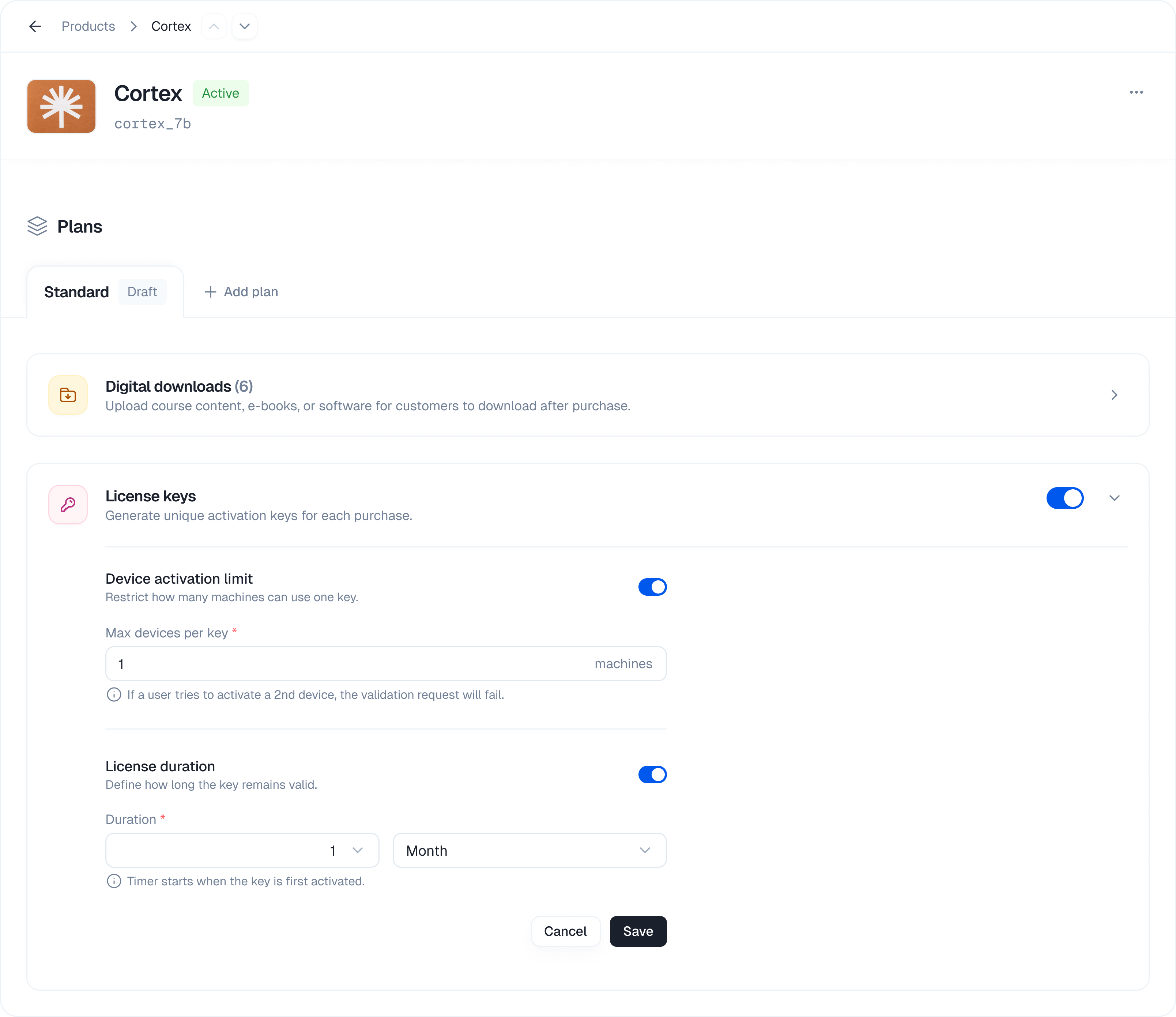
When expiry is enabled, you can set:
- Duration value: A number (e.g., 1, 6, 12)
- Duration unit: Days, Months, or Years
Example: Setting duration to 12 Months means the license expires 12 months after the purchase date.
Save Your Configuration
After configuring the settings, click Save Changes. All future orders for this plan will use these license settings.2. Managing Licenses from Order Details
Once a customer places an order for a plan with licenses enabled, you can manage their license from the Order Details page.Viewing License Information
Navigate to Orders → Click on an order to view details. The license section displays: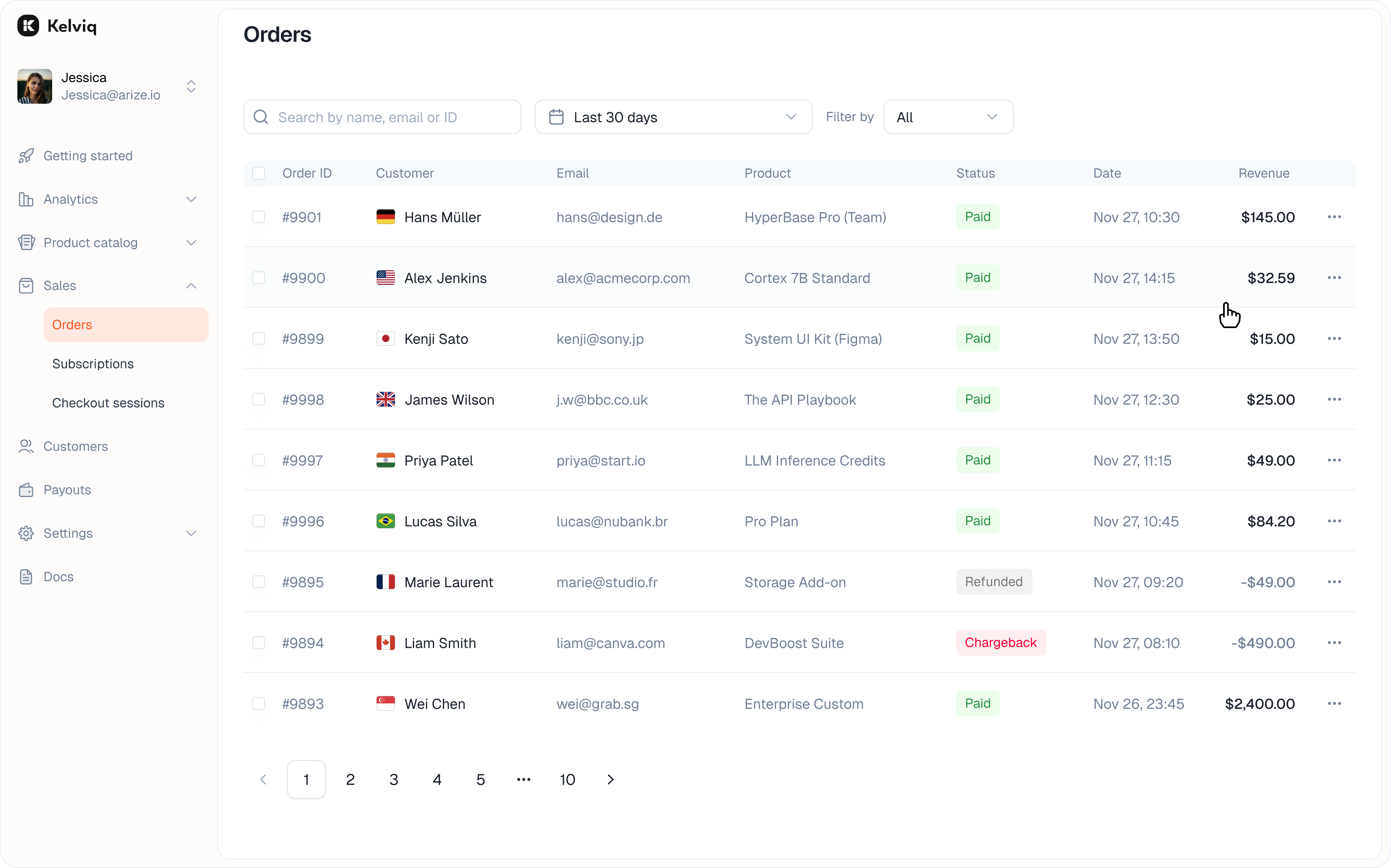
- License Key: The unique key assigned to this order
- Expiry Date: When the license expires (or “Never expires”)
- Activation Status: Active count vs. limit (e.g., “2/5 activations” or “3/Unlimited”)
- License Status: Active or Deactivated
Available Actions
Click the ⋮ menu button on the license card to access these options: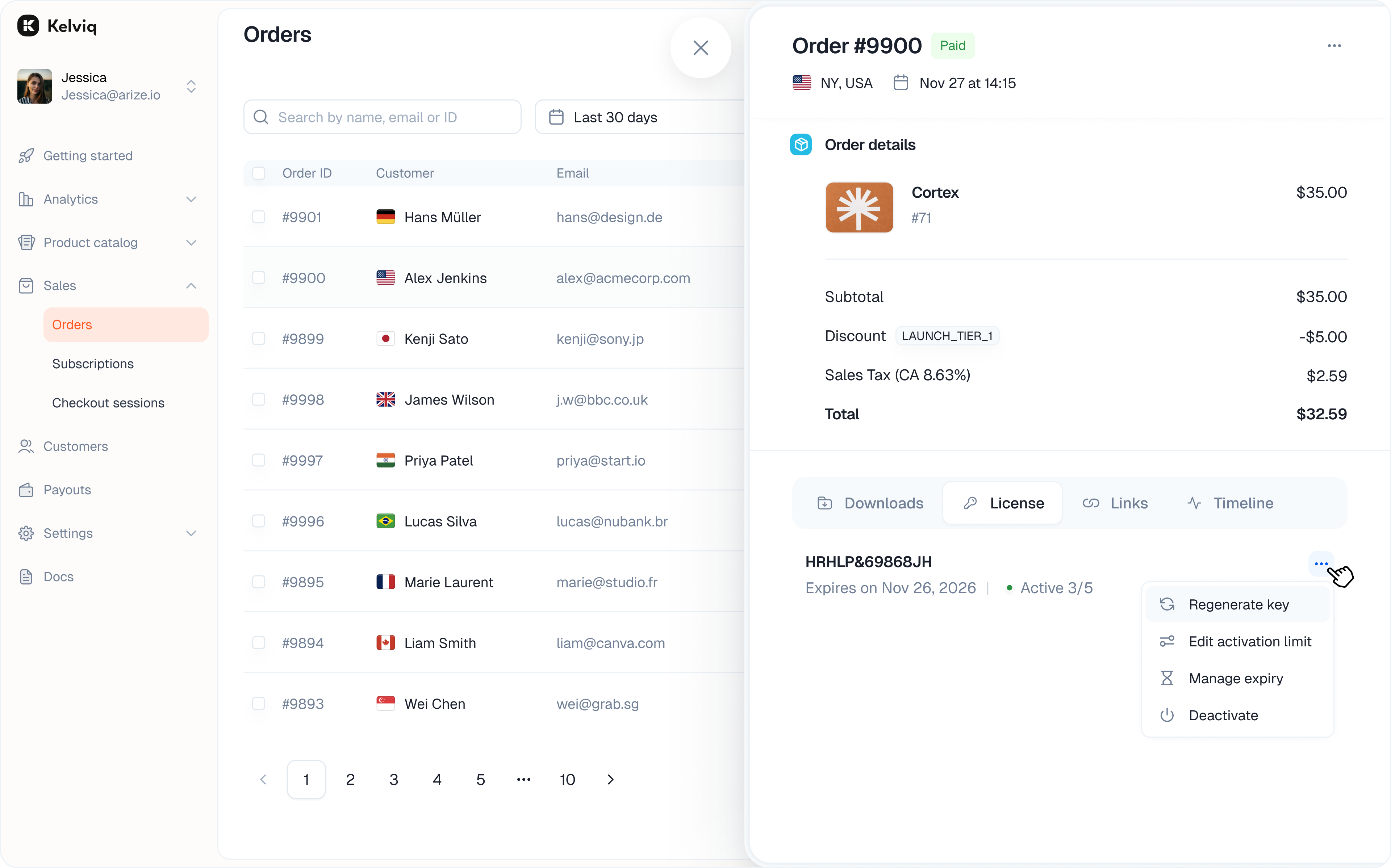
🔄 Regenerate Key
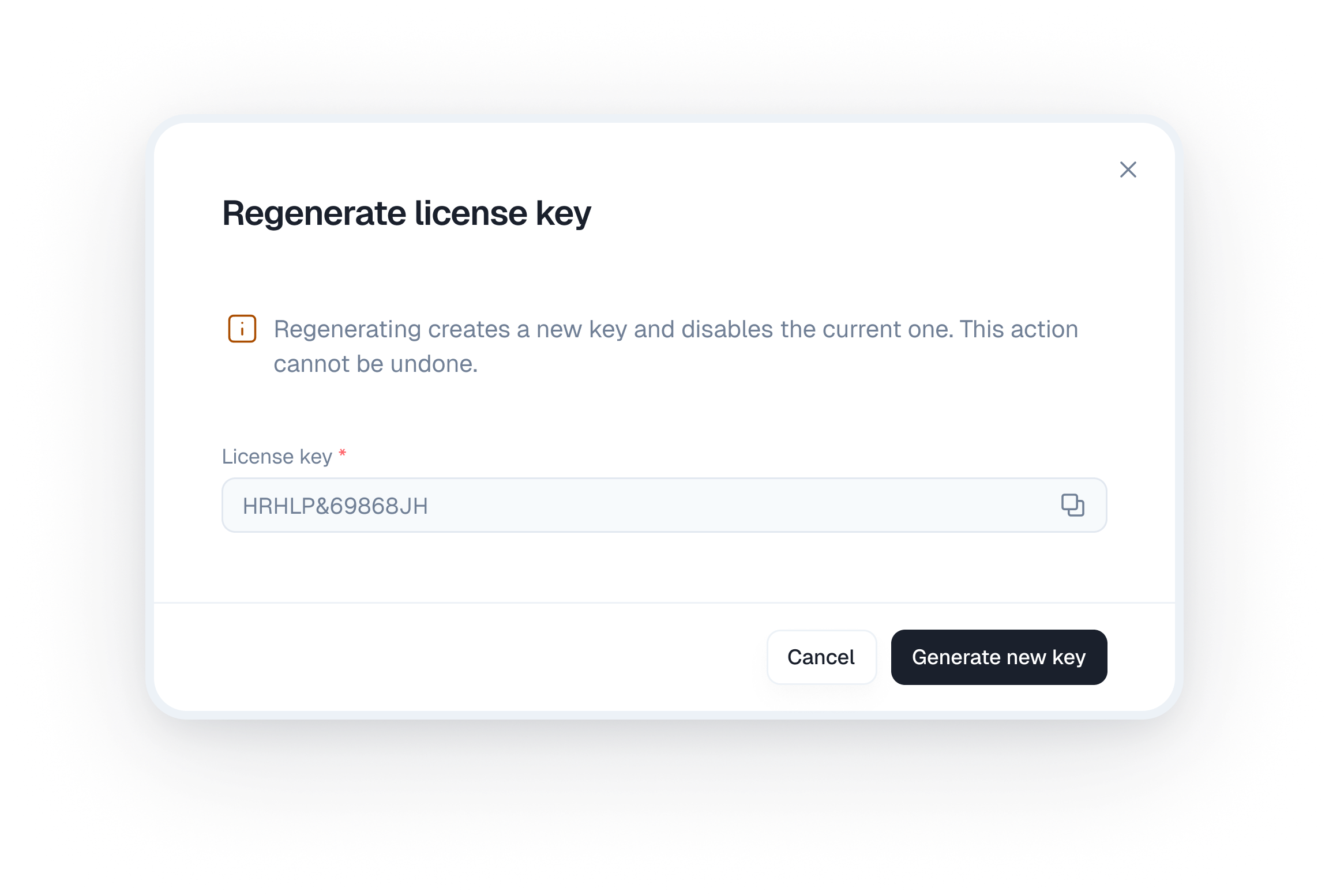
- The old key will immediately stop working
- Customer must use the new key for future activations
- Existing activations will stop working
⚠️ Warning: This action cannot be undone. Use when a key has been compromised or shared inappropriately.
✏️ Edit Activation Limit
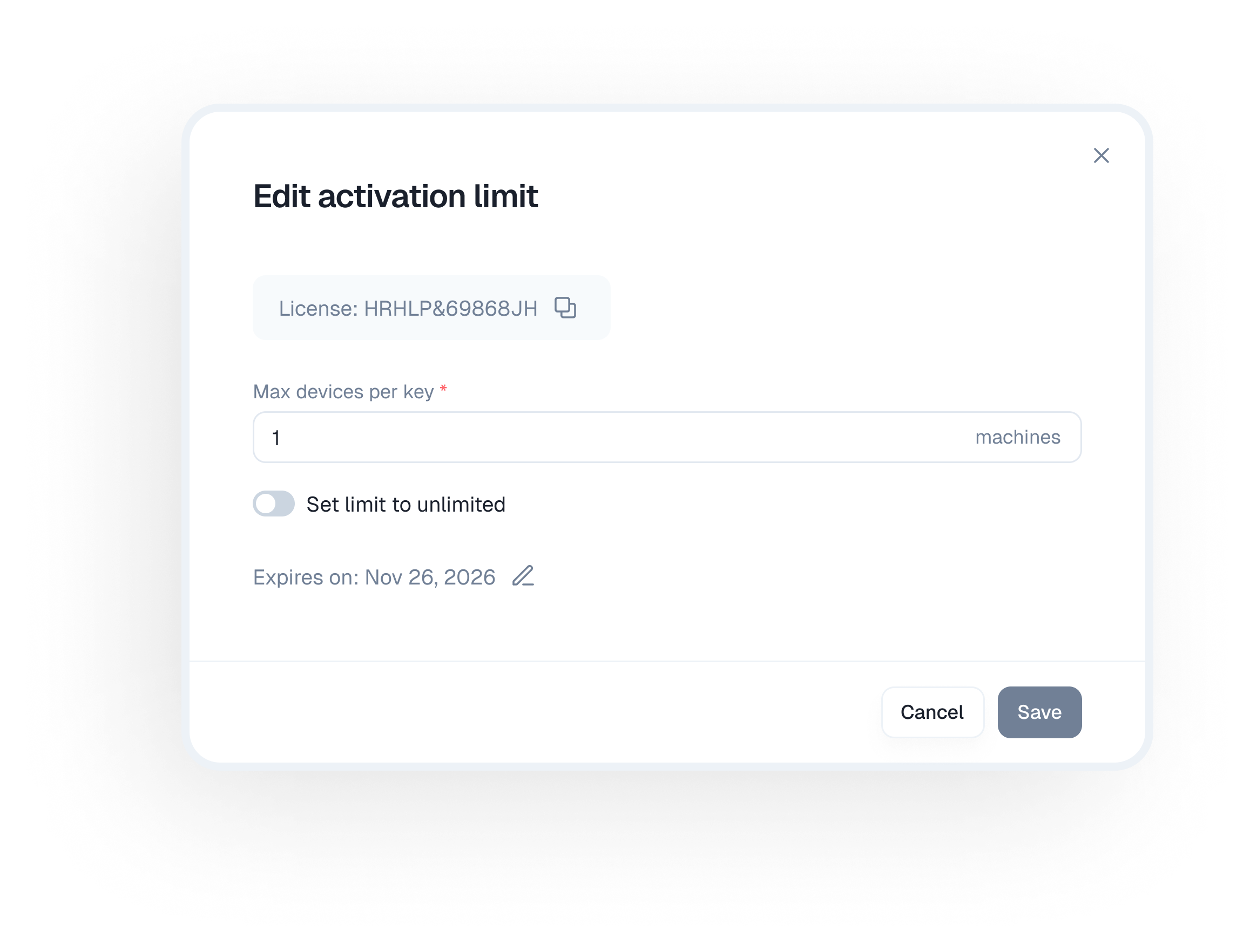
- Toggle activation limit on/off
- Set a specific number (1-100 activations)
- Changes apply immediately
Use case: Upgrade a customer from 3 seats to 10 seats without issuing a new license.
📅 Manage Expiry
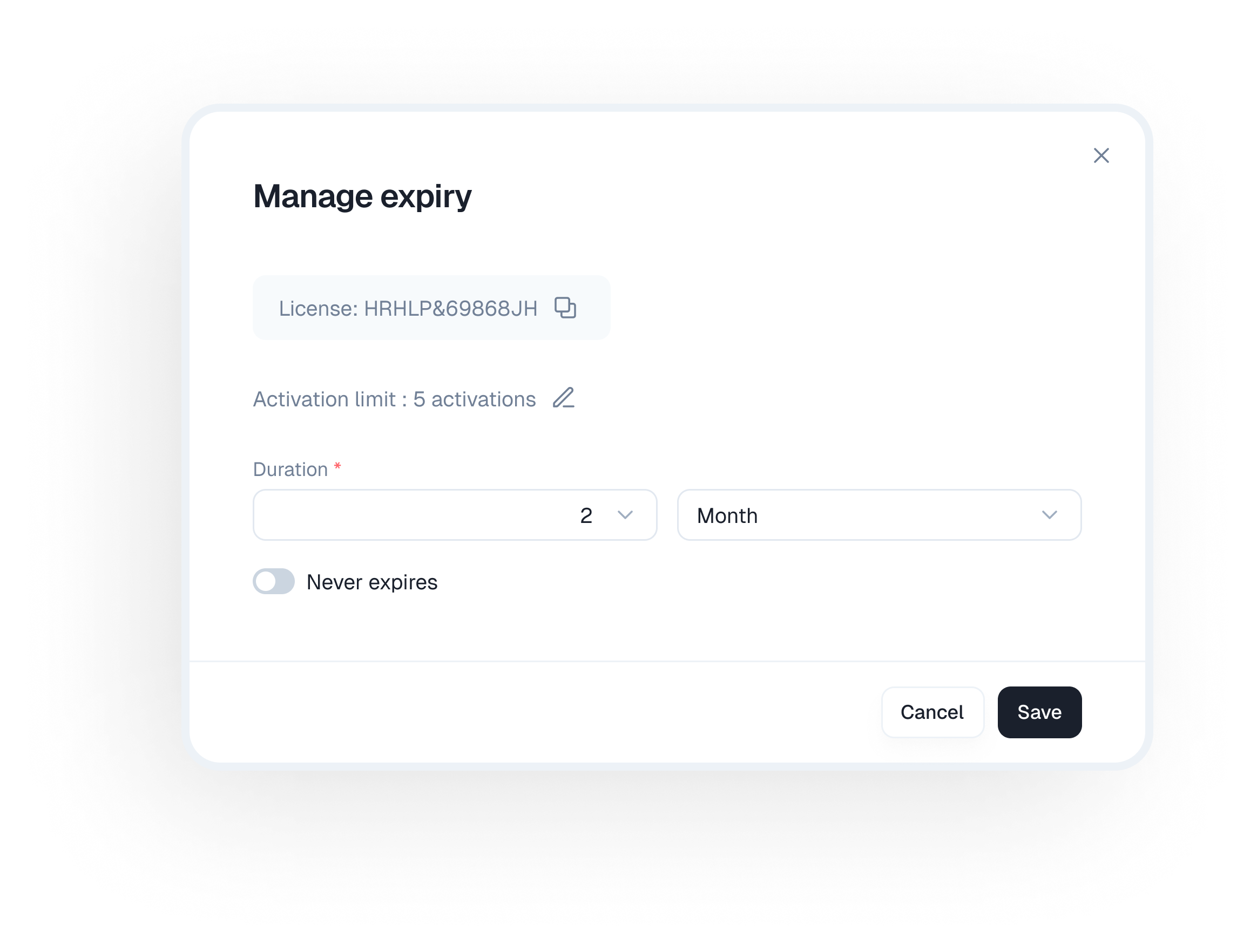
- Toggle expiry on/off
- Set a specific expiration date using the calendar picker
- Extend or shorten the validity period
Use case: Extend a license by 3 months as a courtesy for a loyal customer.
⛔ Deactivate License
Permanently disable the entire license.- All existing activations will stop working
- Customers will no longer be able to activate or validate the key
- The license key becomes invalid
⚠️ Warning: This action cannot be undone. Use for refunds or policy violations.
Viewing Active Activations
Click on the license card to view the License Details page, which shows:- All instances where the license is currently activated
- Instance name or ID
- Last seen timestamp (when the license was last validated)
- Activation metadata (device info, if provided)
Revoking Individual Activations
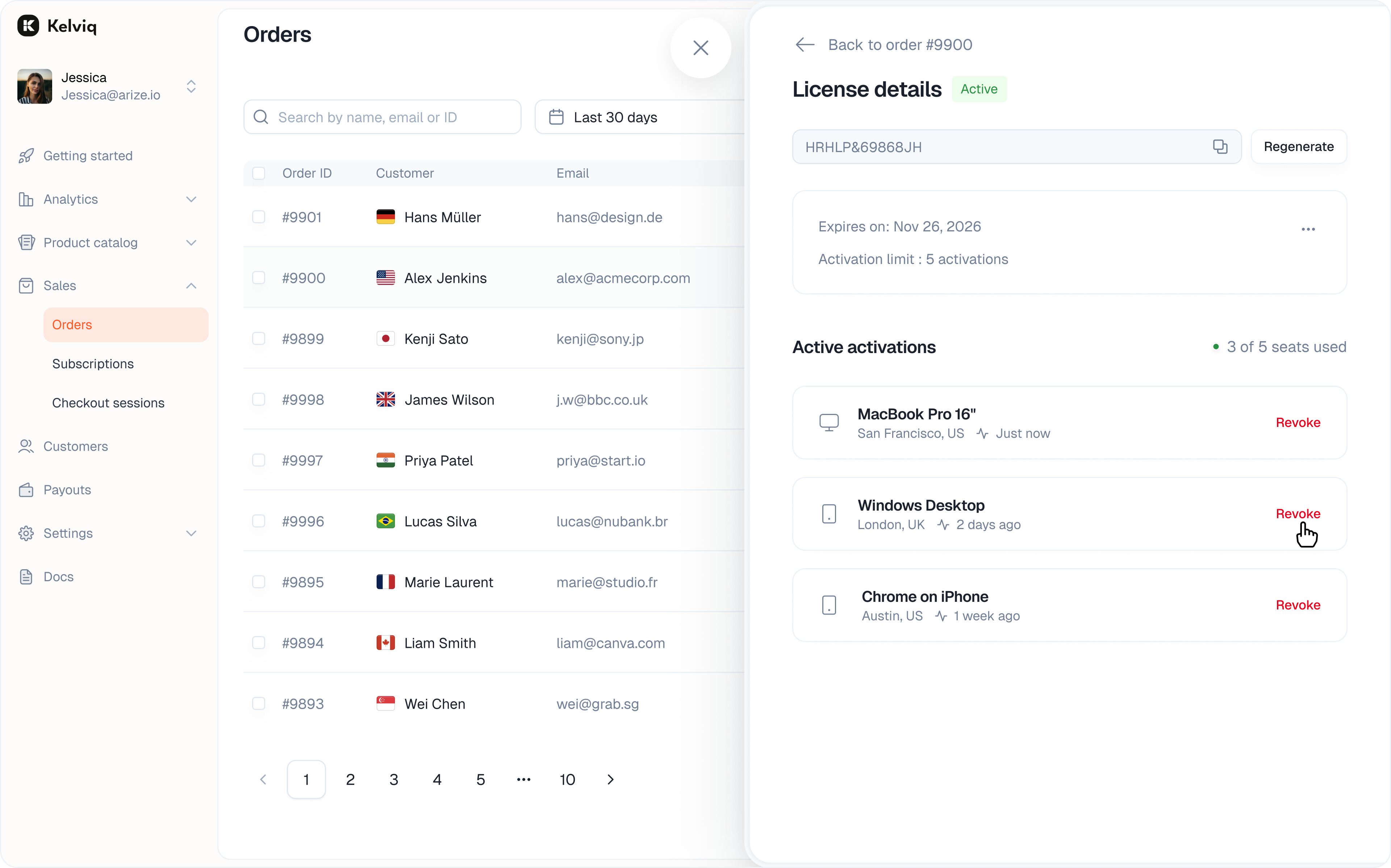
- Remove that specific instance’s access
- Free up an activation slot
- The license remains valid for other instances
Use case: Customer got a new computer and wants to transfer their license. Revoke the old instance to free up a slot.
3. License API for Developers
Your customers (or their software) can interact with licenses using these API endpoints. Use these to integrate license checking into your application.Authentication
The Activate, Validate, and Deactivate License APIs accept either a Client API Key or a Server API Key as a Bearer token:
Both key types can call
POST /license/activate/, POST /license/validate/, and POST /license/deactivate/. Use a key from the same environment as the license: a sandbox key with a sandbox license, or a production key with a production license.
3.0 Reading a customer’s key from your server
A customer’s keys come back with their purchase records, authenticated with your server API key. Orders, subscriptions and invoices all carry alicense array, and each entry holds licenseKey alongside activationUsage, activationLimit and expiresOn.
Which record to read depends on how the plan is sold:
- One-time purchases produce an order, not a subscription. Read
GET /orders/, where each order’sbillingTypeisONE_TIME. Orders have no customer filter — pass the customer’s id or email assearchto narrow the list to them. - Recurring plans produce a subscription. Read
GET /subscriptions/?customer_id=<id>.
3.1 Activate a License
Activates a license key on a specific device/instance. Endpoint:POST /license/activate/
Authentication: Client API Key or Server API Key
When to use:
- When the user enters their license key for the first time
- When your application is installed on a new device
- Validates the license key exists and is valid
- Checks if activation limit has been reached
- Creates a new activation instance
- Returns activation details including instance ID
- Fails if the license is expired
- Fails if the license is deactivated
- Fails if activation limit is reached
- Succeeds and increments the activation count
3.2 Validate a License
Checks if a license is valid and currently active. Endpoint:POST /license/validate/
Authentication: Client API Key or Server API Key
When to use:
- On application startup to verify the license
- Periodically during runtime
- Before granting access to licensed features
- When checking license status without activating
- Confirms the license key exists
- Checks if the license is active (not deactivated)
- Verifies the license hasn’t expired
- Returns current license status and metadata
- License validity status
- Expiration date
- Activation count and limit
- License metadata
3.3 Deactivate a License
Removes an activation from a specific device/instance. Endpoint:POST /license/deactivate/
Authentication: Client API Key or Server API Key
When to use:
- When the user uninstalls your application
- When transferring a license to another device
- When the user explicitly signs out
- Removes the device/instance from active activations
- Decrements the activation count
- Frees up a slot for activation on another device
- The license itself remains valid
- Requires both the license key and instance ID
- Only deactivates the specific instance, not the entire license
- The license can be re-activated on the same or different device
4. Common Workflows
Workflow A: New Customer Purchase
Workflow B: Customer Switches Devices
Workflow C: Validating on Application Startup
Workflow D: Admin Extends a License
Workflow E: Handling a Compromised Key
Quick Reference
Important Notes
⚠️ Irreversible Actions:- Regenerating a key: The old key immediately stops working. All existing activations are invalidated.
- Deactivating a license: The license is permanently disabled and cannot be reactivated.
- Set reasonable activation limits based on your pricing model
- Use the Validate API on application startup for security
- Store the instance ID locally after activation for proper deactivation
- Communicate expiry dates clearly to customers before they expire
- Consider grace periods before fully blocking expired licenses