

Accessing sessions
1
Navigate
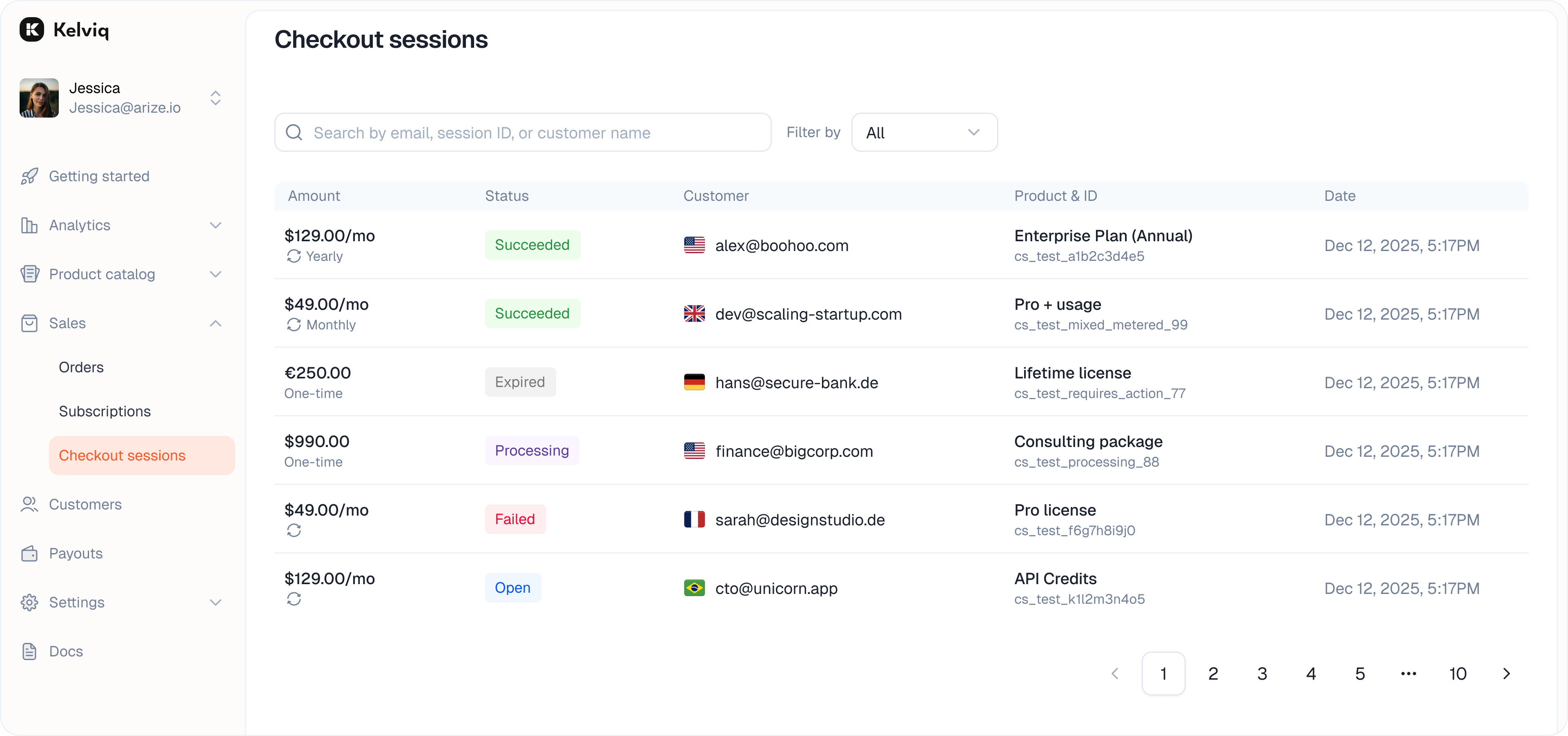
Go to Sales > Checkout sessions in the sidebar.
2
Filter
Use the status tabs to isolate specific types of traffic:
- Open: Customers currently on the payment page.
- Succeeded: Completed purchases.
- Failed: Declined cards or errors.
- Expired: Sessions where the customer left without paying.
Session details
Click on any session to see the raw data. This is useful if you need to understand why a transaction failed (e.g. “Card expired” vs “Insufficient funds”).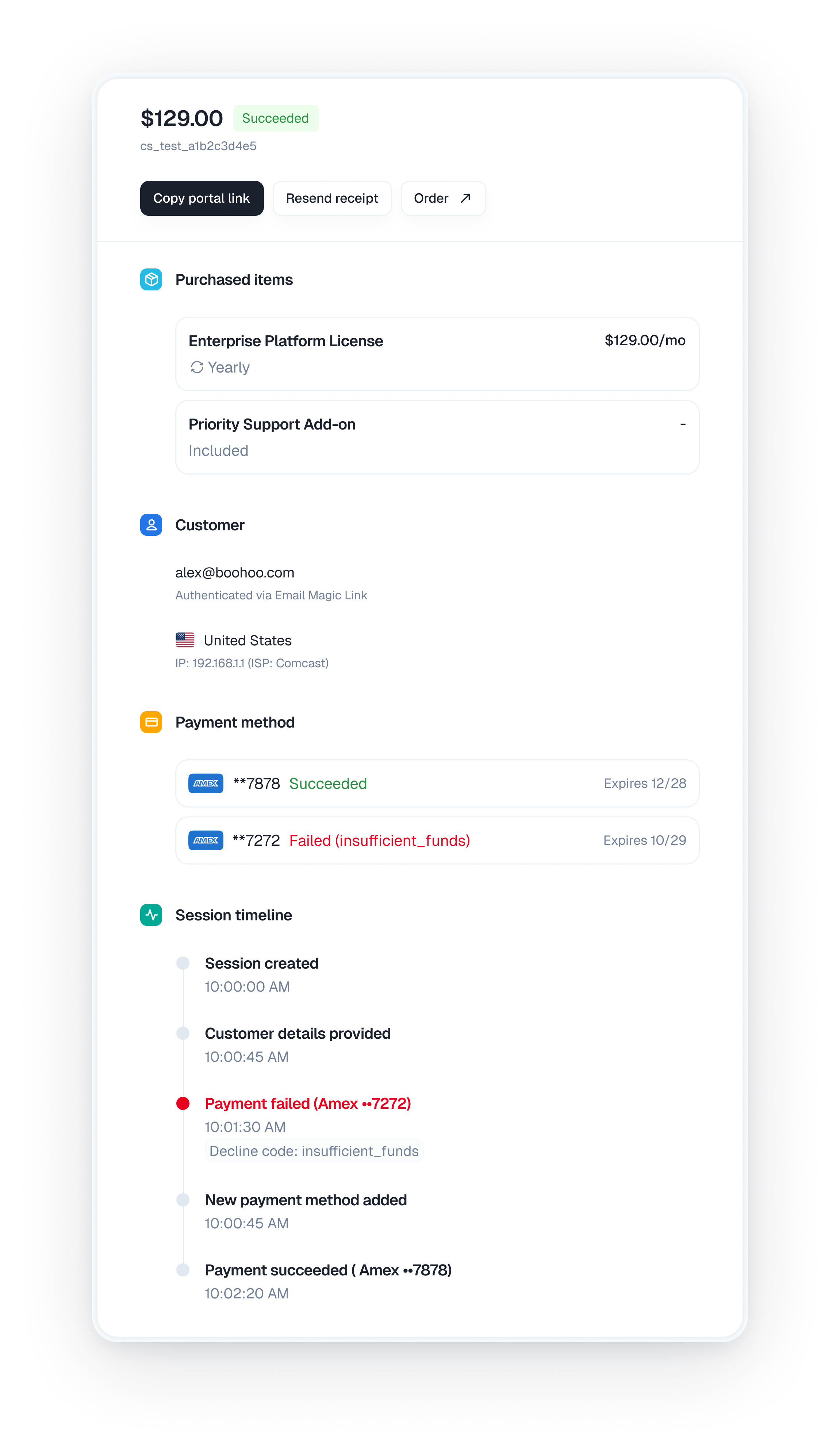
Customer & context
See exactly who is attempting to buy and where they are coming from.- Customer info: Email address, location, and IP address.
- Product: The specific item or license they are trying to purchase.
- Device: The payment method and device type used.
The timeline
The timeline allows you to reconstruct the customer’s journey step-by-step.- Session created: The moment they clicked your buy button.
- Details provided: When they filled in their email or card info.
- Outcome: The specific failure reason (e.g.
card_declined) or success message.
Actions & recovery
This page gives you tools to assist customers who are stuck.- Recover sales If you see a Failed session, you can use the email address to reach out and offer support.
- Share portal access For successful sessions, you can copy the Portal Link directly from the details view and send it to the customer manually.
- Resend receipt Trigger a new email receipt if the customer missed the first one.
- View order Click the Order button to jump straight to the official revenue record in the Orders page.