

For SDK installation and API reference, see:
Why Entitlements?
The Problem with Plan-Based Access
Traditional SaaS applications check access like this:- Code changes required for any pricing restructure
- Deployment needed to move a feature between plans
- Engineering bottleneck for every pricing experiment
- Webhook complexity to sync subscription state
- Stale cache issues when plans change
- Custom deals are painful requiring one-off code
The Entitlements Approach
With Kelviq, you check features directly:- Move features between plans without code changes
- Create custom enterprise deals in minutes
- A/B test pricing without deployments
- Let Sales and Product iterate independently
How It Works
The Flow
- Setup plans and features on Kelviq Dashboard
- When a customer completes checkout, their entitlements are automatically assigned.
- Your app checks access via SDK
- Customer gets immediate access
No Webhooks Required
When a customer completes checkout:- Payment is processed
- Entitlements are assigned automatically
- Your app checks access via SDK
- Customer gets immediate access
- Build webhook handlers
- Sync subscription state to your database
- Handle race conditions
- Manage cache invalidation
When the Entitlement API is unavailable
Kelviq serves entitlement checks through its edge API. The service targets P95 response times below 100 ms and an uptime SLA above 99.99%, but your access-control path should still account for a temporary network or API failure.Node and Python SDK fallback
The current Node and Python SDKs cache entitlement responses by default. Each process keeps a fresh in-memory entry for 60 seconds. If the edge API is unreachable or returns a server error, the SDK can return the last known entitlement state instead of failing the access check. The in-memory cache is local to one process and is lost when that process restarts. For multiple application instances, workers, or containers, configure the optional Redis store. It shares the cache across instances and keeps the fallback state available through application restarts. Usage and event reports that fail because of a temporary network problem are queued. The SDK retries them on the next report call, or you can flush the queue explicitly. An in-memory queue is suitable for one process; use Redis when the queue must be shared and durable. See the Node SDK caching configuration or Python SDK caching configuration for setup examples.Calling the API directly
If you call the Entitlement API without an SDK, keep your own last-known response in an in-memory or persistent cache. Store when the value was fetched, set a maximum fallback age that matches the risk of the feature, and refresh the record after the API recovers. Use a short fallback window for high-risk actions such as exporting sensitive data or using an expensive metered feature. A longer window may be reasonable for low-risk interface features. Do not silently grant access when there is no previous entitlement state. If your architecture already maintains subscription state through webhooks, you can continue using that model. Process webhook events idempotently and reconcile the local record against the Entitlement API after an outage.Feature Types
Kelviq supports three types of features to cover all access control scenarios.Boolean Features
Simple on/off access control.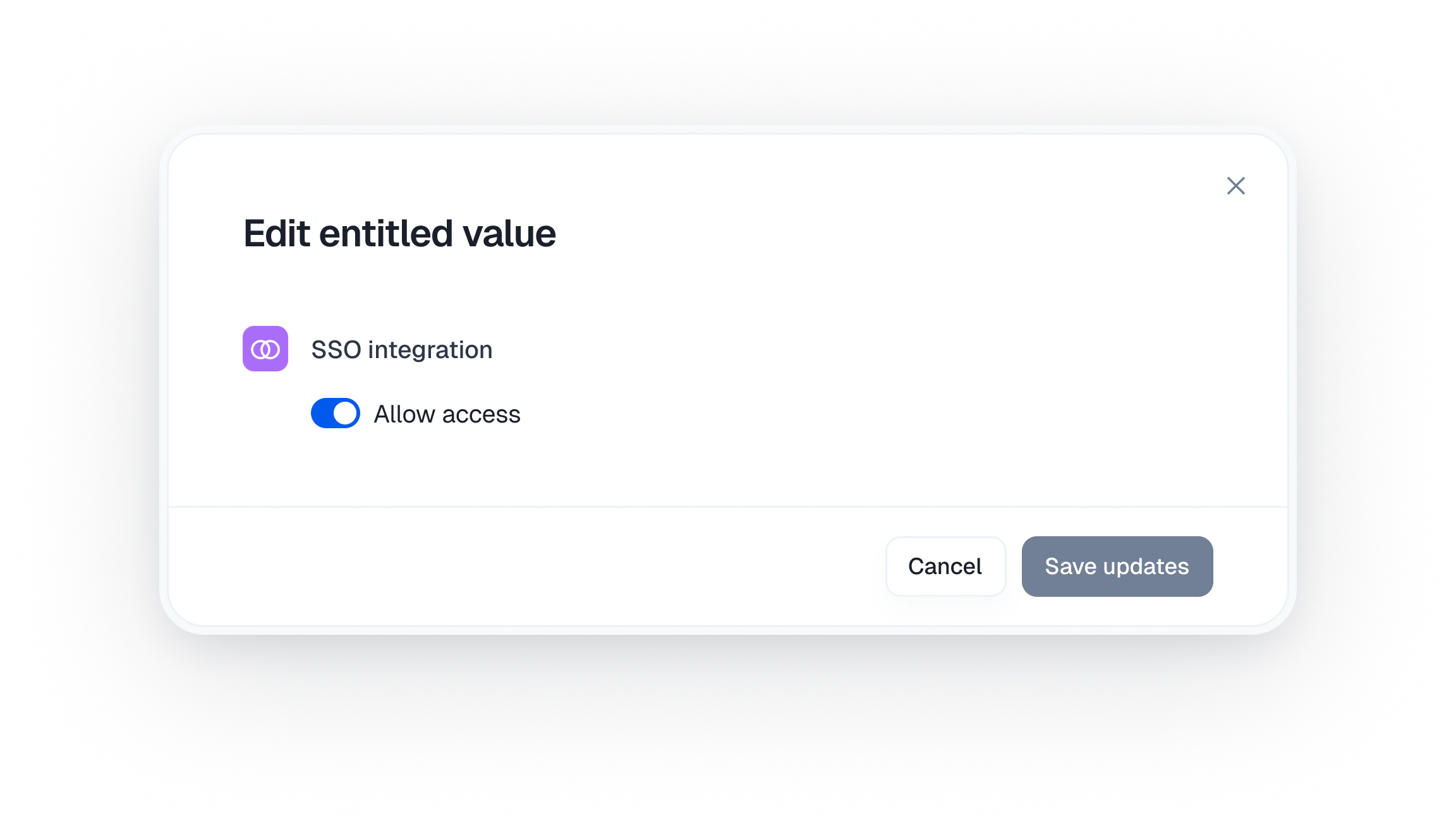
- Feature flags (SSO, API access, white-labeling)
- Premium features (advanced analytics, custom branding)
- Access gates (admin panel, beta features)
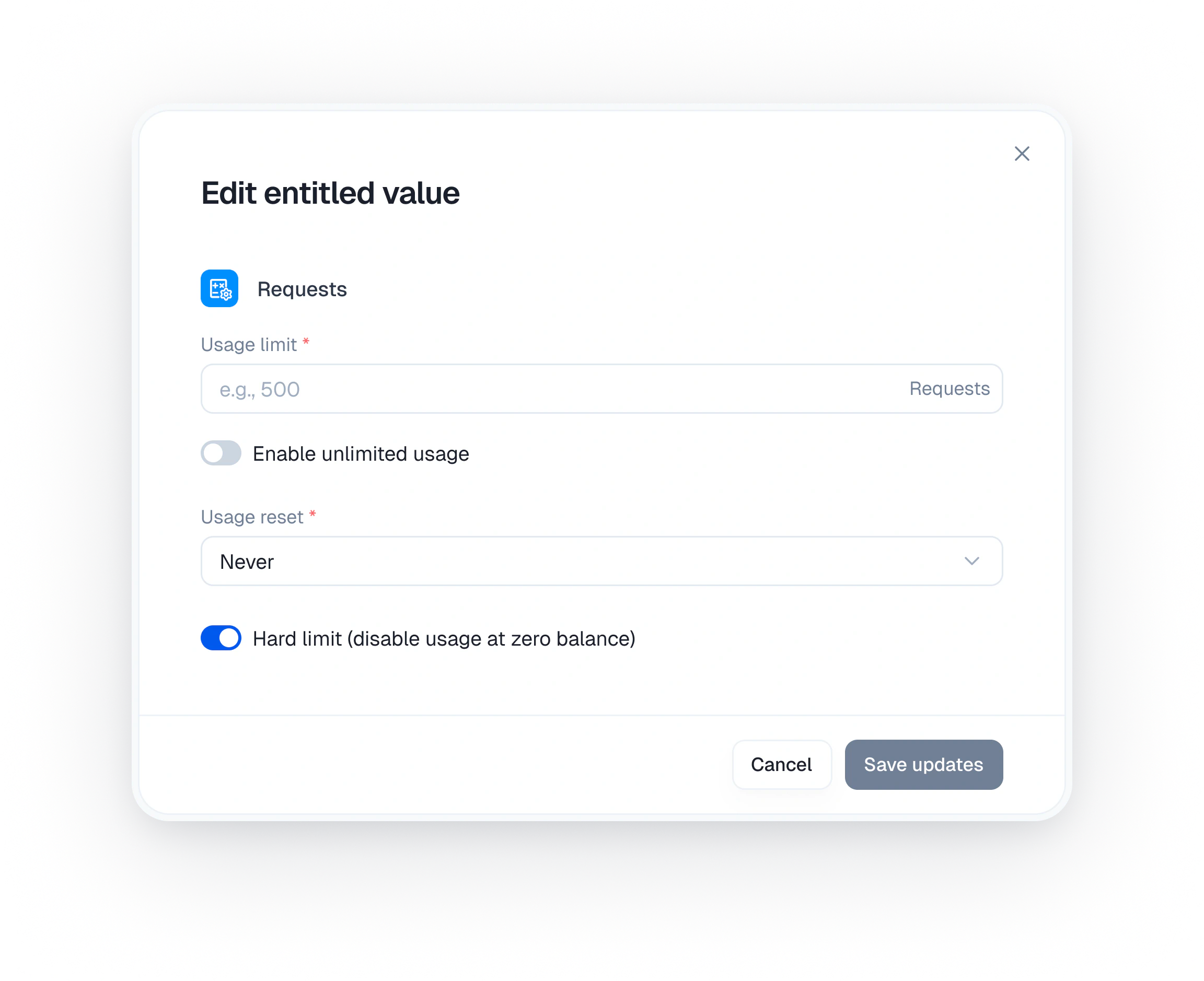
Meter Features
Usage-based features with limits and tracking..png?fit=max&auto=format&n=dIayyoP2MxhiM3vQ&q=85&s=79944e812b9e3720e950502494285370)
- API calls, requests, or operations
- Storage (GB, files, records)
- Team members or seats
- Messages, emails, or notifications
- AI tokens or credits
Customizable Features
Dynamic values that aren’t simple on/off or numeric limits.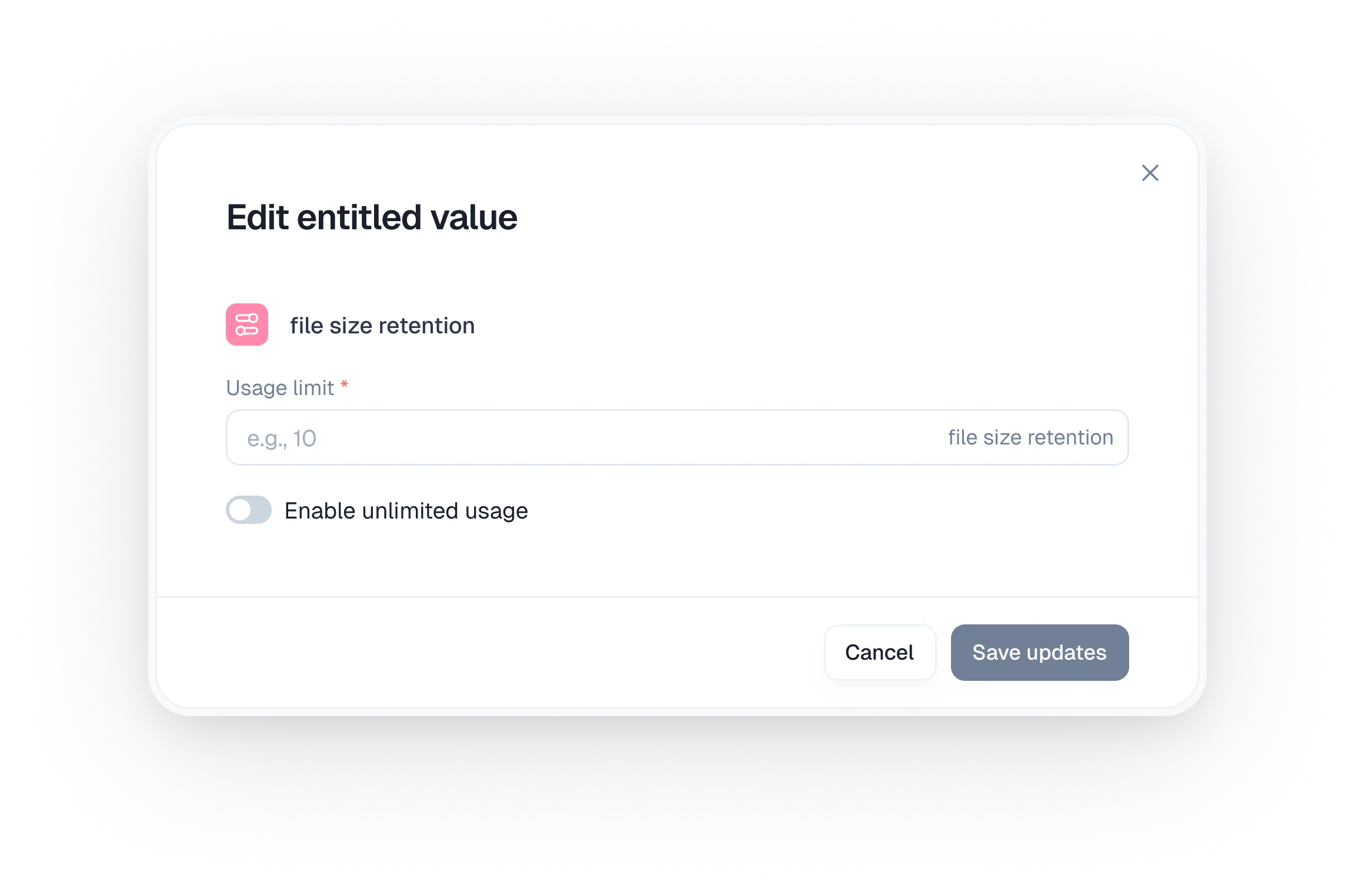
- Configuration values
- Tier-specific settings
- Dynamic feature behavior
Soft Limits vs. Hard Limits
Choose the right enforcement strategy for each feature.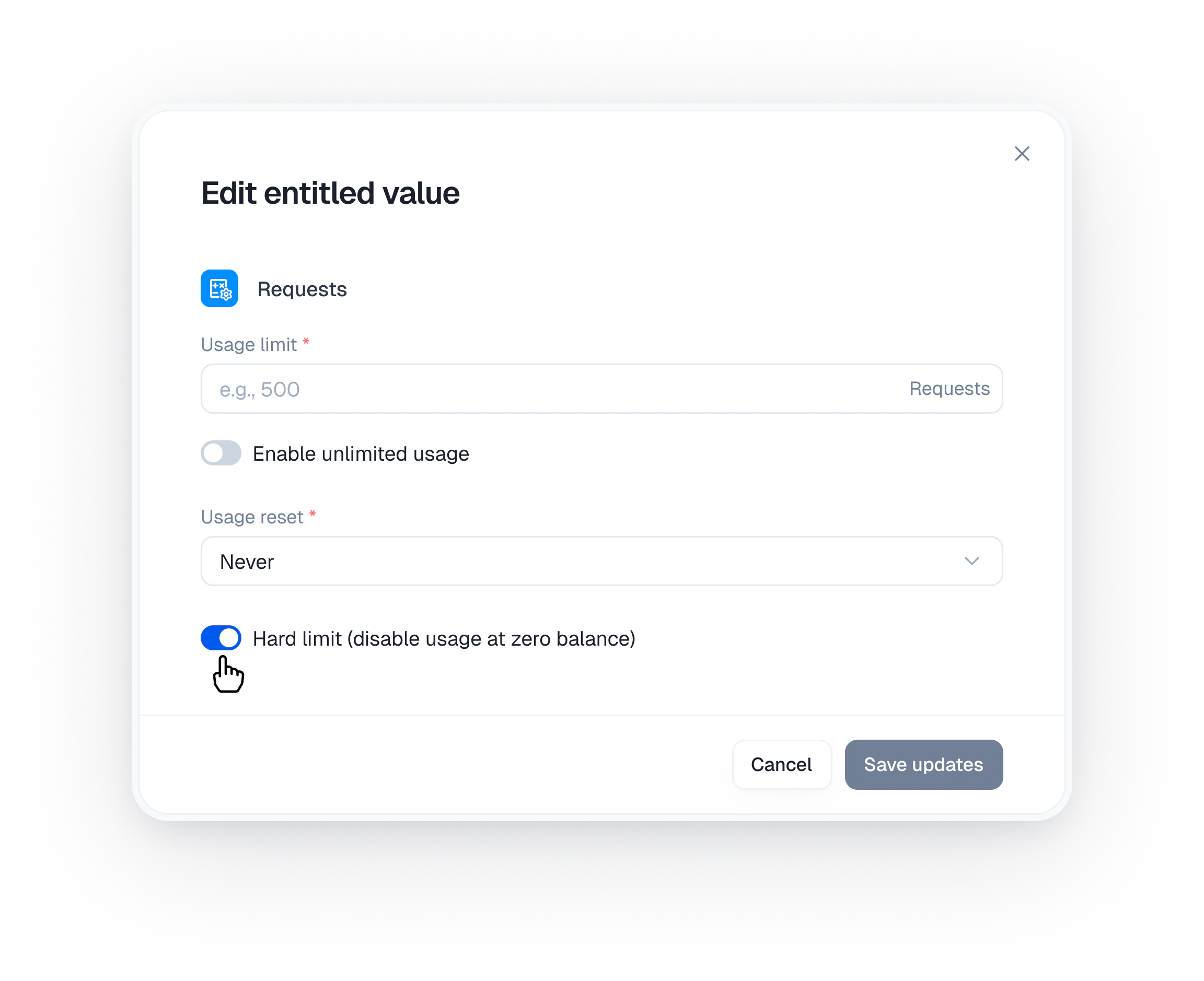
Hard Limits
Block access completely when the limit is reached. Best for:- Cost-sensitive features (AI tokens, bandwidth)
- Preventing abuse
- Strict contractual limits
Soft Limits
Allow continued access but notify the user. Best for:- Driving upgrades without blocking users
- Features where occasional overages are acceptable
- Better user experience during high-usage periods
Checkout Integration
When a customer goes through checkout, entitlements are automatically assigned. The key is passing the customer ID.Passing Customer ID
When creating a checkout session, include the customer identifier:New vs. Existing Customers
Automatic Assignment
After successful payment:- Customer record is created/updated
- Plan entitlements are assigned instantly
- No webhook processing needed
- Customer can access features immediately
SDK Integration
Quick Start
Install the SDK and start checking entitlements in minutes.Get your API key from Settings → API keys in the Kelviq dashboard.
Checking Feature Access
Reporting Usage
For meter features, report usage after each consumption:For complete SDK reference including all methods and parameters, see the Node SDK Documentation.
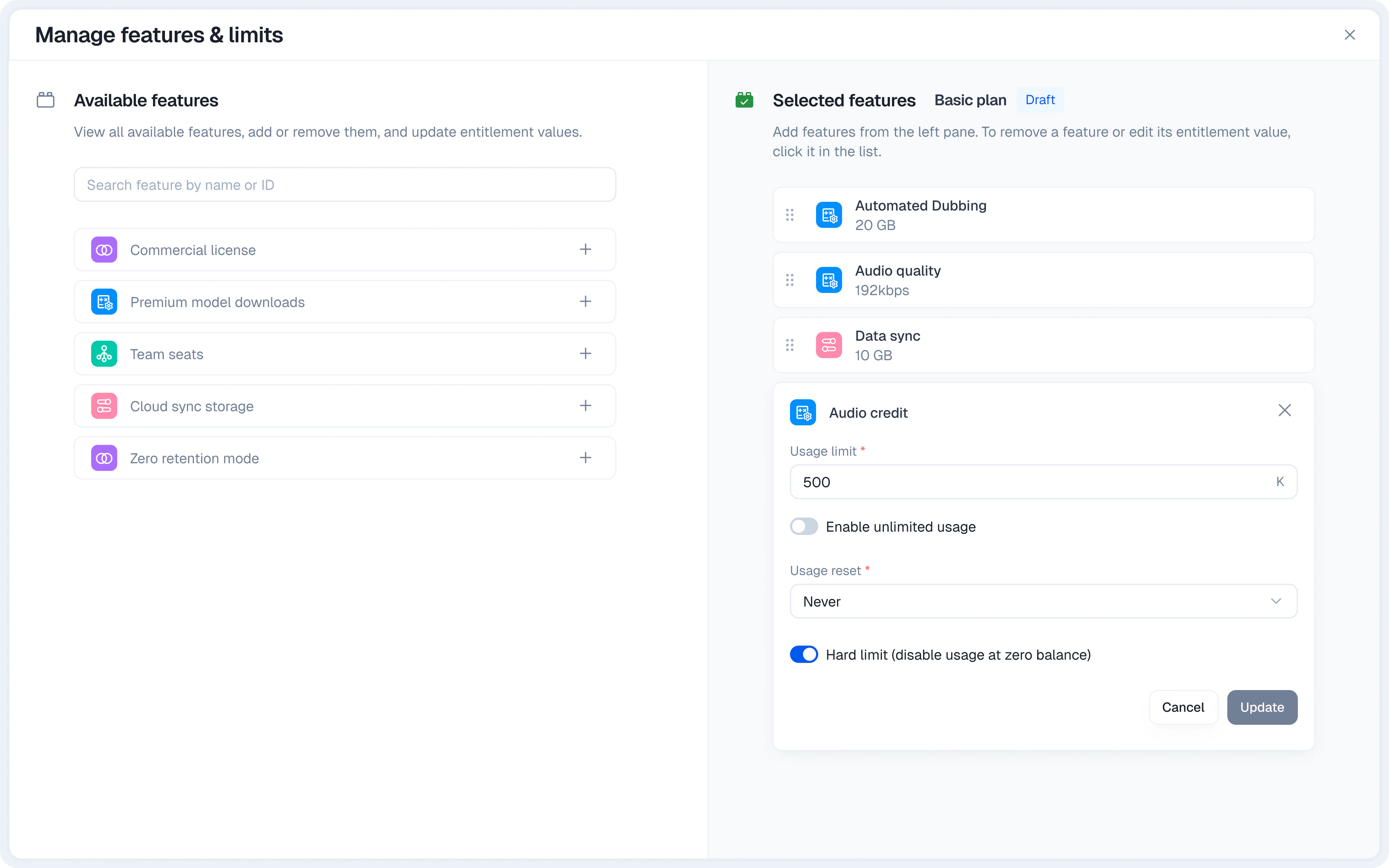
Manage feature definitions
Open Product Catalog → Features to create and manage reusable feature definitions. See Create a feature in Kelviq for the complete dashboard and API workflows.- Use the row action menu to edit a feature name.
- Metered values, percentages, and rollover limits use numeric inputs.
- When configuring a metered entitlement, set the usage reset and hard-limit behavior first, then configure credit rollover and usage alerts.
Managing Customer Entitlements
Viewing Customer Entitlements
In the Kelviq dashboard:- Navigate to Customers
- Select a customer
- View their Features section
- All entitled features
- Current usage vs. limits
- Reset dates for meters
- Whether values are overridden
Overriding Entitlements
Sometimes you need to give a specific customer different access than their plan provides. Common scenarios:- Sales gave a prospect extra API calls for a POC
- Customer needs temporary limit increase
- VIP customer gets special access
- Compensating for a service issue
- Go to the customer’s detail page
- Find the feature in the Features section
- Click the menu (⋯) → Override usage
- Set the new value
- Save
- Per-customer (don’t affect the plan)
- Marked with an override indicator
- Can be reverted anytime
Resetting Usage
For meter features, you can reset a customer’s usage:- Go to the customer’s detail page
- Find the meter feature
- Click the menu (⋯) → Reset usage
Plan Inheritance
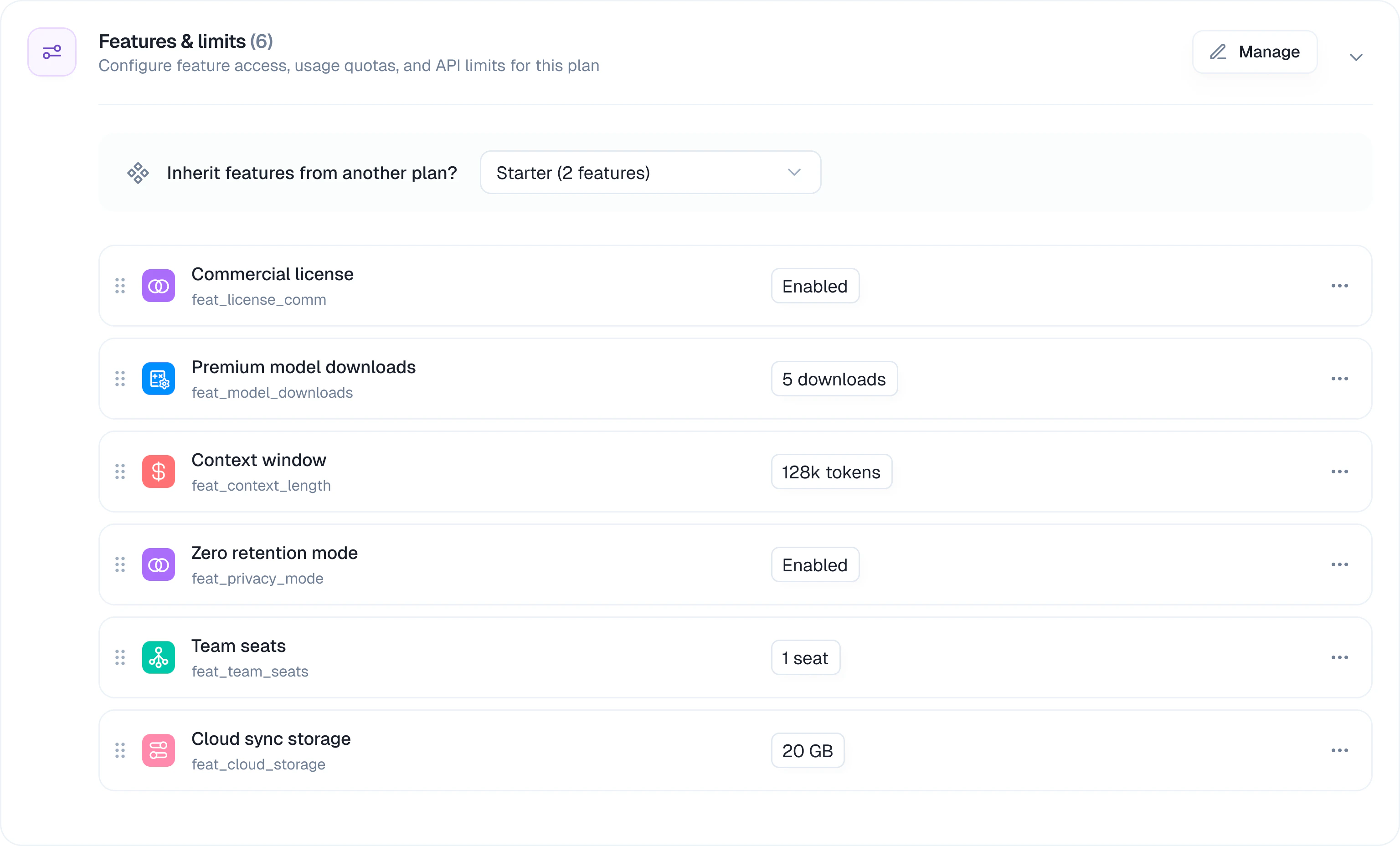
Create plan hierarchies to reduce duplication and maintain consistency.How It Works
- Child plan automatically gets parent’s features
- You can override specific values in the child
- Changes to parent propagate to children (unless overridden)
Override Indicators
Use Cases
Tiered plans:- Starter: 1,000 API calls
- Pro: inherits Starter + overrides API calls to 100,000 + adds analytics
- Enterprise: inherits Pro + overrides to unlimited + adds SSO
- US Pro: standard features
- EU Pro: inherits US Pro + adds GDPR compliance features
Subscription Lifecycle
What Happens During…
Successful Purchase
- Entitlements assigned immediately
- Customer can access features right away
- No webhook handling required
Upgrade
- New plan entitlements replace old ones
- Happens immediately
- Existing usage counters are retained and evaluated against the new limits
Downgrade
- New plan entitlements replace old ones immediately
- Existing usage counters are retained
- A customer can become over limit when the new limit is below current usage
Cancellation
- Immediate cancellation revokes plan access immediately
- Period-end cancellation keeps entitlements active until the subscription expires
Failed Payment
- A failed card renewal moves the subscription to
past_due - Kelviq retries card payments for up to 14 days before cancellation
- Failed non-card renewals are not retried and the subscription is cancelled
Refund
- Cancelling mid-period does not automatically create a refund
- The merchant decides whether to issue a full, partial, or no refund
Manage subscriptions programmatically using the Subscriptions API.