You manage your tax configuration in two places. You set how prices display on individual plans and you set how business exemptions are handled globally.

Plan tax behavior

By default Kelviq adds tax on top of your listed price at checkout. If you want customers to see the final price upfront you can enable tax inclusive pricing. You configure this per plan.
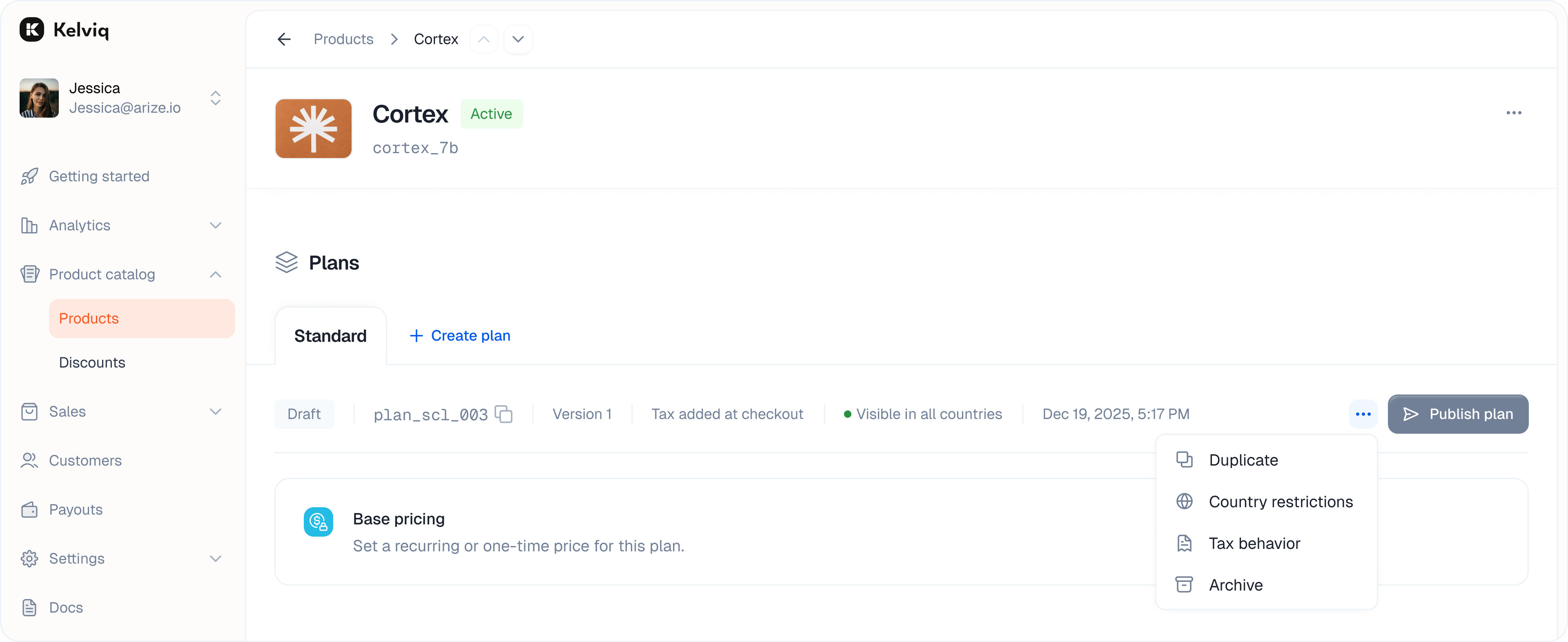
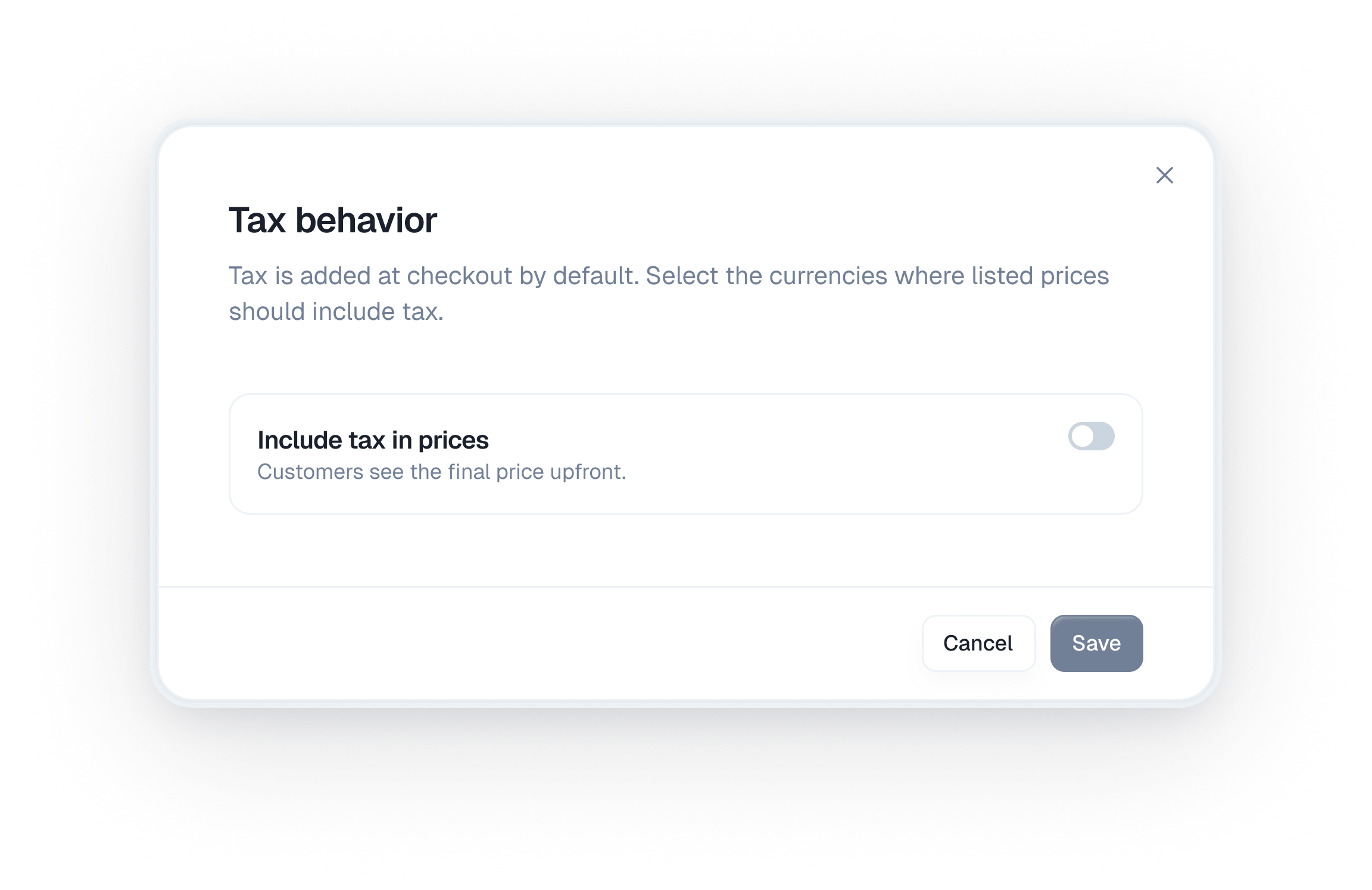
To change how prices are displayed open your plan draft. Click the menu icon next to the Publish button and select Tax behavior.
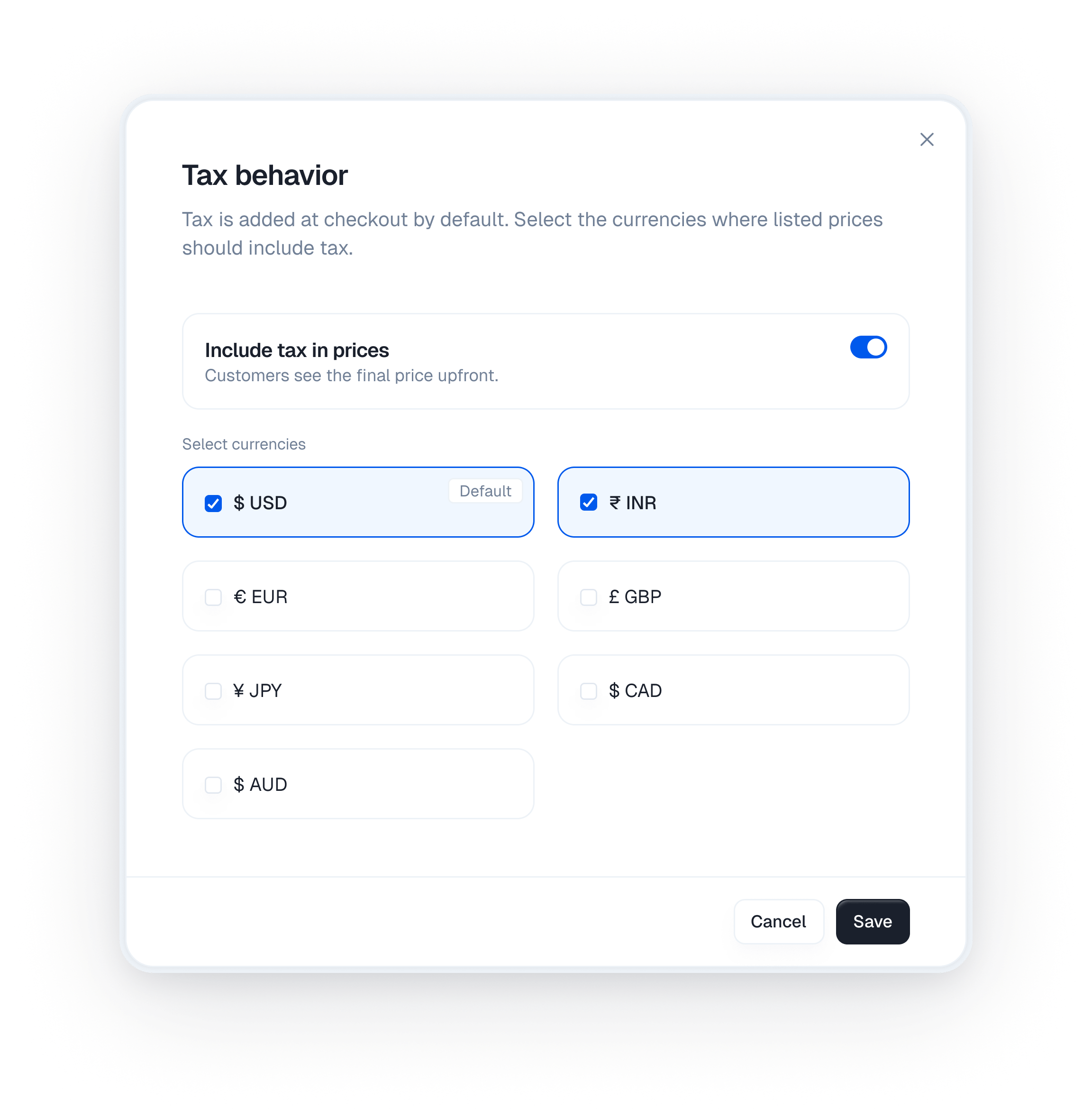
Toggle Include tax in prices to turn on inclusive pricing. Kelviq will ask you to select the specific currencies where the listed price should include tax.
If you have just one default currency you will see just one default currency. This lets you mix billing styles on a single plan. You can select EUR to give European buyers an inclusive experience while leaving USD unchecked so North American buyers pay tax at checkout.

Business tax ID behavior

When you sell to other businesses they are often exempt from paying sales tax or VAT. Kelviq handles this verification automatically. If a business enters a valid tax ID at checkout we apply a reverse charge and drop the tax requirement. If you enabled tax inclusive pricing in the steps above you need to tell Kelviq how to handle the final math for these exempt B2B customers.
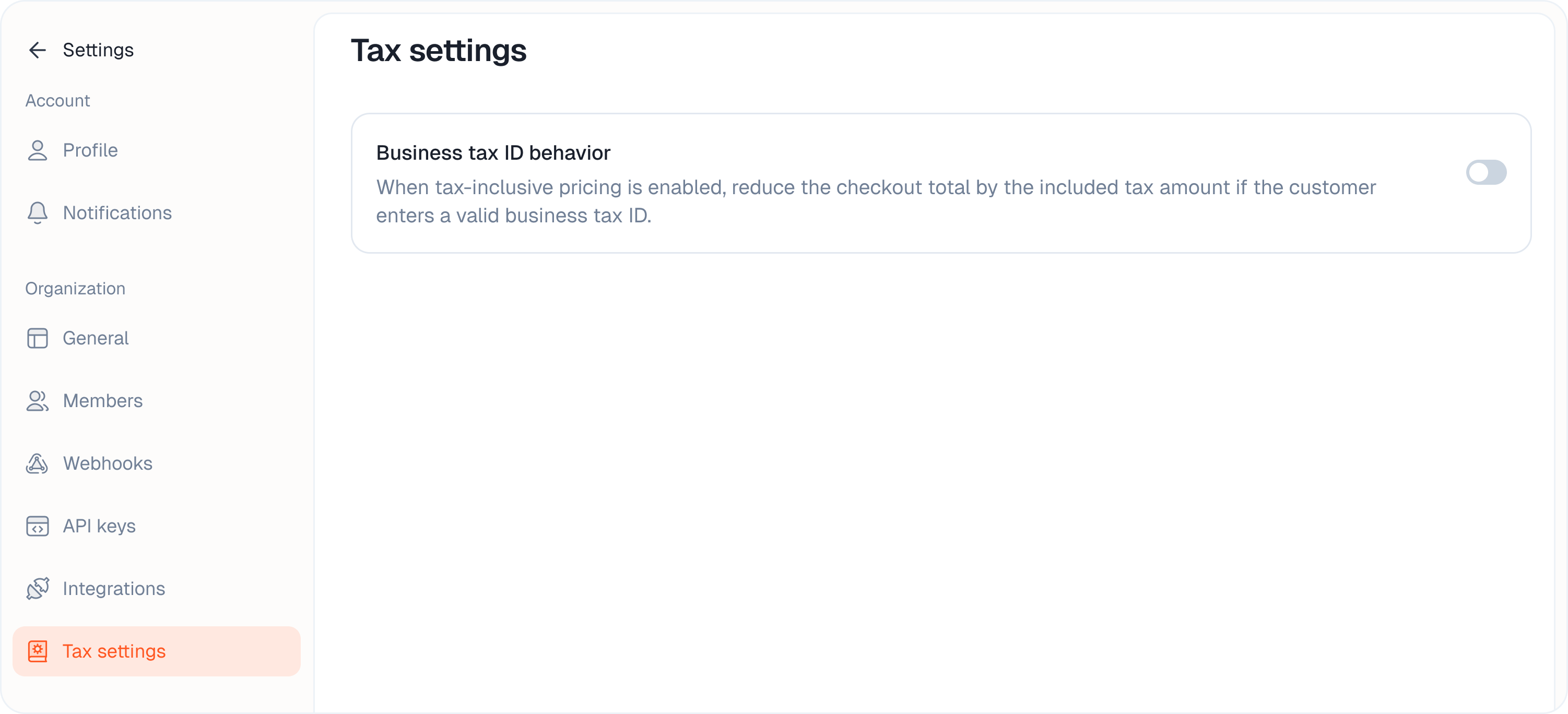
Navigate to Settings in your sidebar and open the Tax settings page. Turn on the Business tax ID behavior toggle. When this is active Kelviq automatically reduces the checkout total by the included tax amount if the customer enters a valid business tax ID. If you leave this disabled the checkout total remains the exact same and we attribute the extra margin directly to your account.