

A usage alert has two parts. You configure the threshold on the plan, then receive the
feature.usage_alert event through a webhook. Turning on the alert does not email the customer or show an in-app message by itself. Your webhook handler decides what happens next.How usage alerts work
- Your application reports usage to Kelviq with
SETorDELTAbehavior. - Kelviq updates the customer’s meter for the current usage period.
- When current usage crosses a configured threshold, Kelviq creates a
feature.usage_alertevent. - Kelviq sends the event to webhook endpoints subscribed to that event type.
- Your application can send an email, show an in-app warning, notify a support team, or offer an upgrade.
Choose a threshold type
Kelviq supports percentage and absolute-unit thresholds.
Suppose a plan includes 10,000 API calls each month:
- A 75% percentage threshold is crossed when current usage reaches 7,500 calls.
- A balance threshold of 7,500 is crossed at the same usage count, but it is stored as an absolute number of calls rather than a percentage.
Configure usage alerts in the dashboard
- Open Product Catalog → Products and select the product.
- Open the plan that contains the Meter feature.
- Edit Usage charges or open Manage features & limits.
- Select the Meter feature and enter its usage value or pricing configuration.
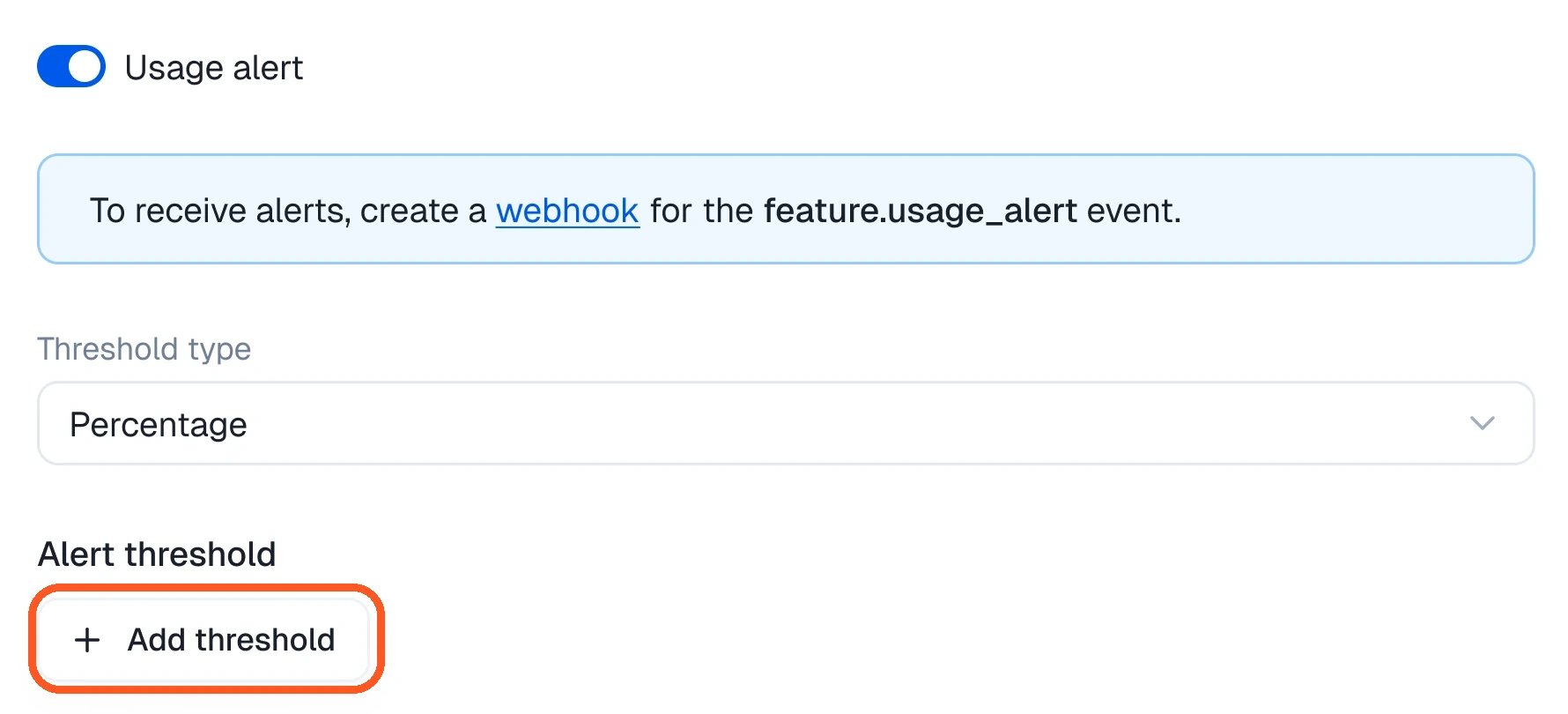
- Turn on Usage alert.
- Choose Percentage or Balance as the threshold type.
- Click Add threshold and enter each threshold.
- Save the configuration. If Kelviq creates a draft version of a published plan, publish the draft before testing it.
Localized prices inherit usage alerts from the base price. Change the base price when the same alert configuration should apply to every localized price.
Configure usage alerts through the API
To update one plan entitlement, send aPATCH request to:
feature_identifier is the feature’s identifier, such as api-calls, not its UUID.
usageAlerts object contains:
Updating a published plan creates a new draft version. Publish that draft before expecting the new thresholds to apply. See Update plan entitlement for the complete request schema.
Create the webhook endpoint
The threshold configuration tells Kelviq when to create an alert. The webhook endpoint is how your application receives it.- Open Settings → Webhooks in the Kelviq dashboard.
- Create an endpoint with a public HTTPS URL.
- Subscribe the endpoint to
feature.usage_alert. - Save the signing secret. Kelviq shows it once.
- Verify every delivery before reading its data.
Usage alert payload
The event identifies the customer, feature, usage limit, current usage, threshold, subscription, and usage period.Handle feature.usage_alert
This Express example verifies the request and sends the alert to an application queue. The queue can handle email or in-app notifications outside the webhook request.
id or webhook-id header before enqueueing work, and skip the event if you already processed it.
Return a 2xx response quickly. Do not wait for an email provider or another slow service inside the webhook request.
Test an alert in sandbox
- Create a sandbox webhook endpoint subscribed to
feature.usage_alert. - Configure a low threshold on a sandbox plan, such as 1 unit or 1%.
- Report enough usage to cross the threshold.
- Open Settings → Webhooks, select the endpoint, and inspect the delivery log.
- Confirm the event’s customer, feature, threshold, and usage period.