Members are the people who can sign in to your organization’s dashboard. Kelviq doesn’t charge per seat, so invite as many teammates as you need. Open Settings → Members to see everyone in the organization with their role and status. The person who created the organization is its Owner.

Invite a member

  1. Click Invite members.
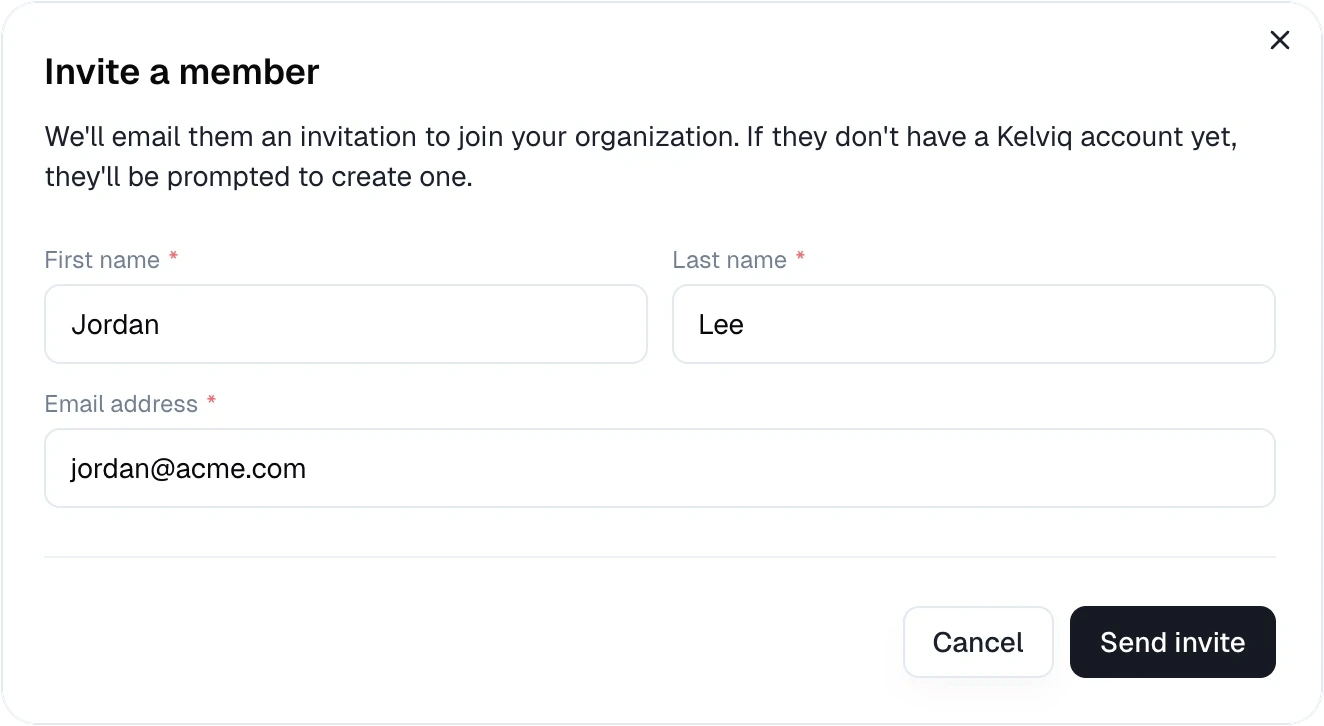
  2. Enter their first name, last name, and email address.
  3. Click Send invite.
The Invite a member dialog with first name, last name, and email address fields
Kelviq emails them an invitation to join your organization. If they don’t have a Kelviq account yet, they’re asked to create one. They show as Invited until they accept, then as Active.

Manage invitations and members

Click ⋯ next to a person:
  • Resend invite sends the invitation email again, for someone who’s still Invited.
  • Cancel invite withdraws an invitation that hasn’t been accepted.
  • Remove takes away a member’s access to the organization immediately. This can’t be undone; invite them again if you need to.