

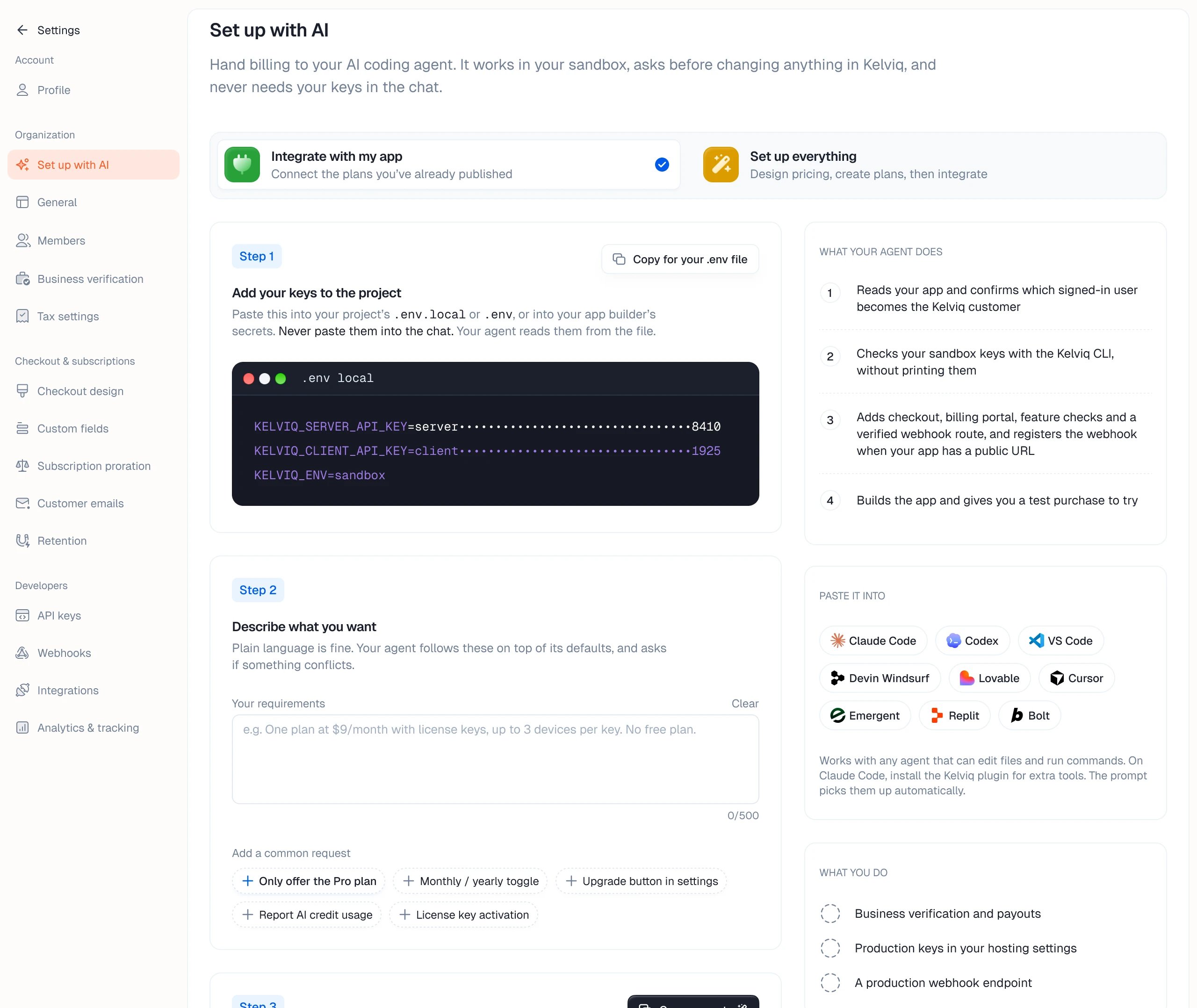
Two ways to start
Integrate with my app is for a catalog you have already built. The agent connects the plans you have published: it adds a checkout route, a billing portal route, feature checks, and a webhook route that verifies signatures. If your app has a public URL, it registers the webhook too. Set up everything is for a new product. The agent reads your app and your requirements, proposes plans, prices, limits, license keys and discount codes, and shows you what it will create. Nothing is created in Kelviq until you approve. It then builds the integration the same way.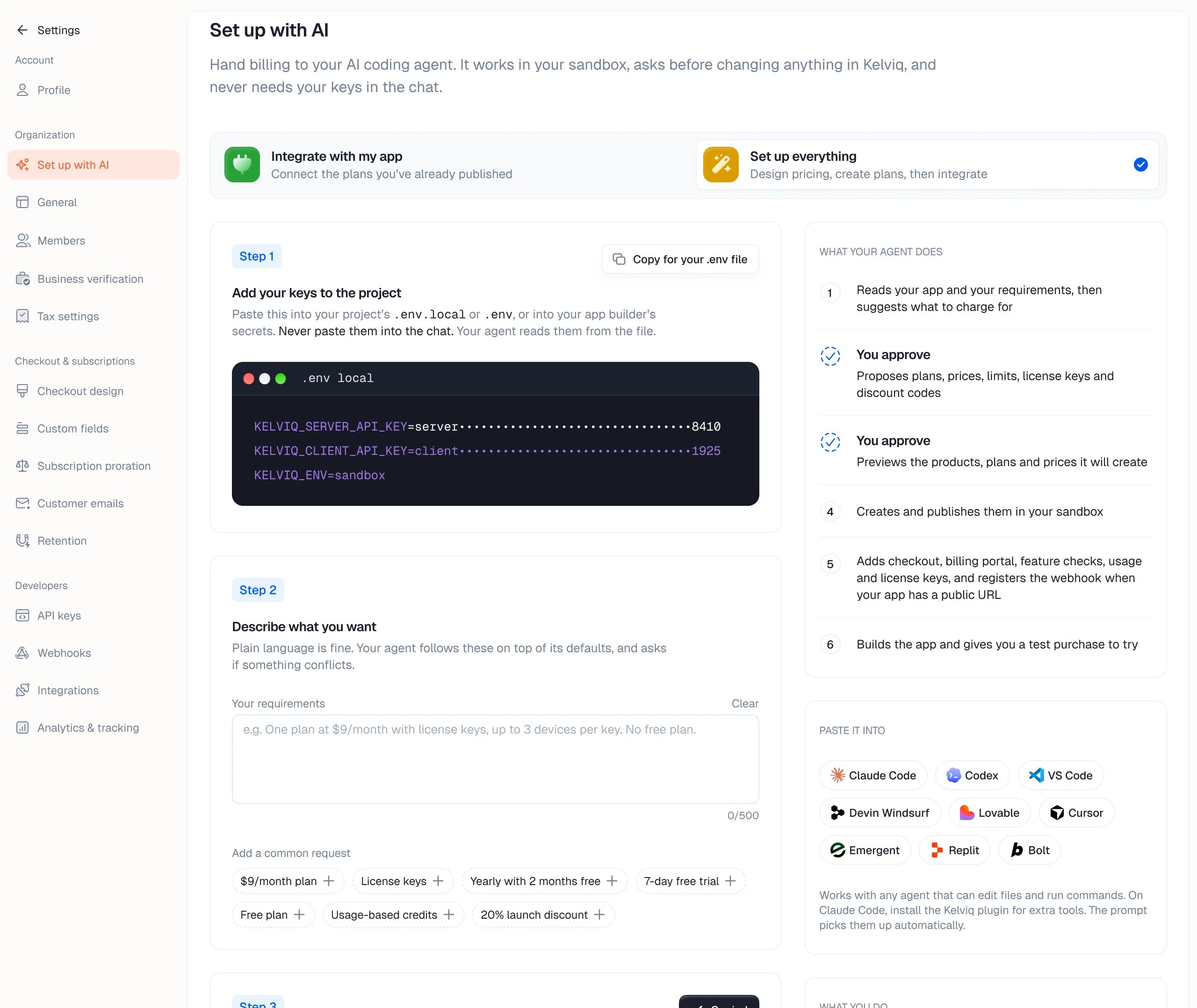
Steps
- Add your keys to the project. Click Copy for your .env file and paste the block into your project’s
.env.localor.env, or into your app builder’s secrets. The agent reads the keys from the file. Don’t paste them into the chat. - Describe what you want. Plain language is fine: “one plan at $9/month with license keys, up to 3 devices per key, no free plan”. Or add a common request, such as a monthly and yearly toggle or a 7-day free trial. The agent follows these on top of its defaults and asks if something conflicts.
- Give the prompt to your agent. Click Copy prompt, open your agent in your app’s project, and paste it as the first message.