

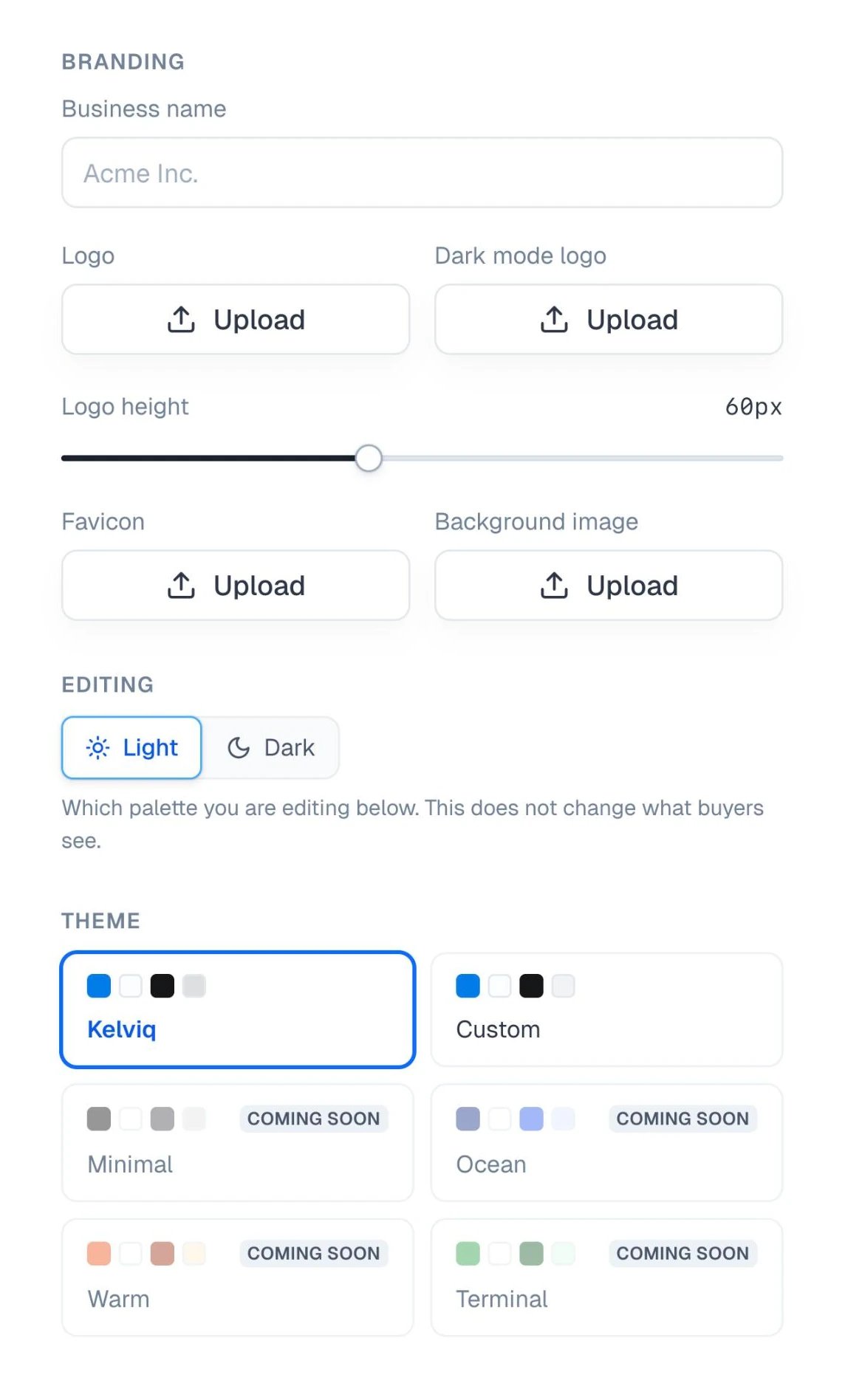
Branding
Theme and colors
Checkout starts on the Kelviq theme. Change any color and it becomes Custom. Light and dark mode each have their own set of colors. Under Editing, pick which one you’re changing. This only affects the editor, not what customers see.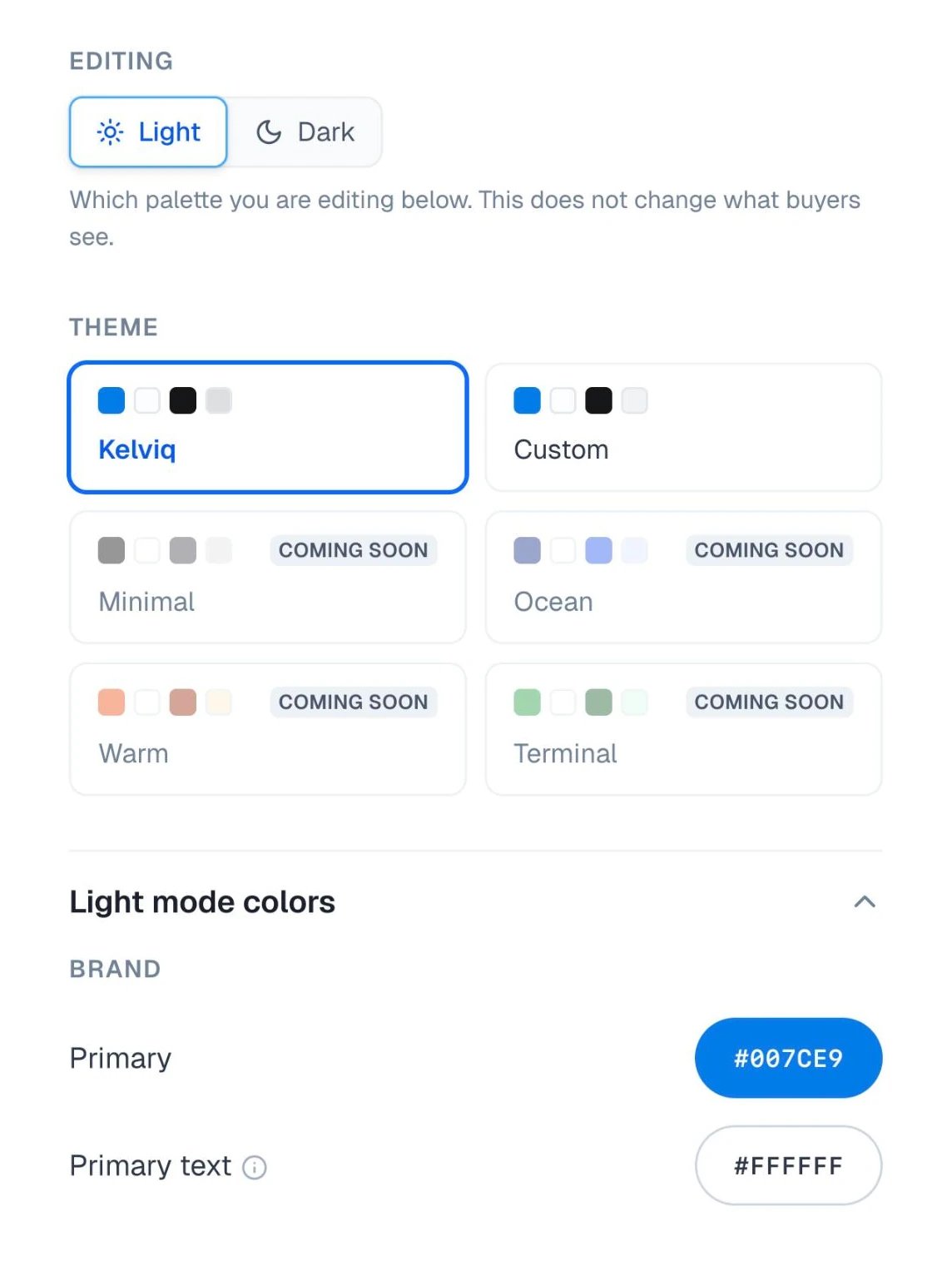
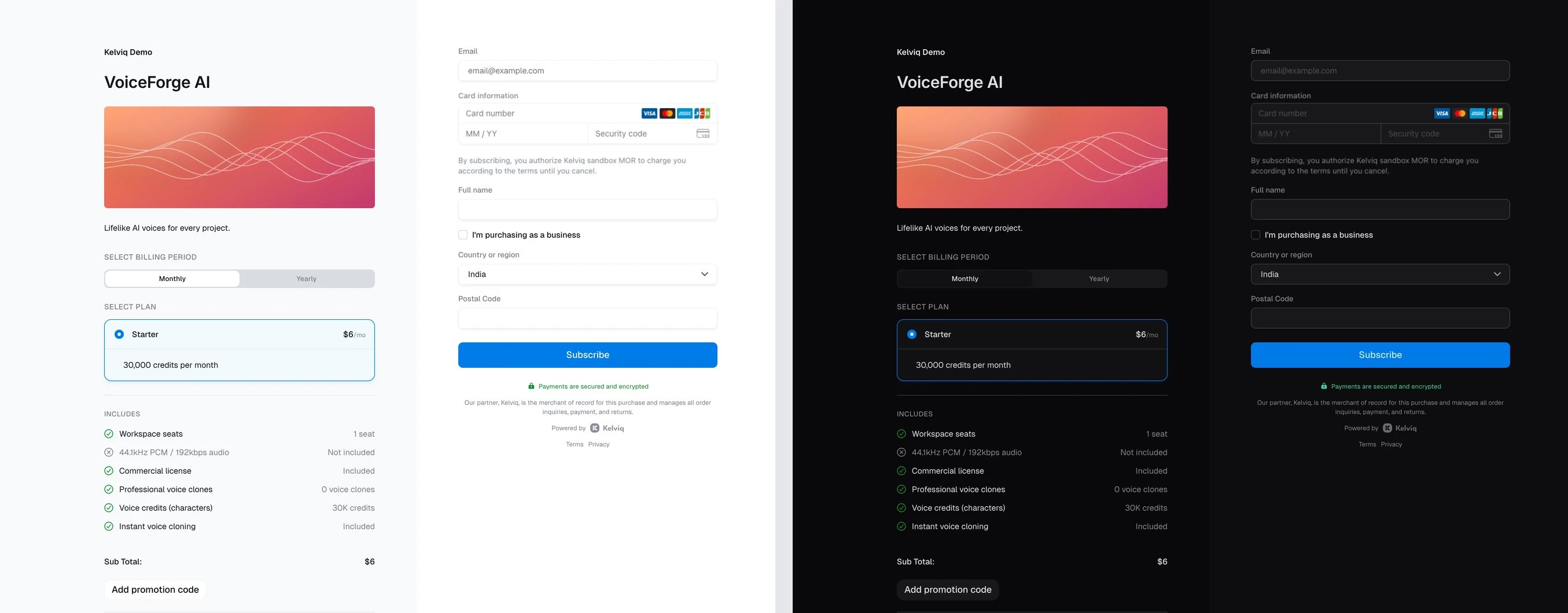
Shape
Set how rounded cards, buttons, and inputs are. Tick Link card, button, and input radius to use one value for all three, or untick it to set Corner radius, Button radius, and Input radius separately.Default mode
Choose how checkout opens: Match buyer’s device, Light, or Dark. Customers can still switch modes themselves from the corner of the page.Choose what customers see
Under Visibility, turn sections of checkout on or off. Everything is on by default except Metered features.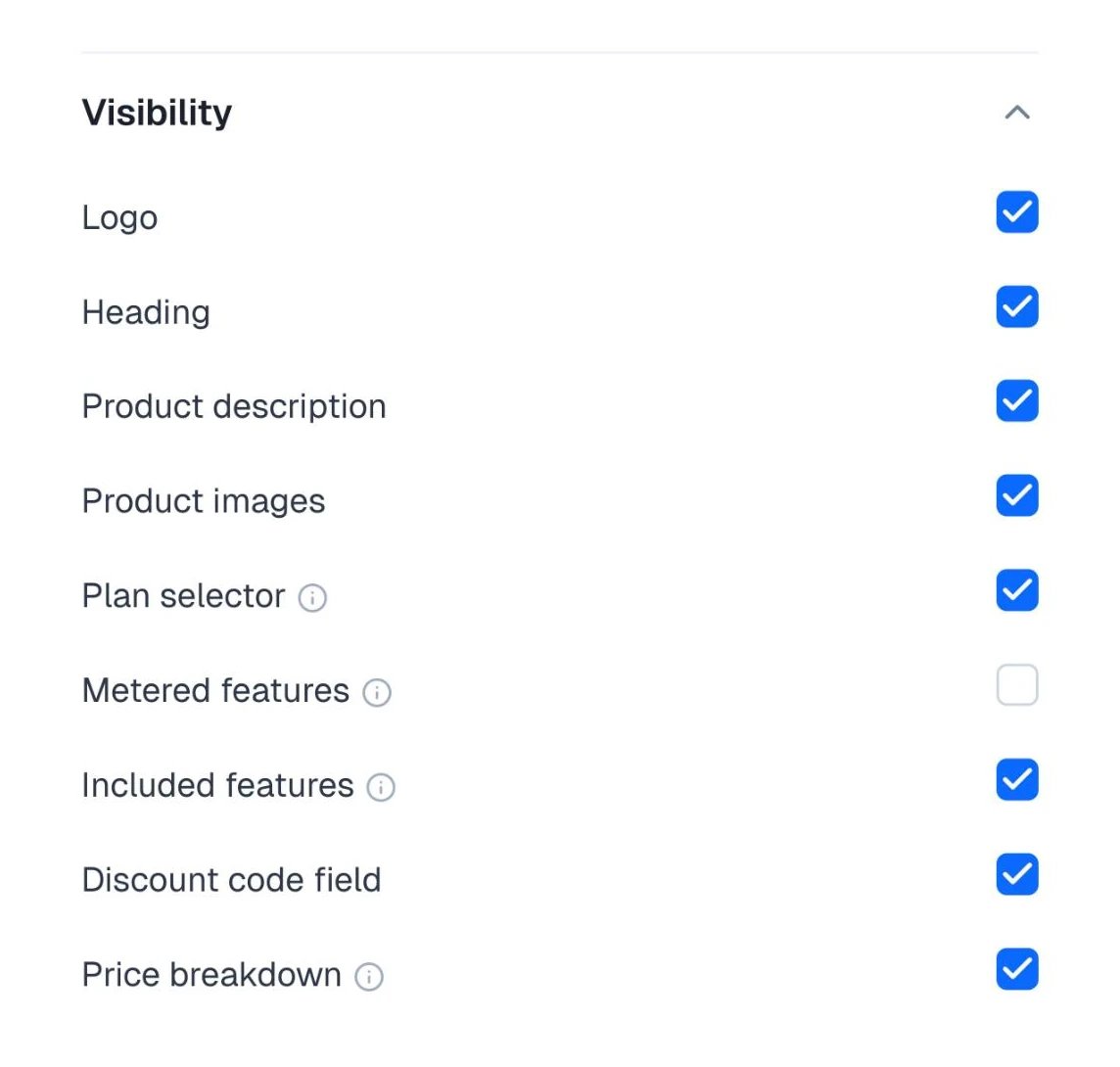
Hiding the plan selector only hides the list. Checkout still uses the plan from the link. To hide the discount field for one link rather than every checkout, add
discounts_enabled=false to the checkout URL.