

4242 4242 4242 4242, any future expiry date, and any CVC.
The examples use the default look. You can change the logo, colors, and which sections appear in Checkout design.
Light and dark mode
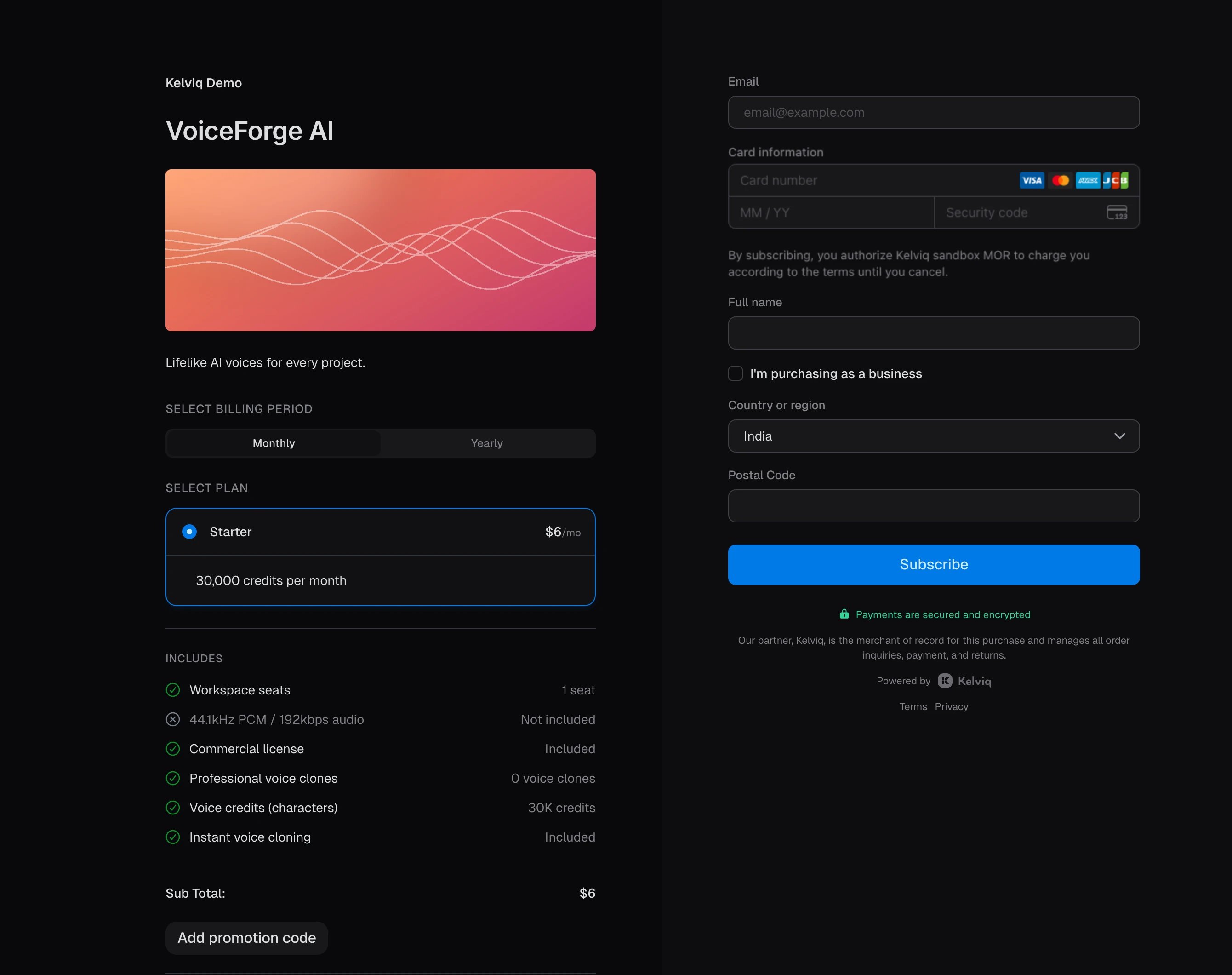
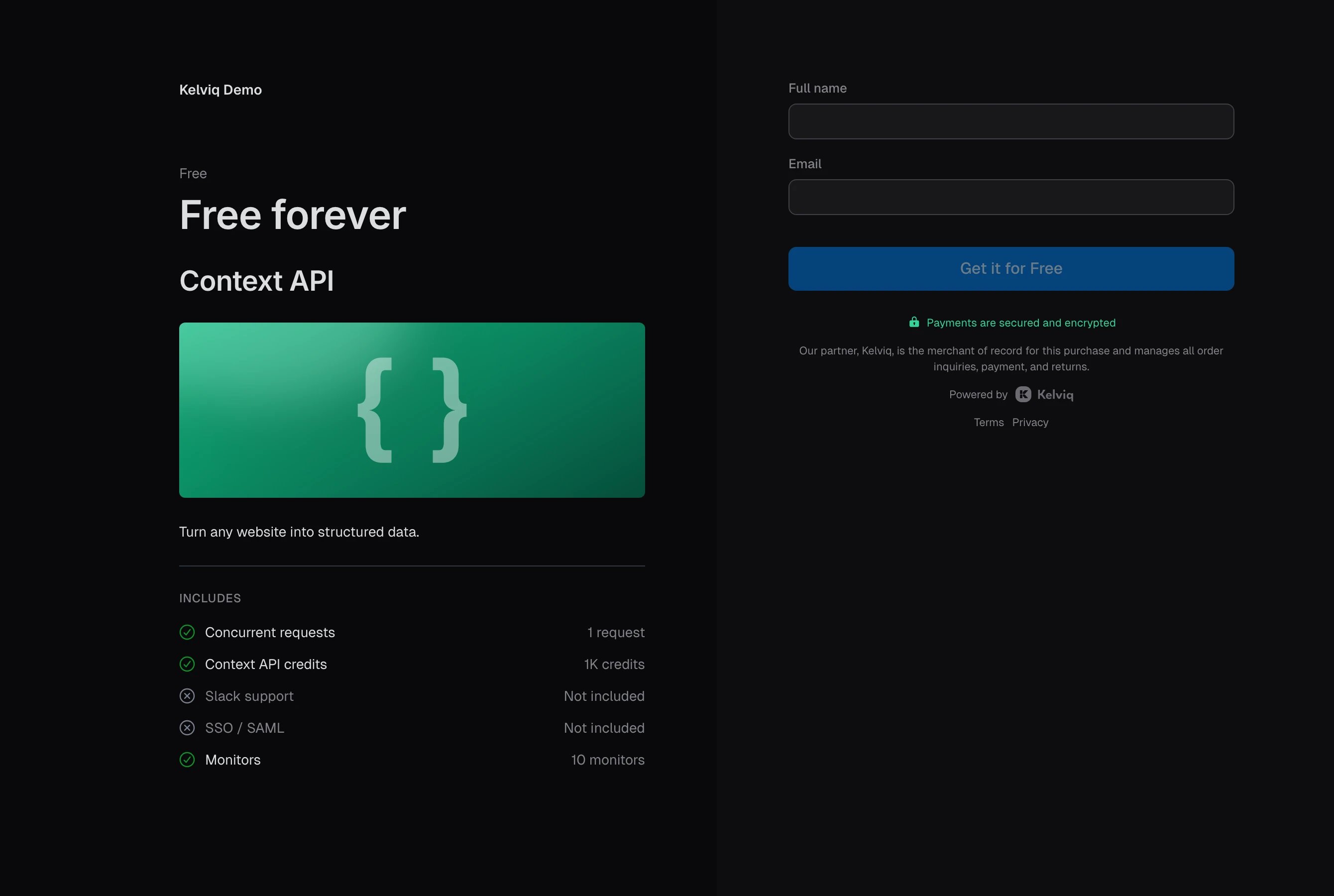
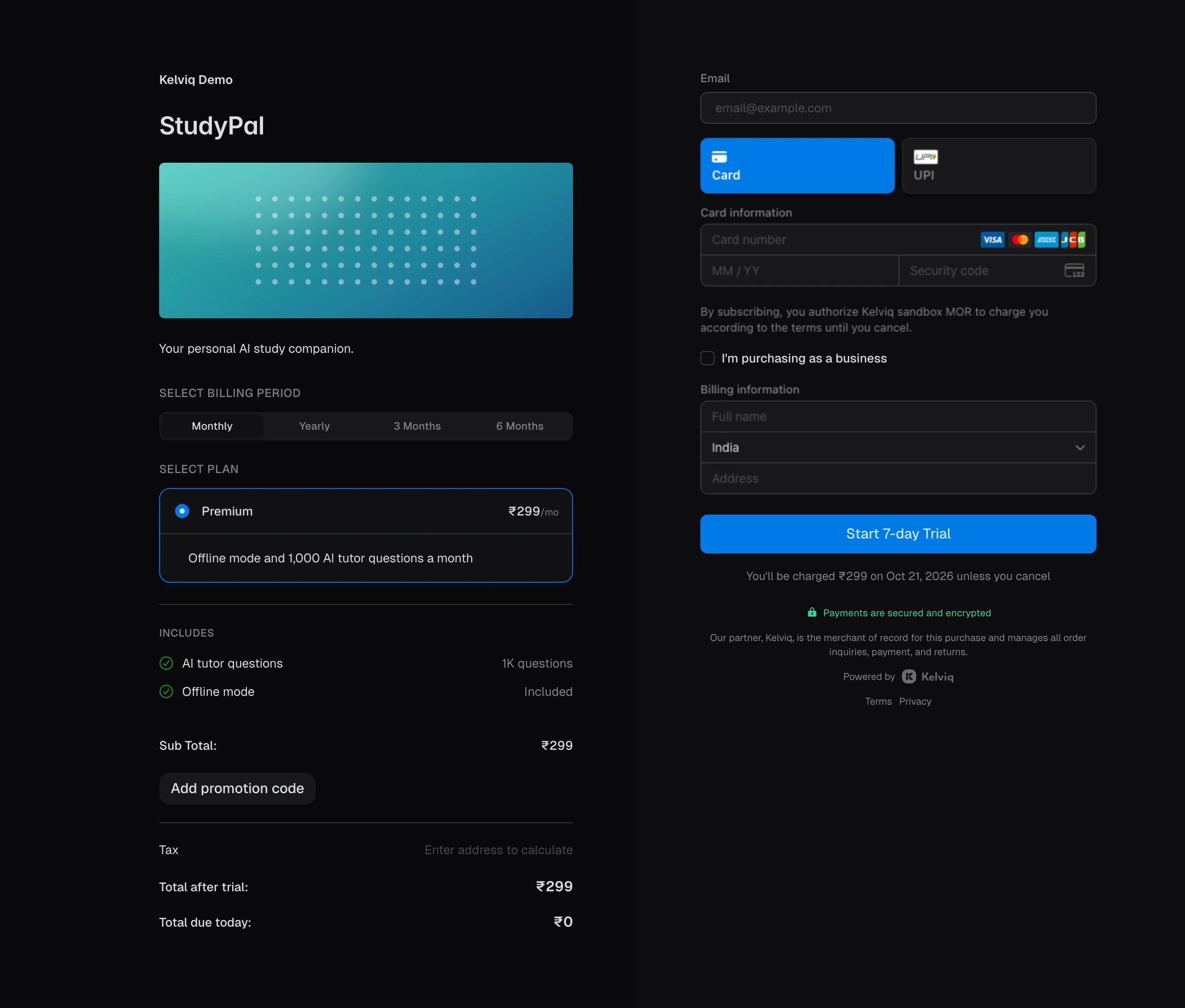
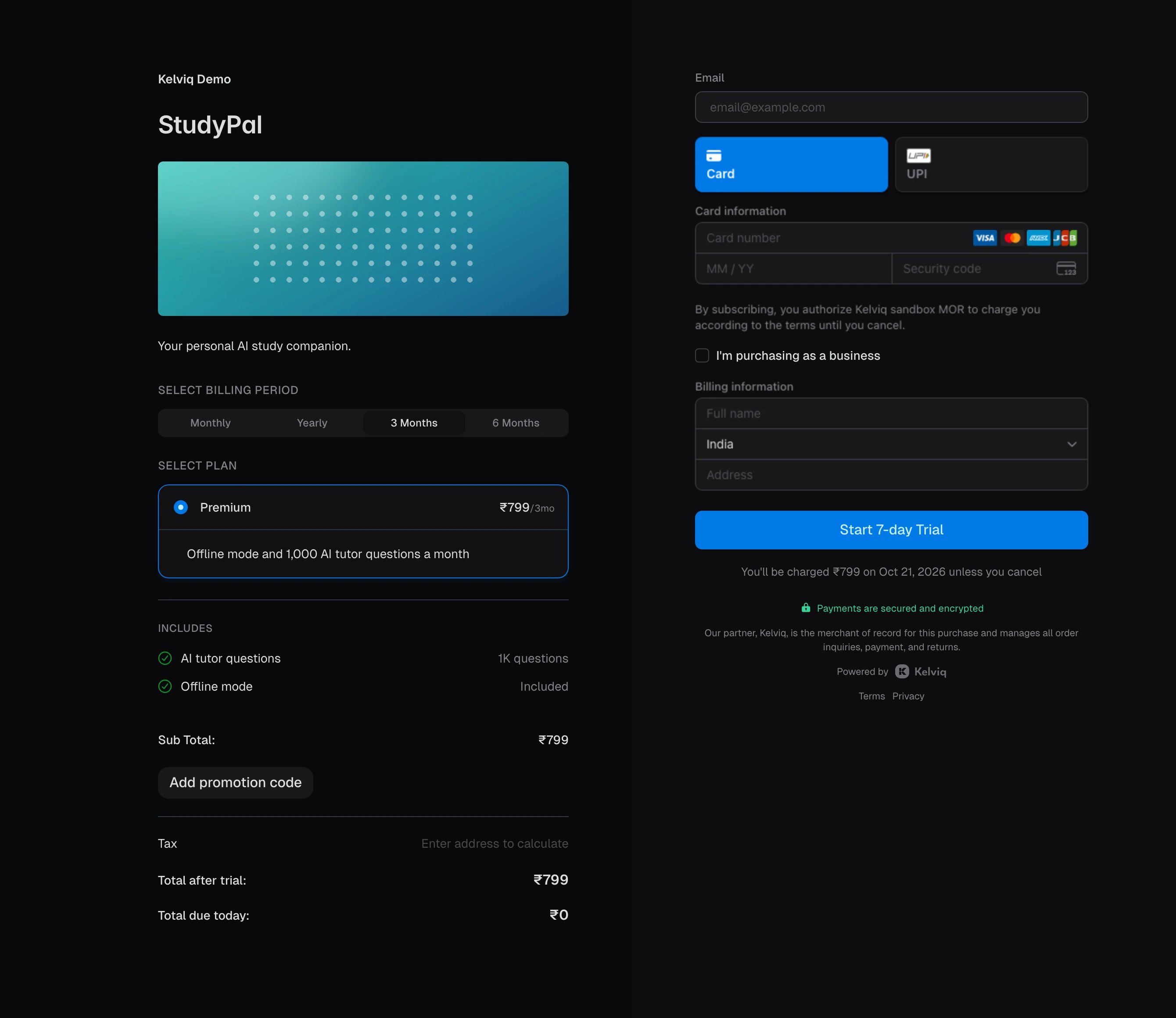
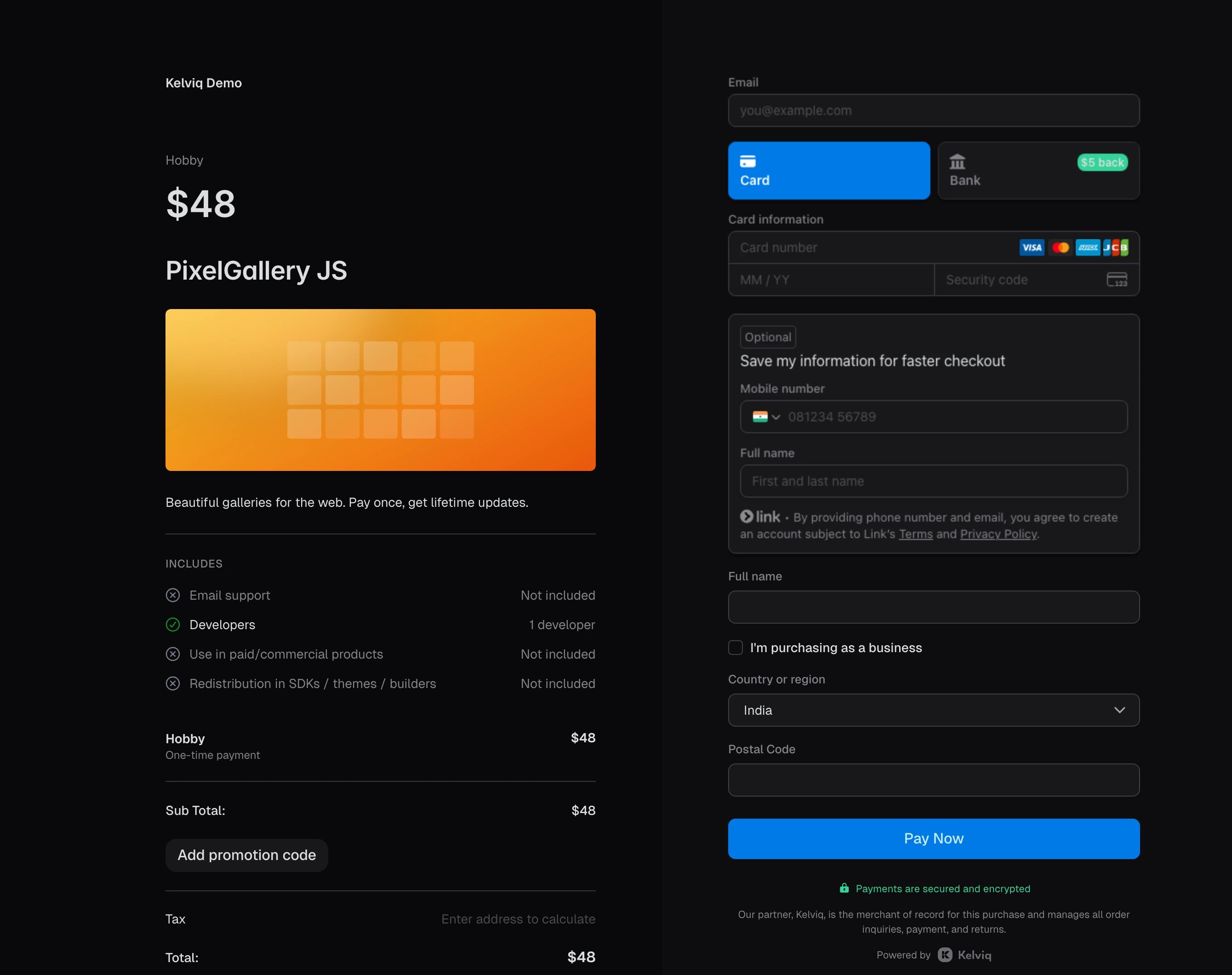
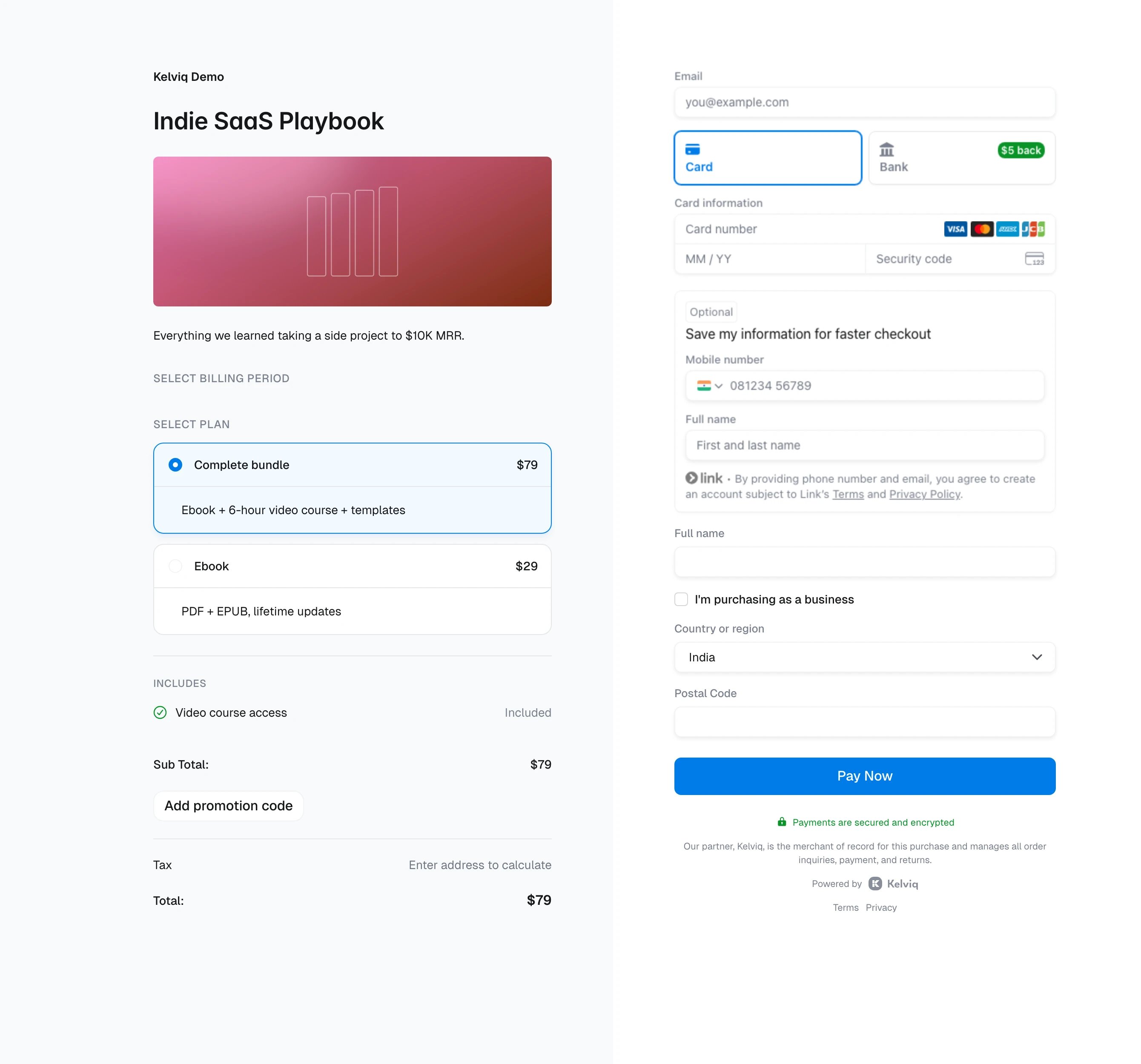
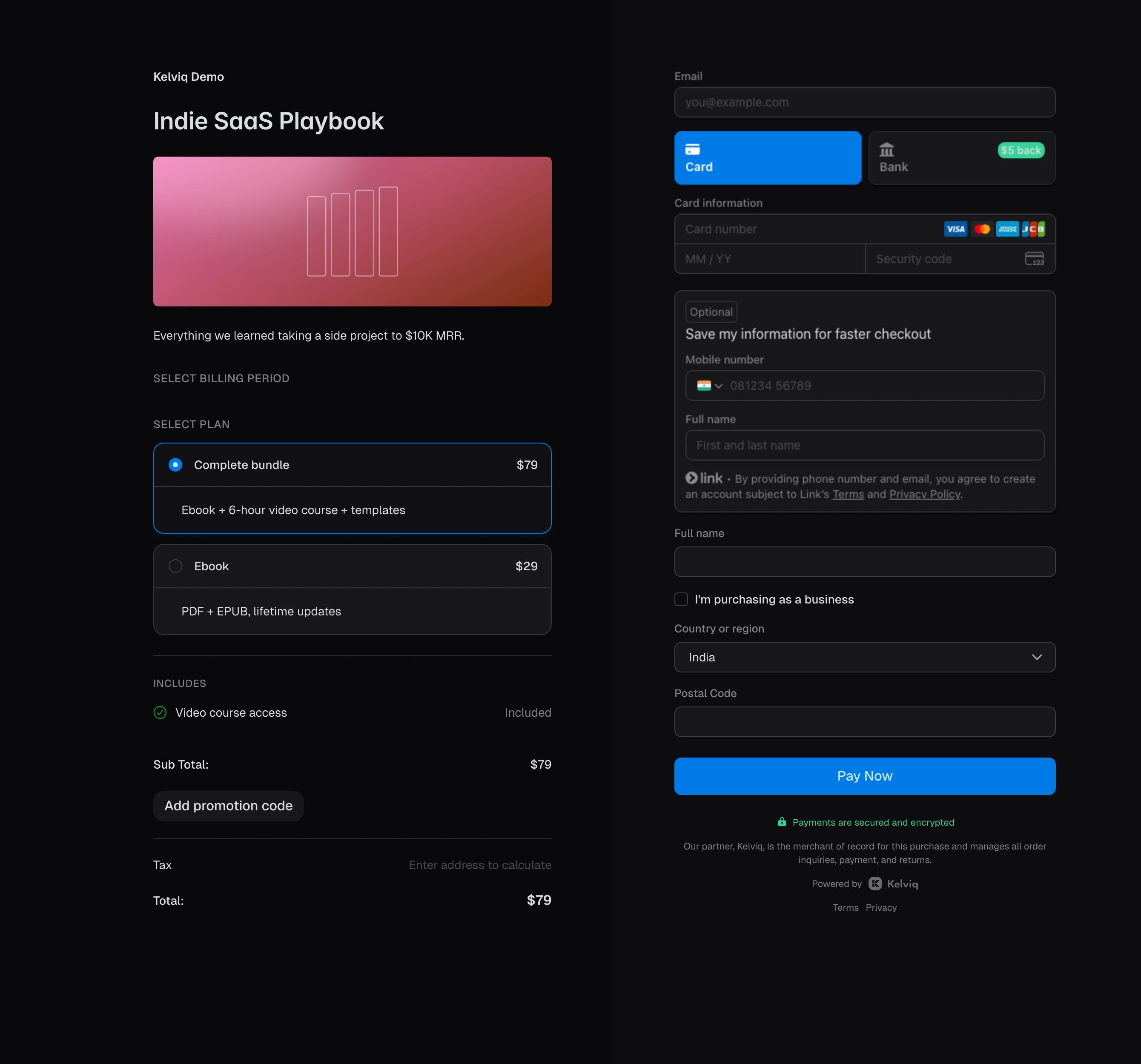
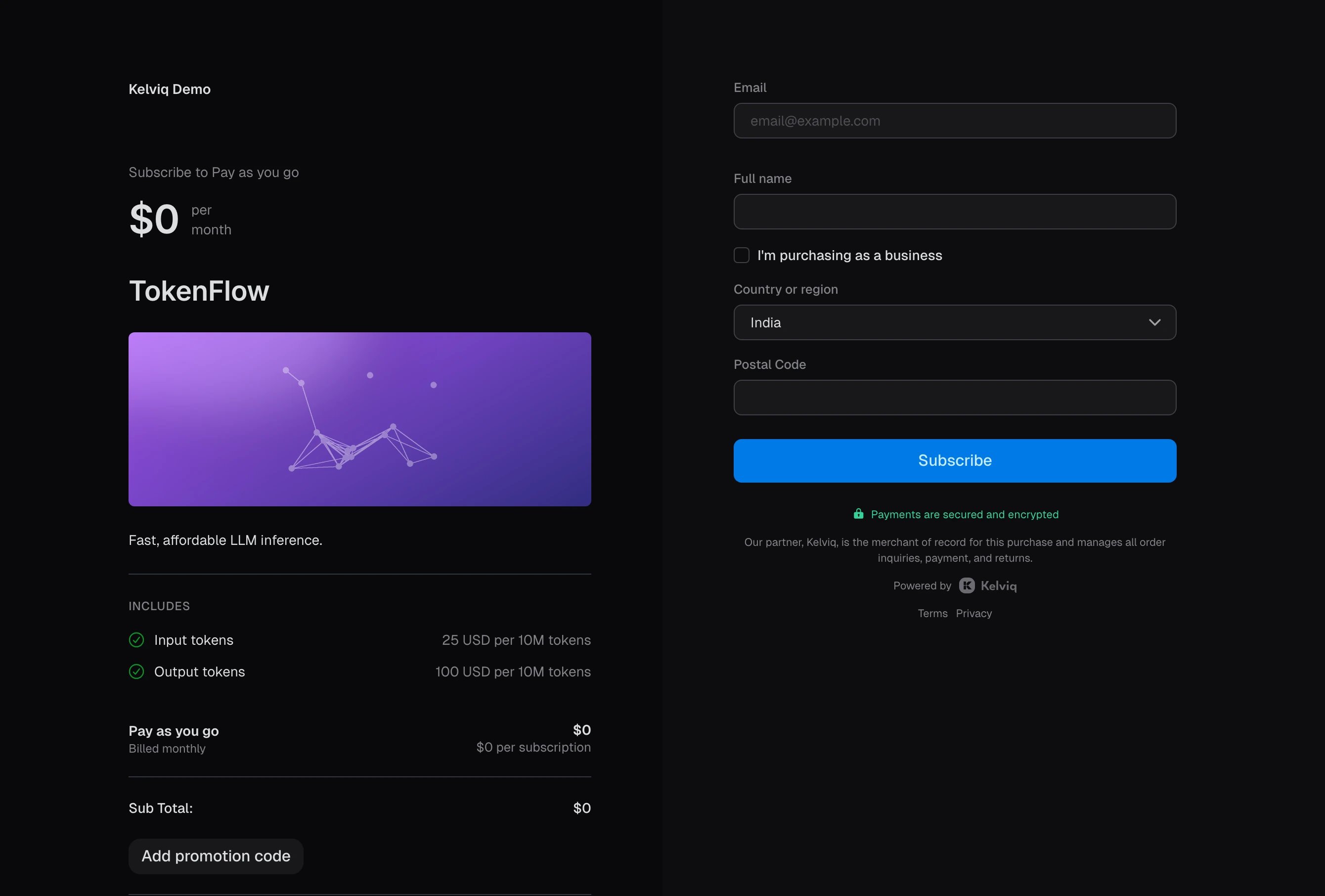
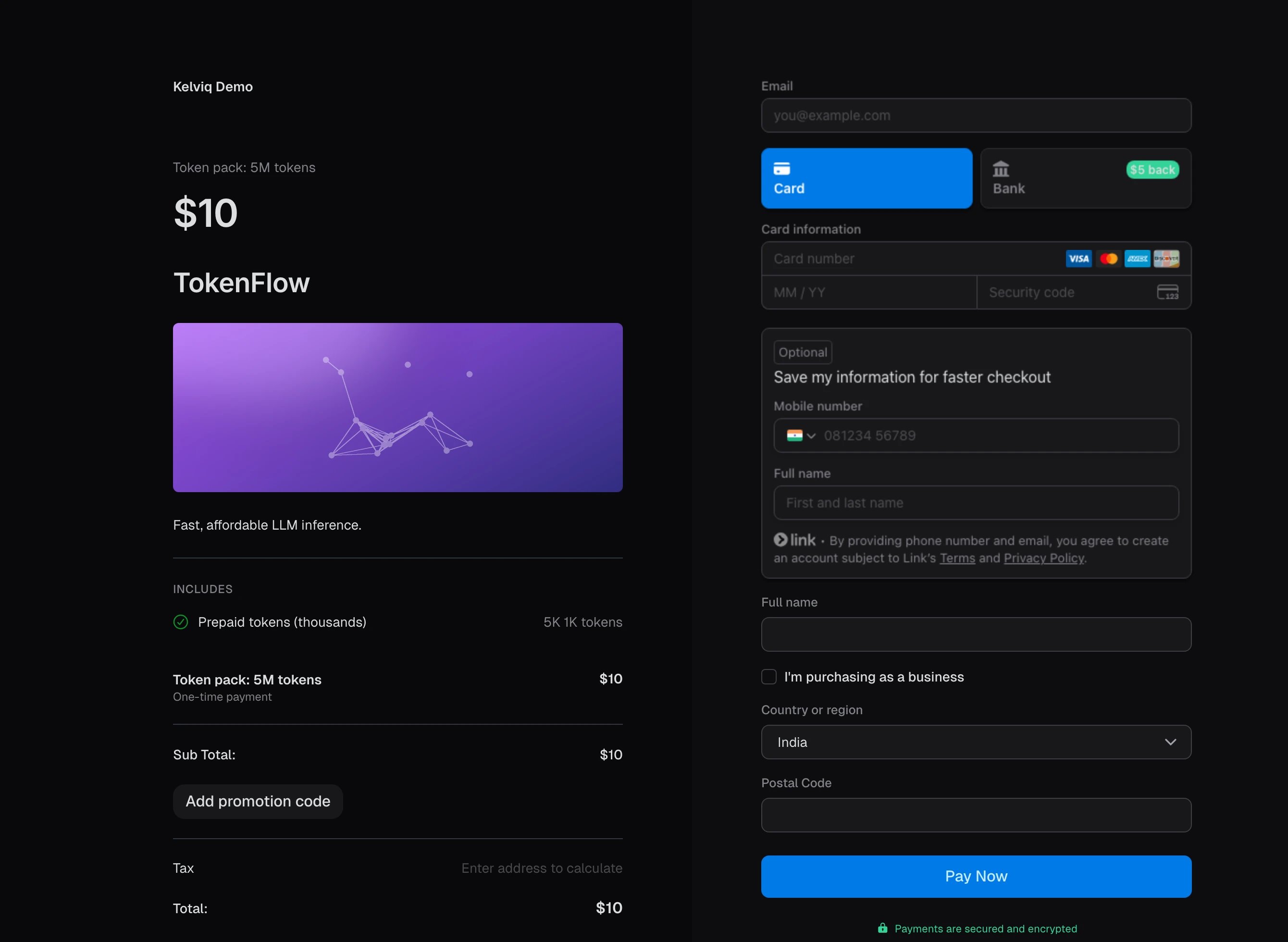
By default, checkout follows the light or dark setting on the customer’s device, and the customer can switch it from the bottom-left corner. To always show light or dark, change the mode in Checkout design. The other screenshots on this page match the theme you’re reading in.- Light
- Dark
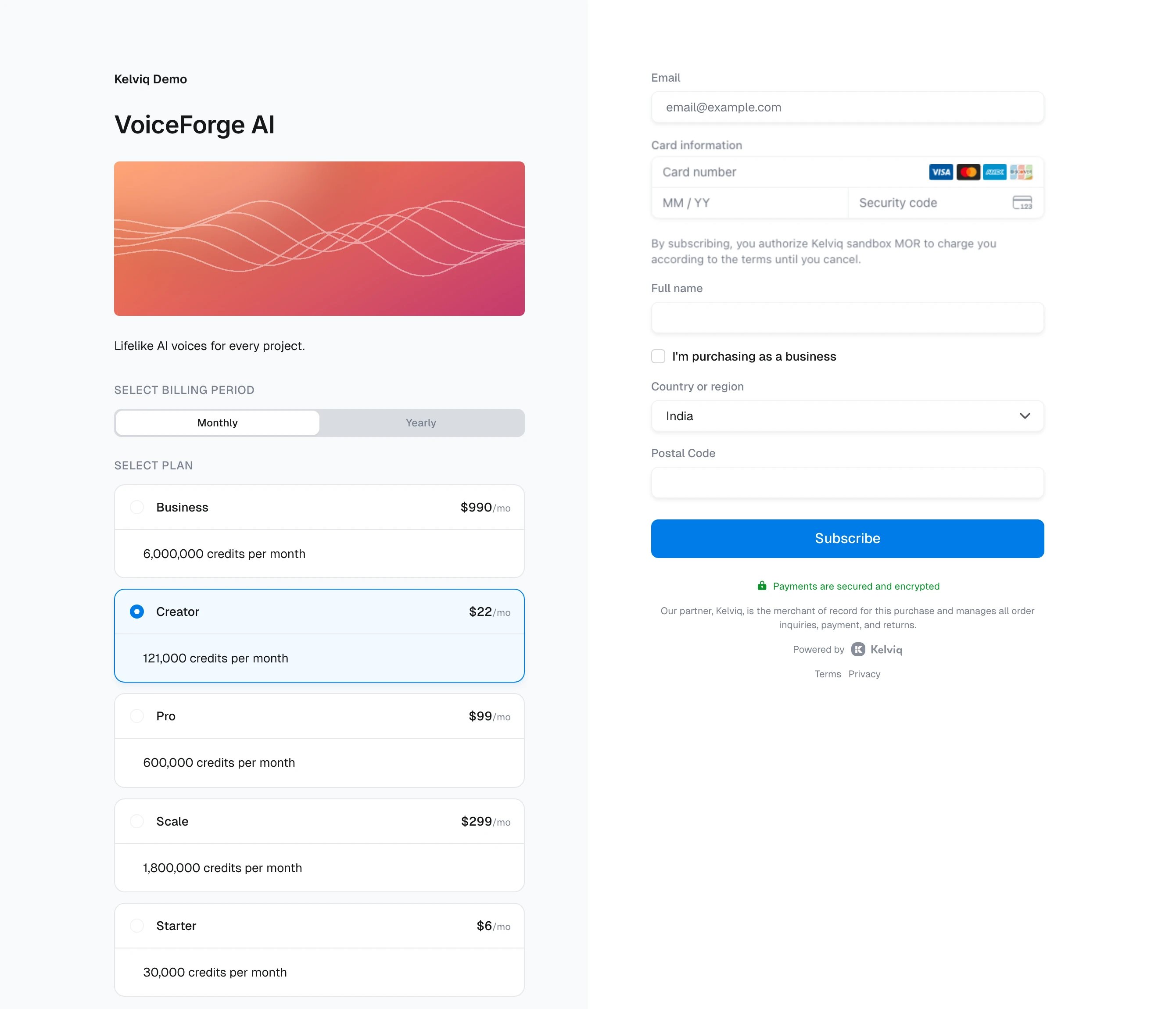
Plan picker
List several plans in the link and checkout shows them as a list the customer can choose from. You also pick which plan is selected when the page opens. This is the usual link behind a Buy button on a pricing page.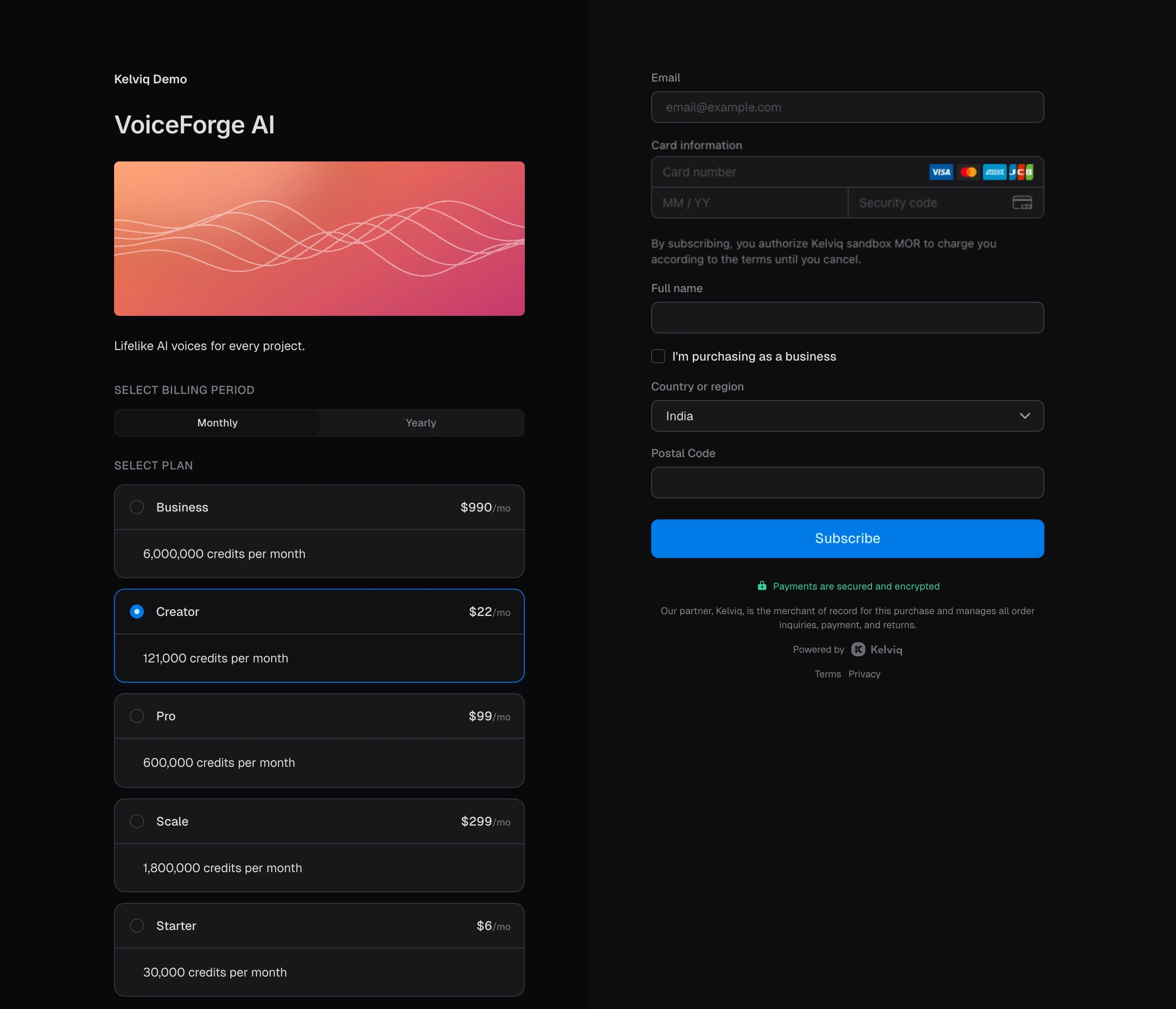
Single plan
Put only one plan in the link and checkout shows just that plan, already selected. Use this when the customer has picked a plan on your site.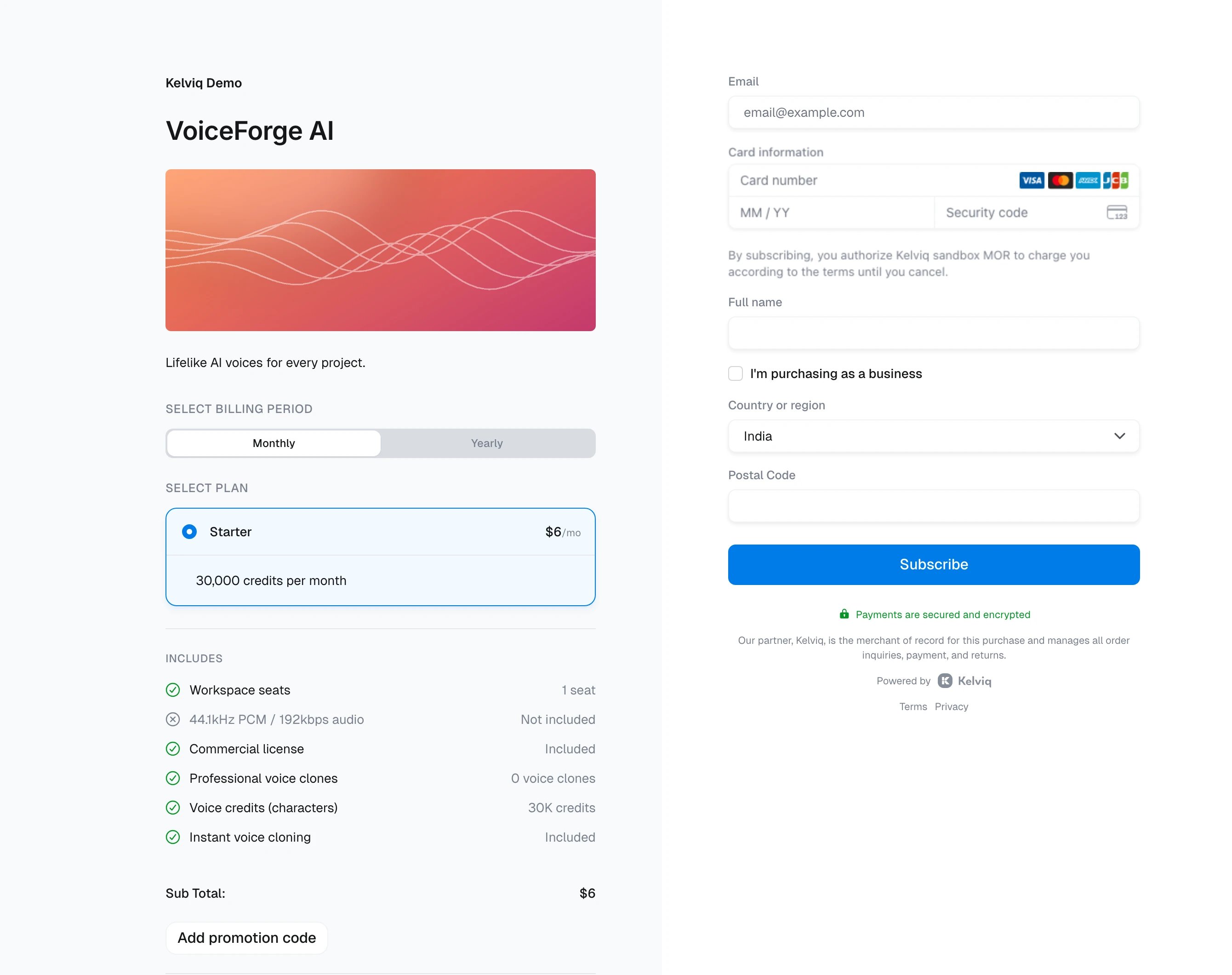
Free plan
A free plan asks for a name and email only. There are no card or address fields, and the button reads Get it for Free. The customer still gets a subscription and the plan’s entitlements.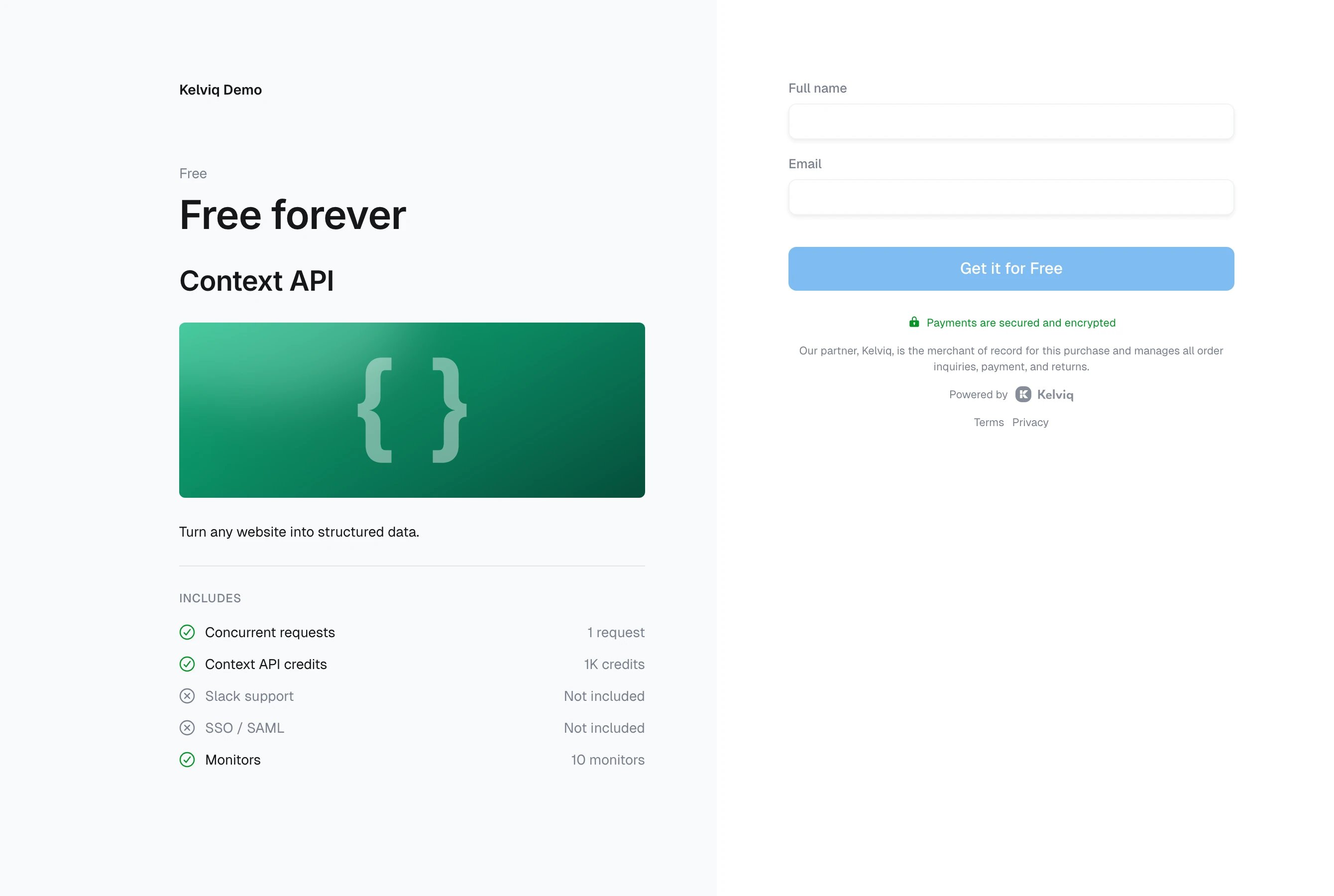
Free trial
When the plan has a trial period, checkout collects the card but charges nothing today. The summary shows Total after trial and Total due today, and the text under the button gives the date of the first charge.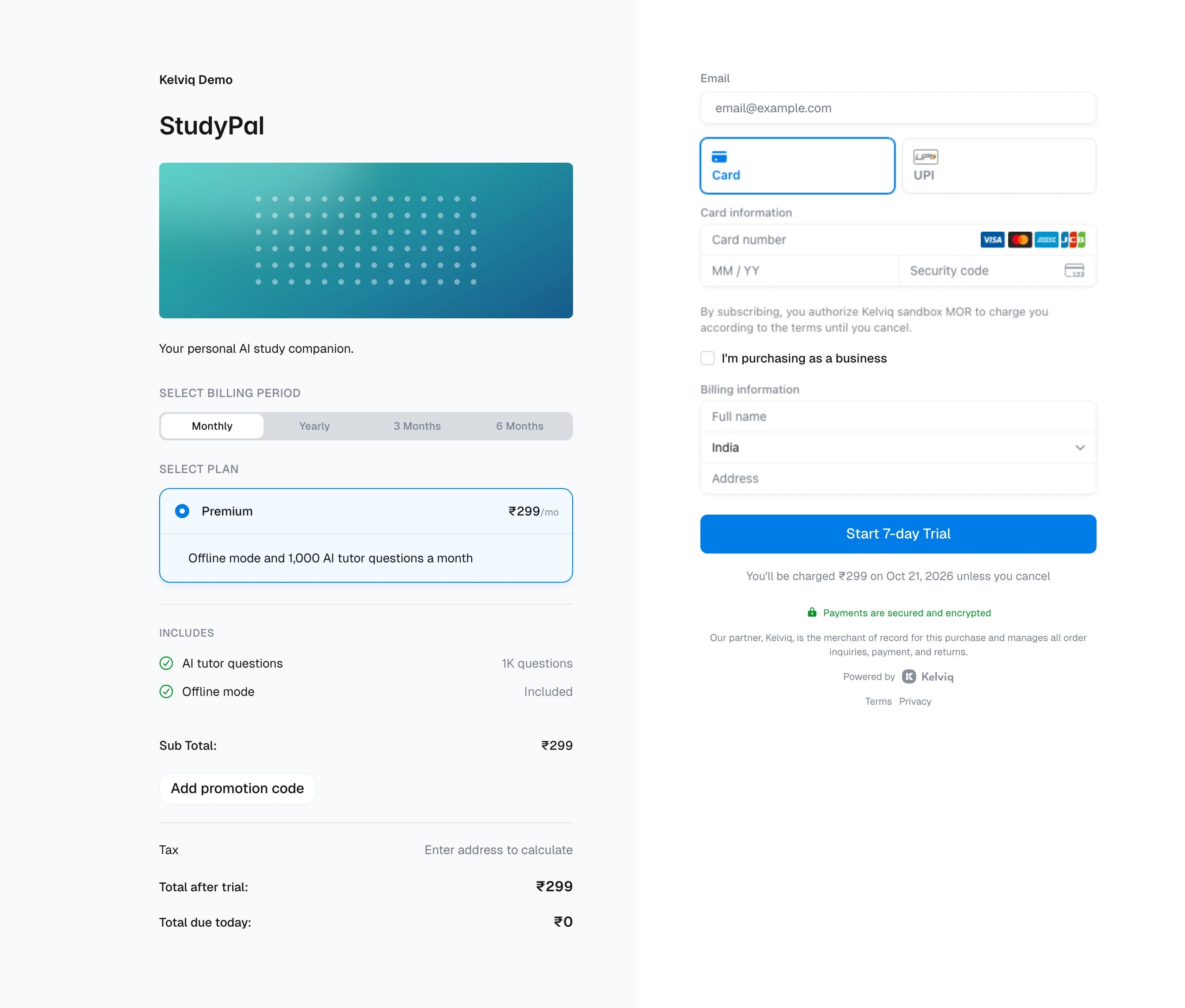
More billing periods
A plan can be sold monthly, every 3 months, every 6 months, and yearly. Checkout shows a tab for each period the plan has a price for, and the link decides which tab opens first.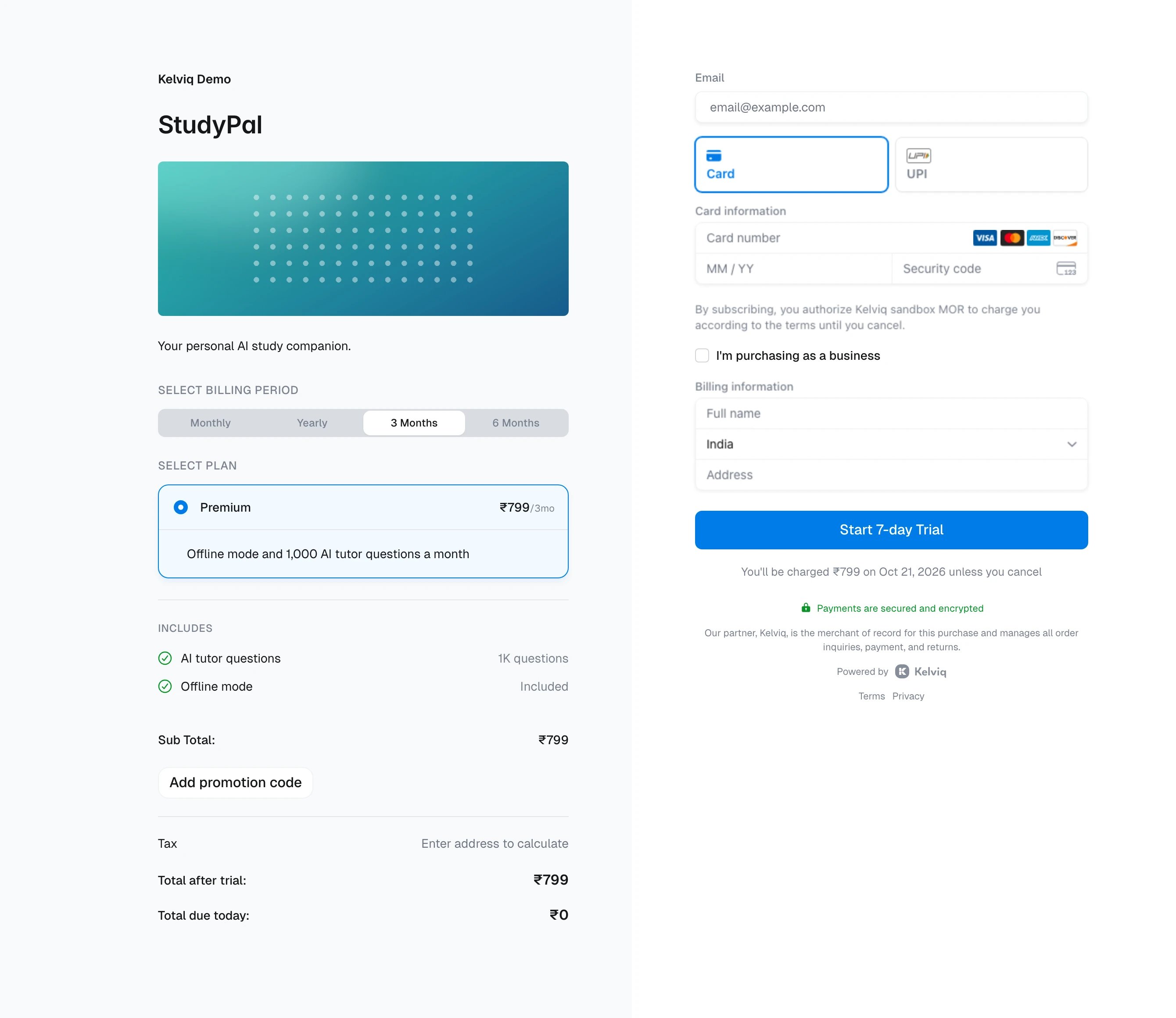
One-time payment
For a one-time plan there’s no billing-period toggle, the summary says One-time payment, and the button reads Pay Now.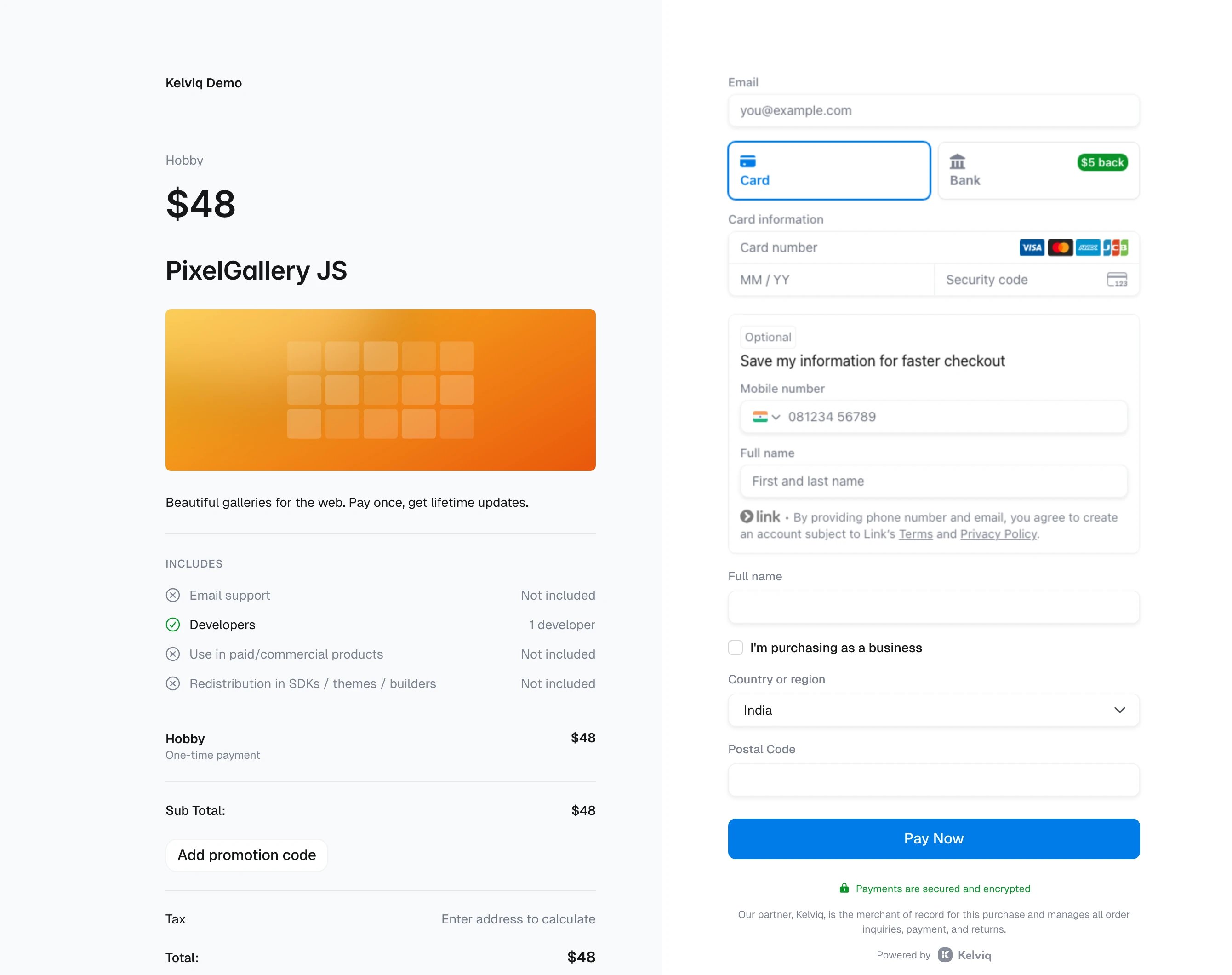
Included usage with overage
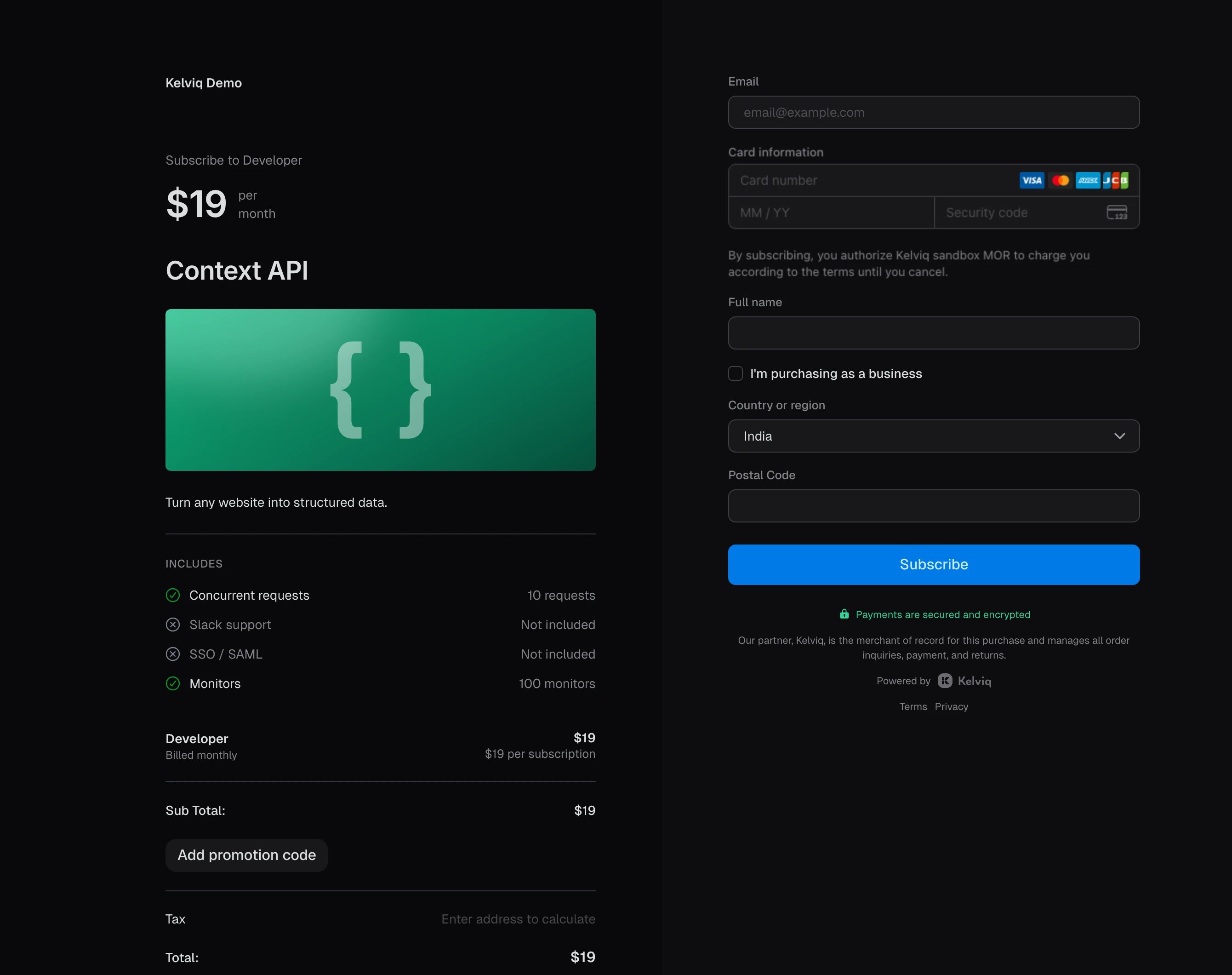
The Context API Developer plan costs $19 a month, includes 7,500 credits, and charges $2.20 per 1,000 credits after that. Checkout charges the $19 base fee. Overage is billed at the end of each monthly period from the usage your backend reports.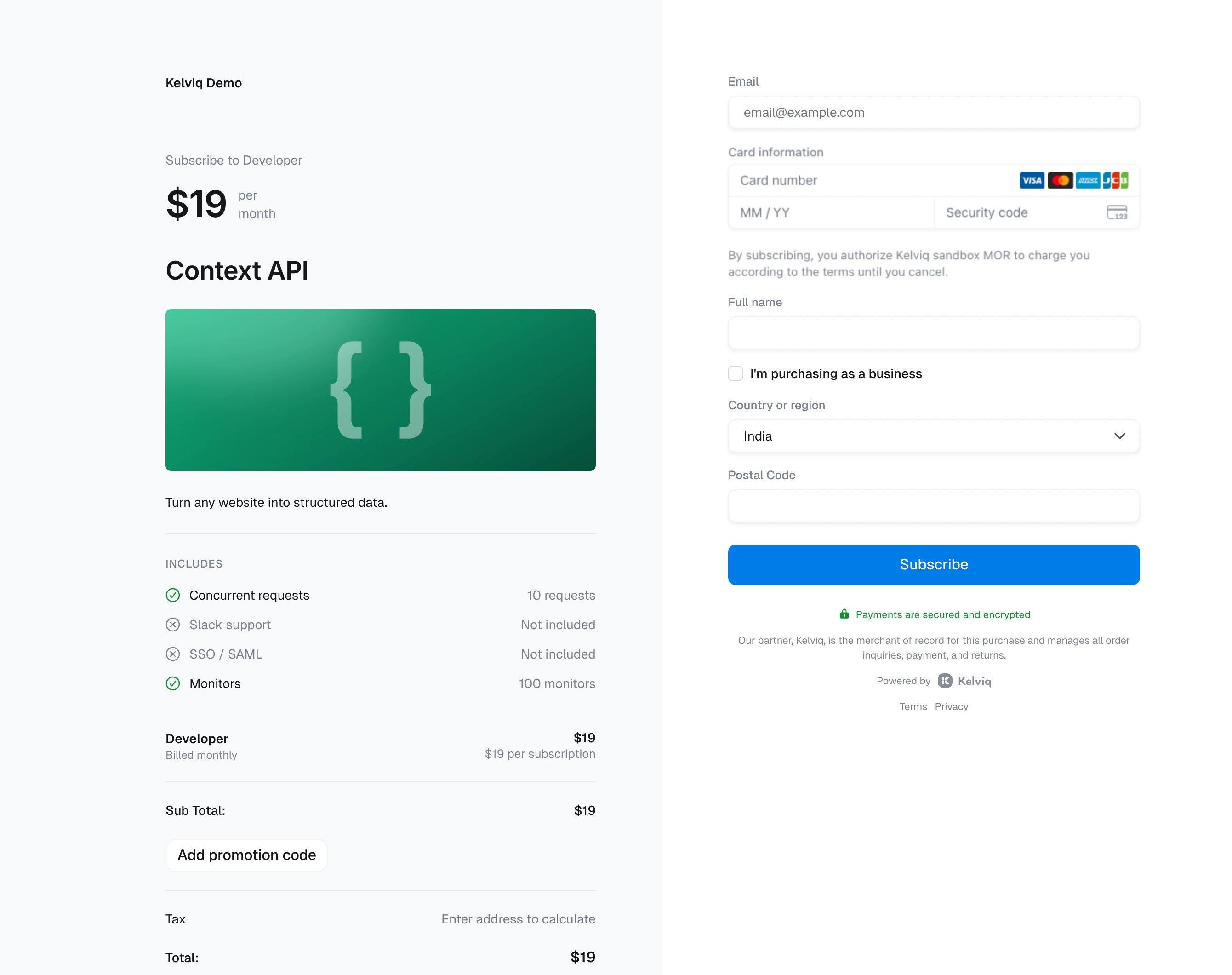
Pay as you go
A pay-as-you-go plan with no base price opens at $0 a month. Nothing is charged at checkout. The token rates are listed under what’s included, and Kelviq bills the recorded usage at the end of each month.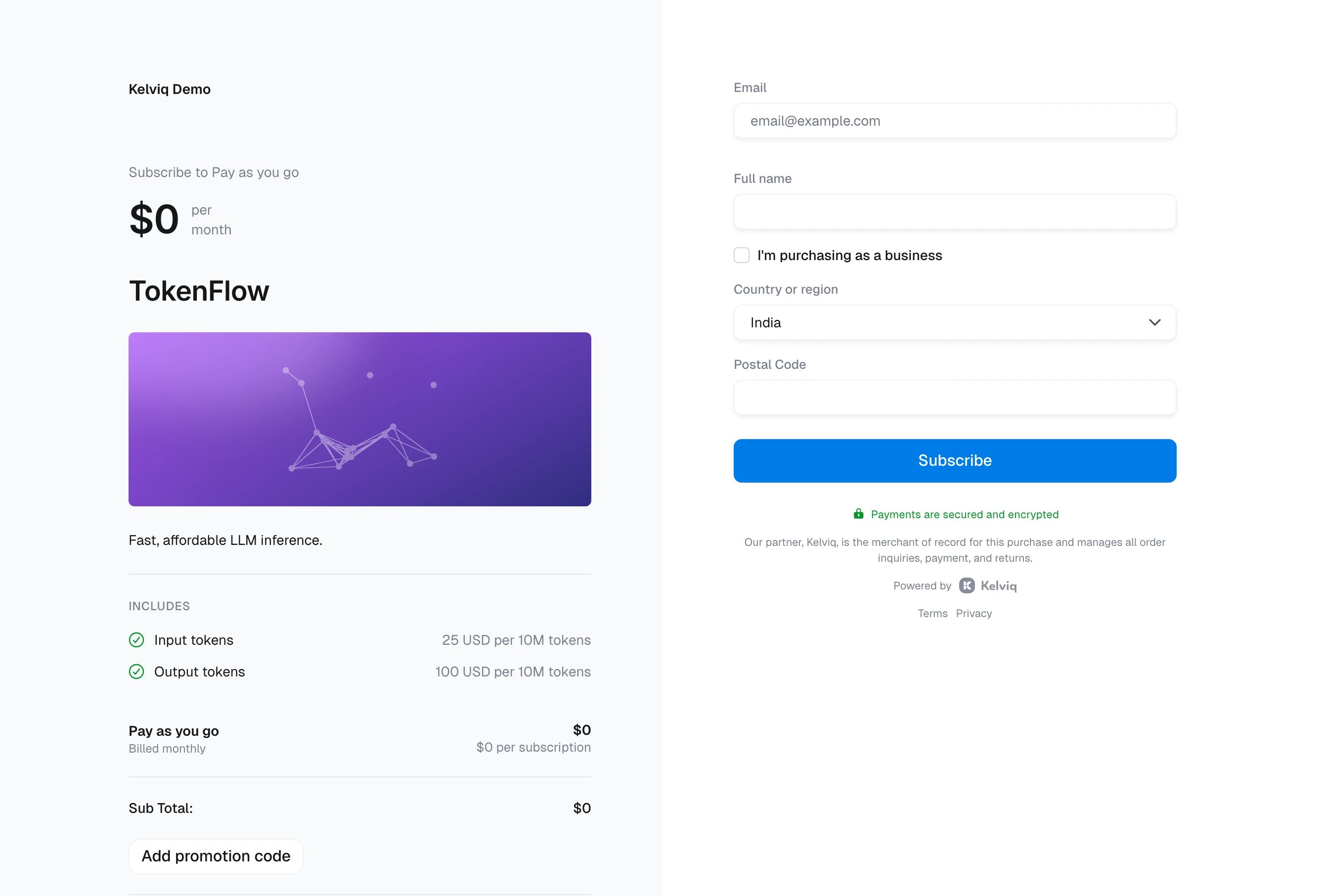
Prepaid credit pack
Sell usage upfront with a one-time plan that grants a fixed amount of a Meter feature. This pack adds 5M tokens for $10.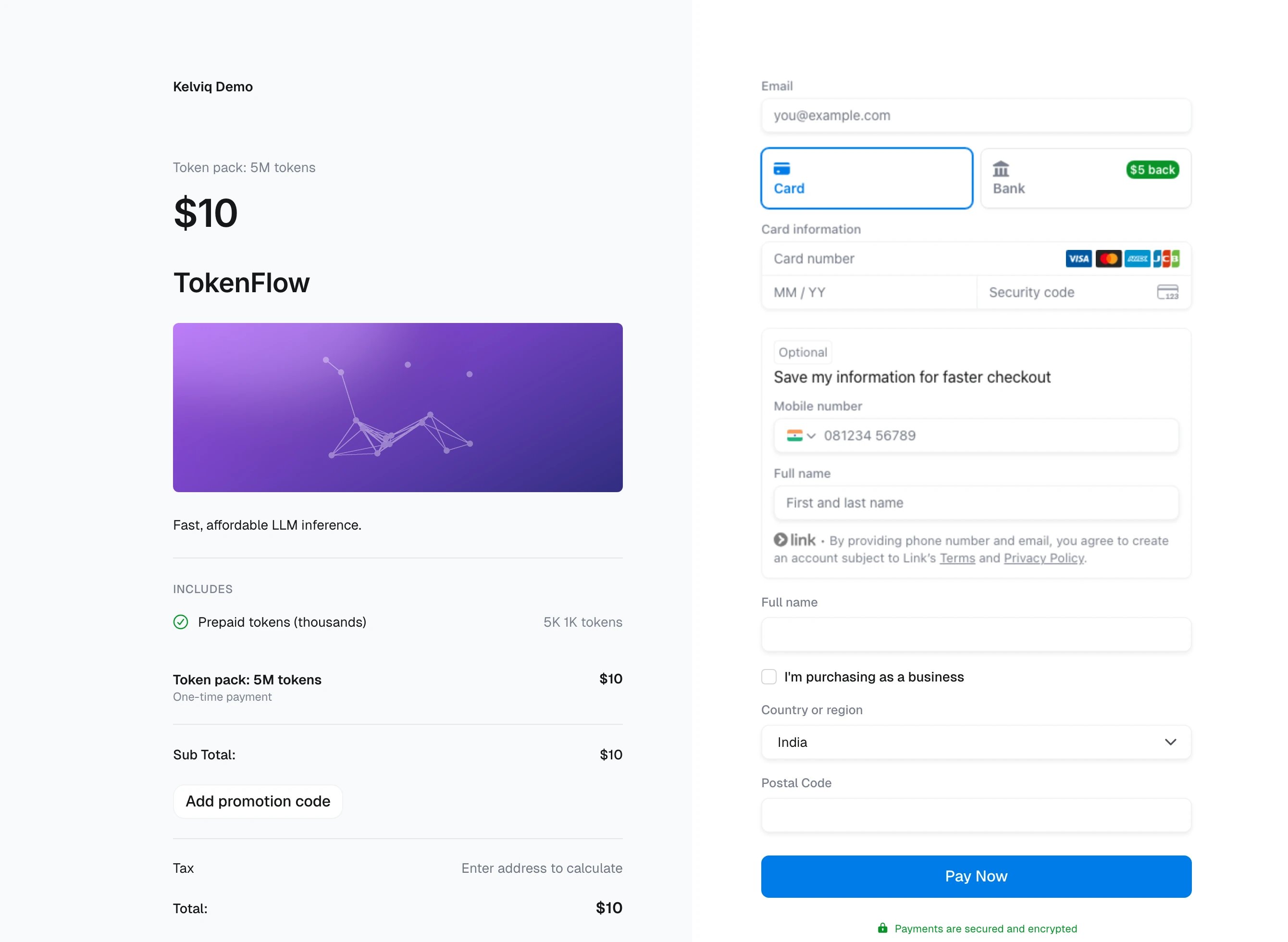
Discount applied
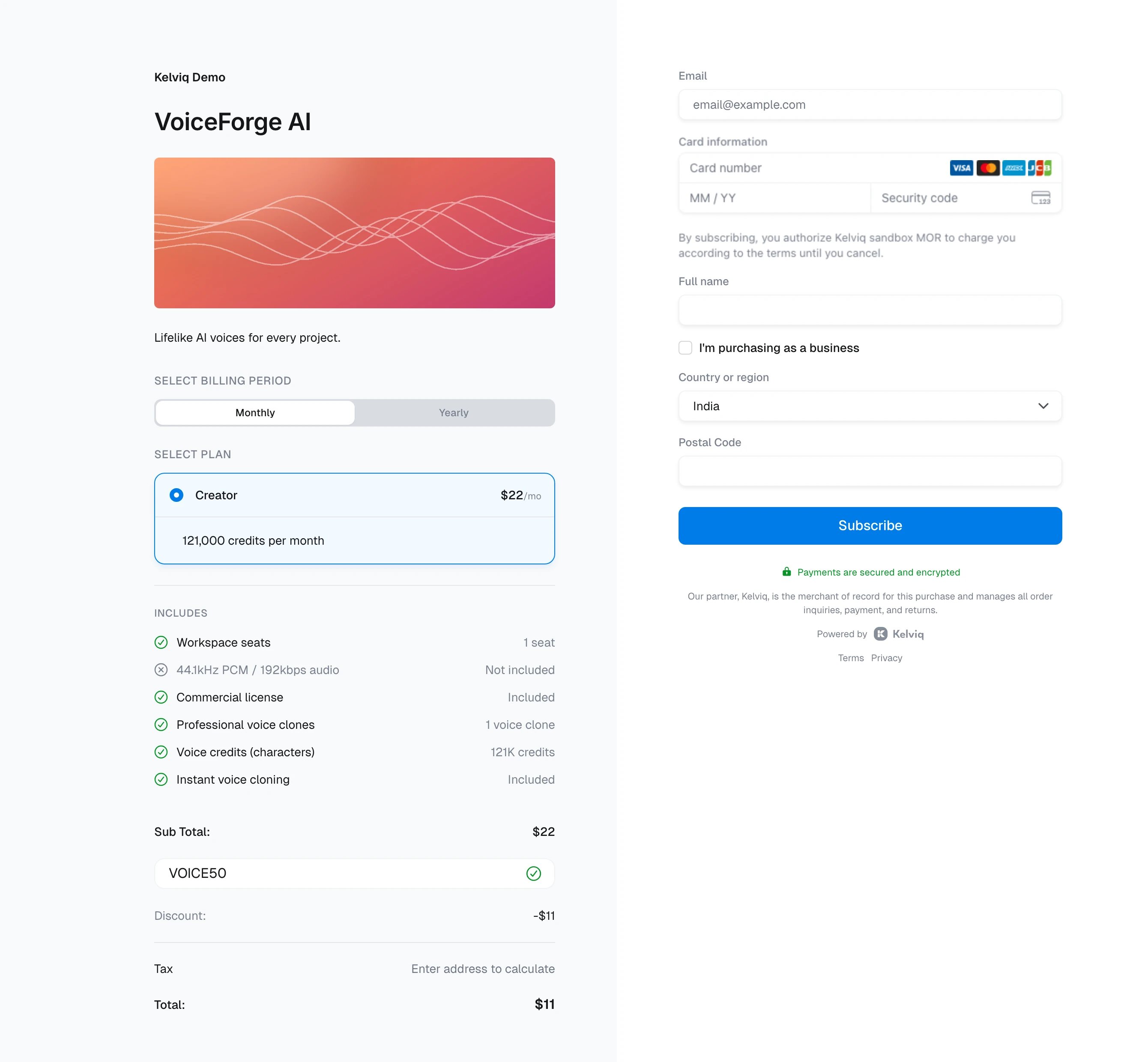
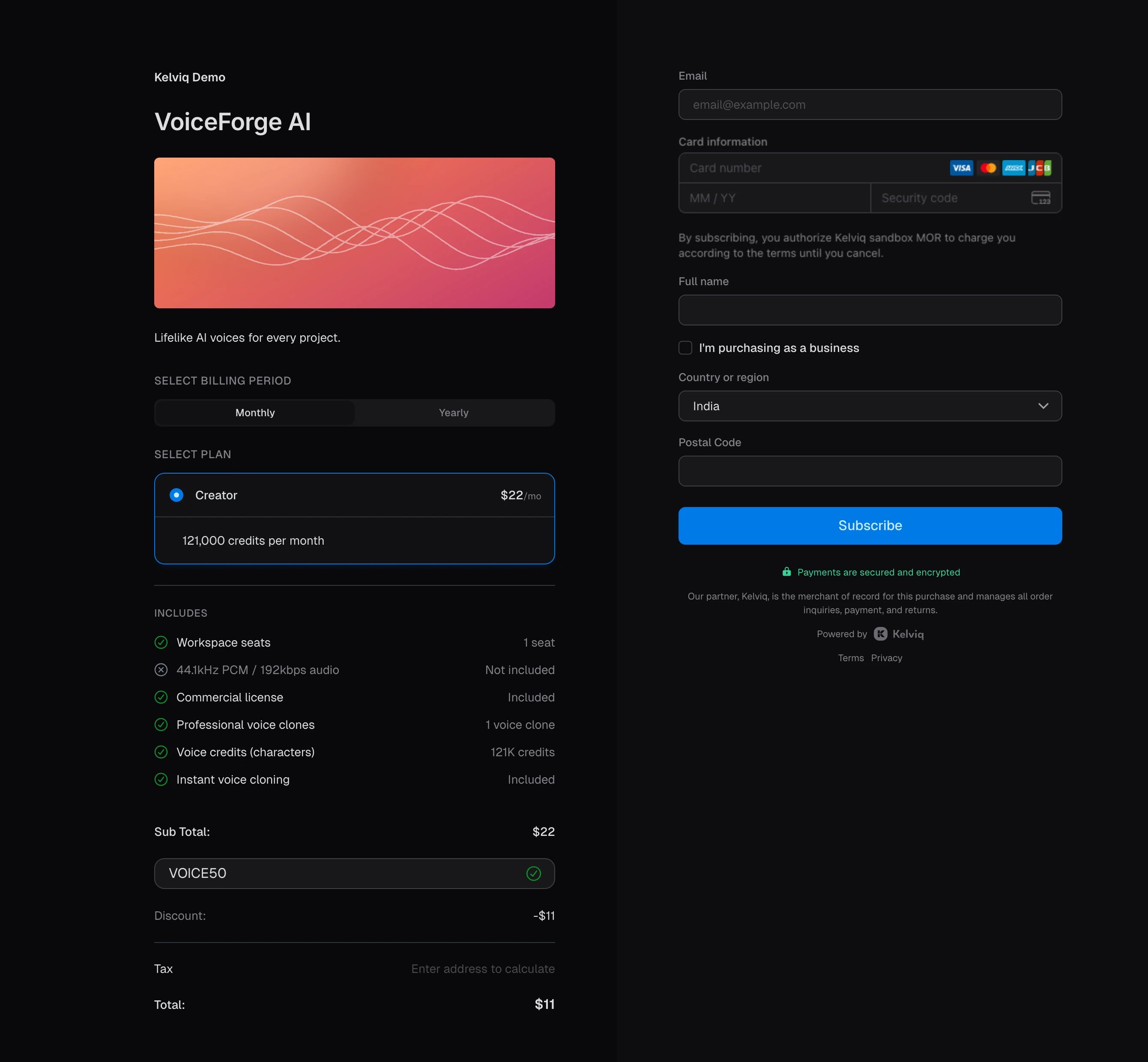
A link can carry a discount code, so the customer doesn’t have to type it. Checkout fills in the code and shows the discount and the reduced total. Here the link addsdiscount_code=VOICE50, which takes 50% off the first month of Creator. Use it in campaign emails and partner links.
Discount field hidden
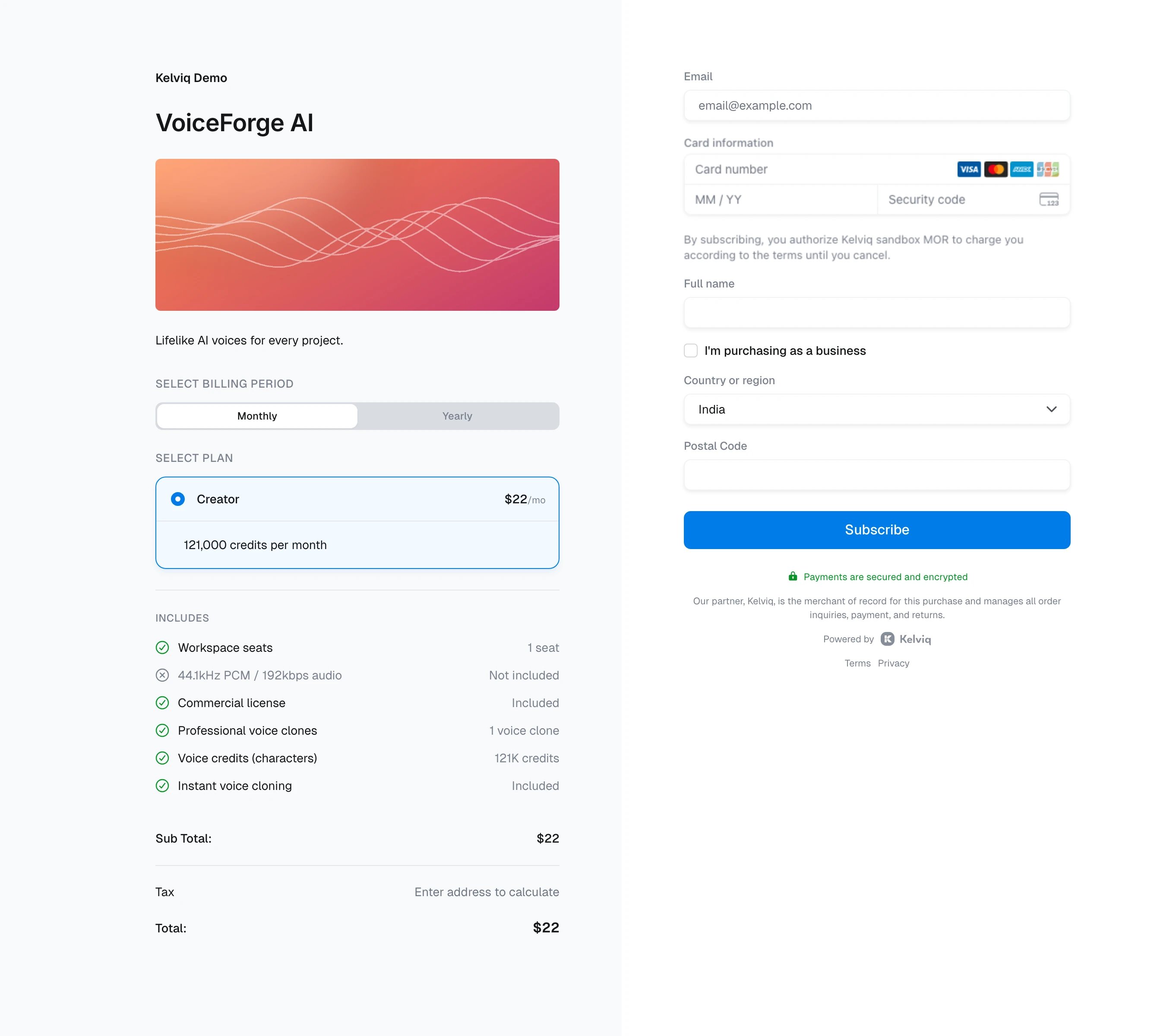
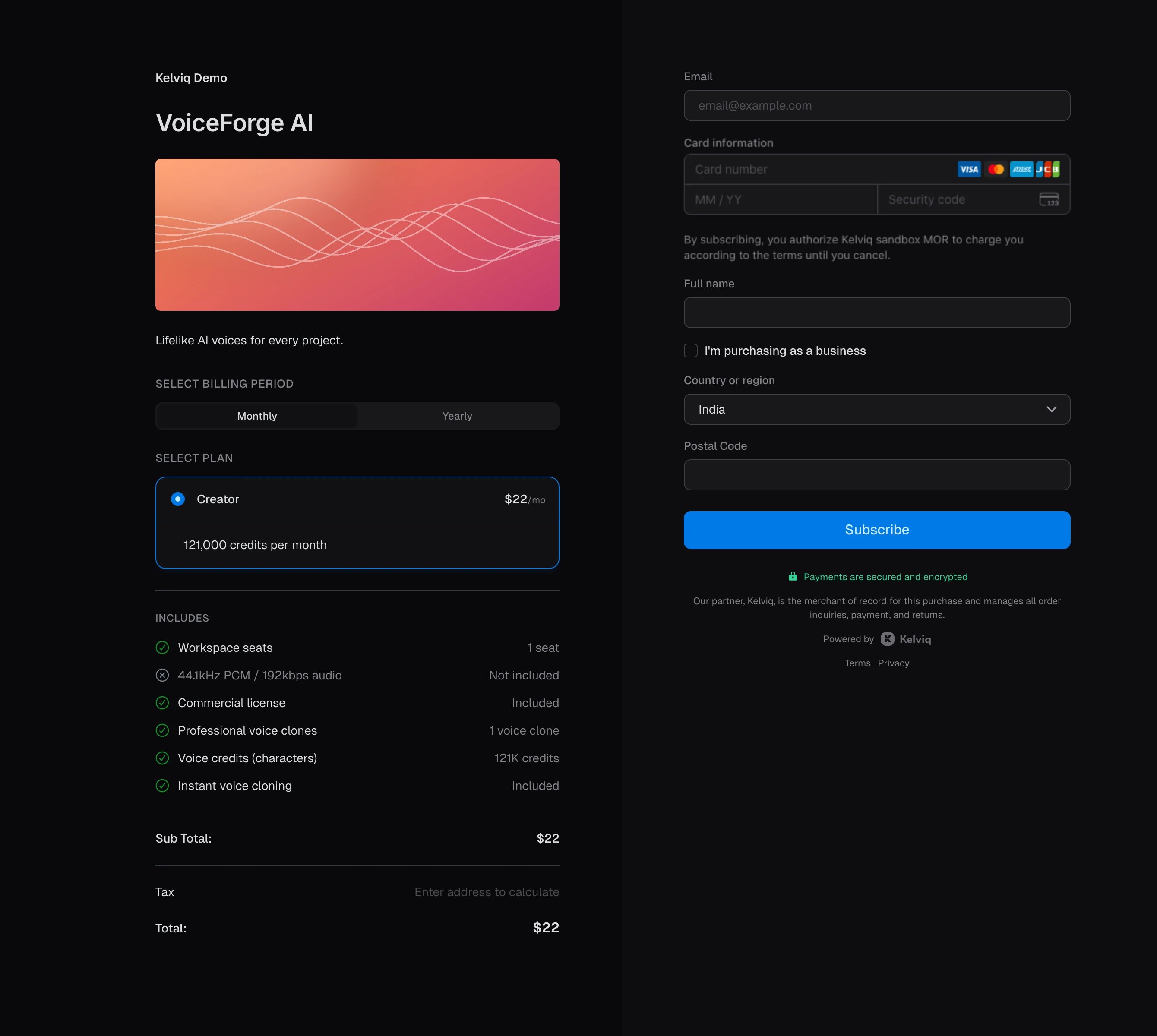
You can also remove the Add promotion code field, so customers aren’t tempted to leave and search for a code. This link addsdiscounts_enabled=false.
Per-seat plan
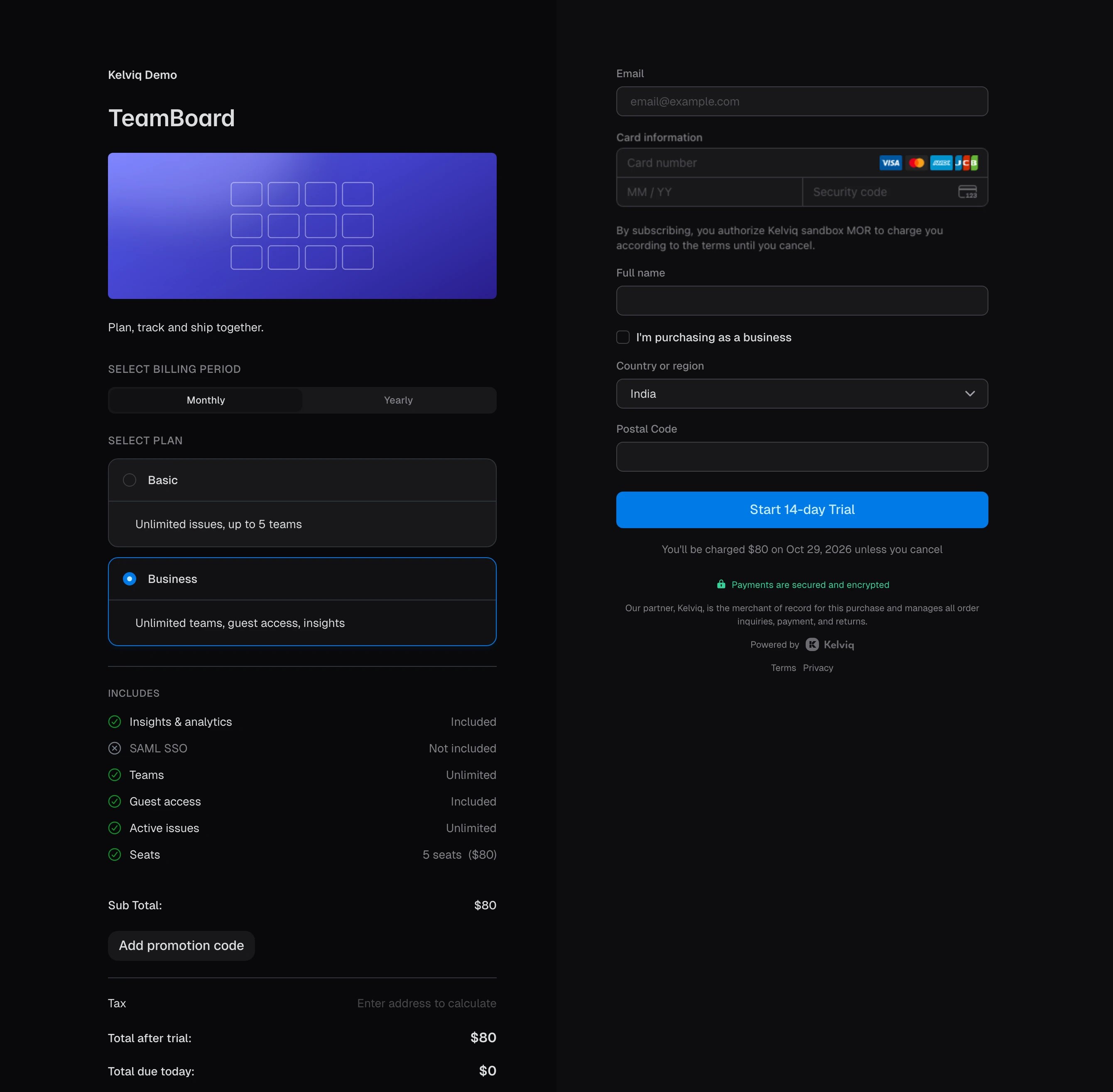
A per-seat plan charges for each seat the customer buys. The seat count comes from your app, so this checkout is created with the Checkout API rather than a static link. This example offers TeamBoard Basic and Business for 5 seats, with Business selected: $16 a seat, $80 a month, after a 14-day trial.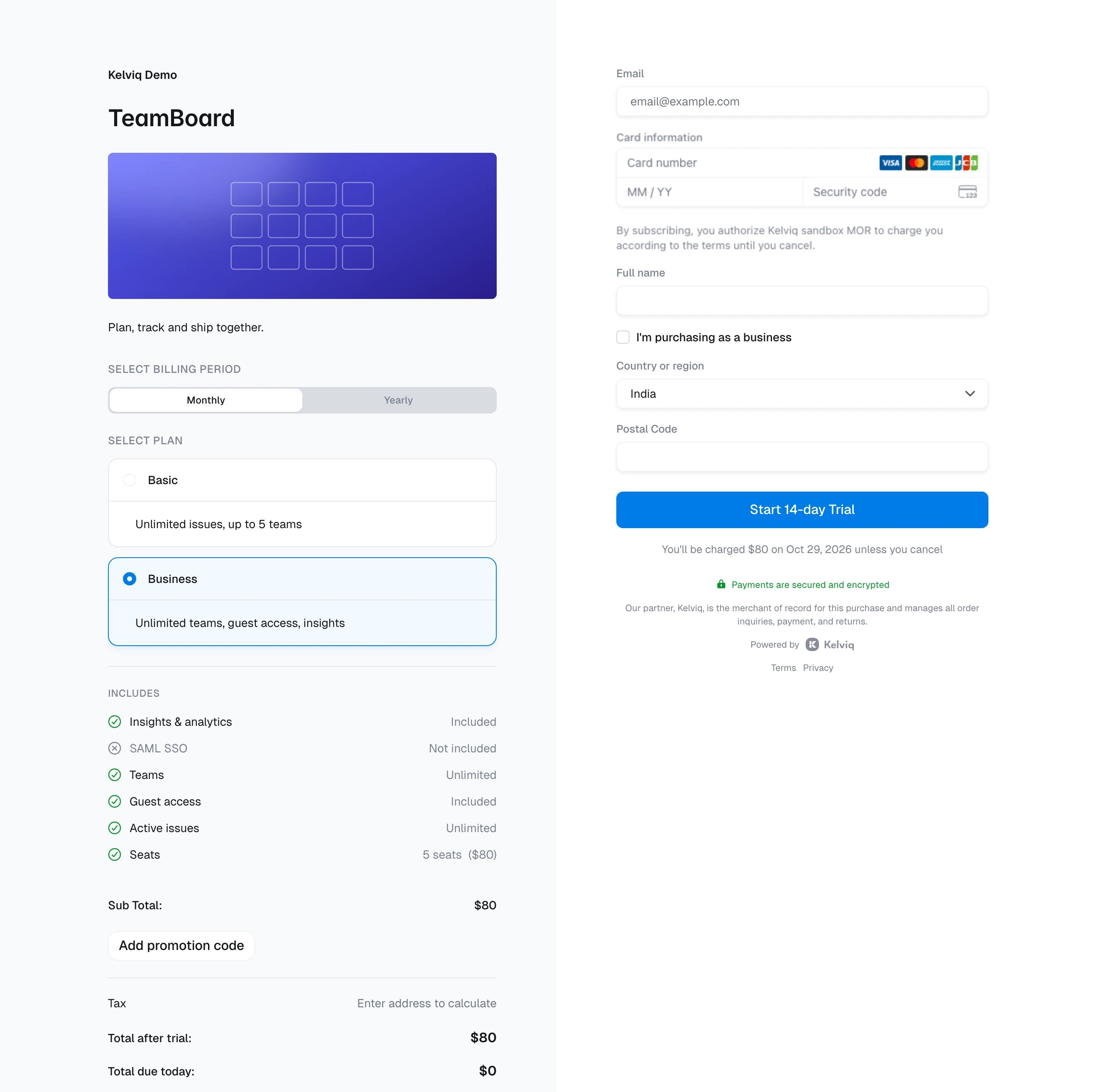
checkoutUrl to send the customer to. See Seat-based pricing for how to set up the plan.
Prefilled customer
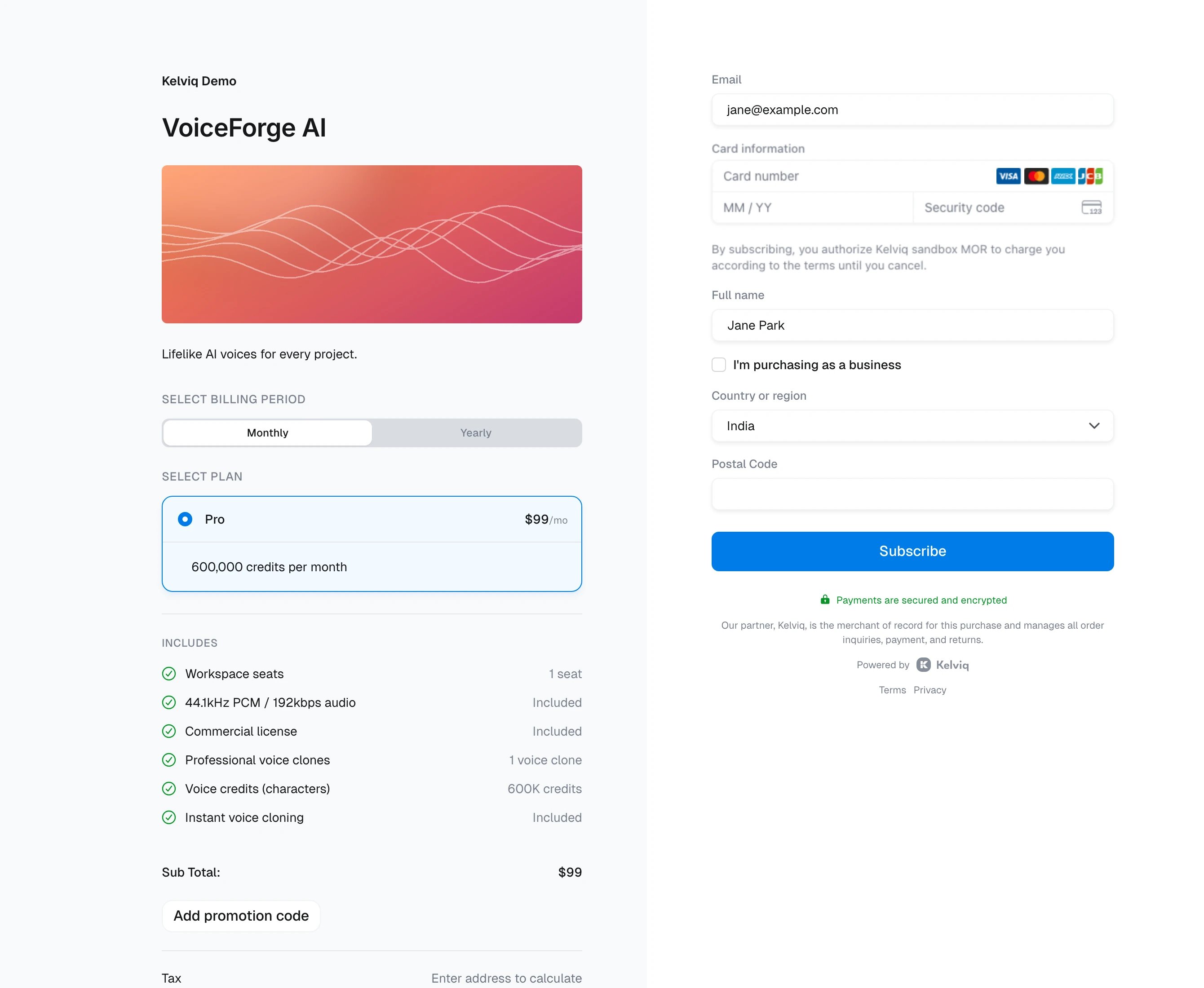
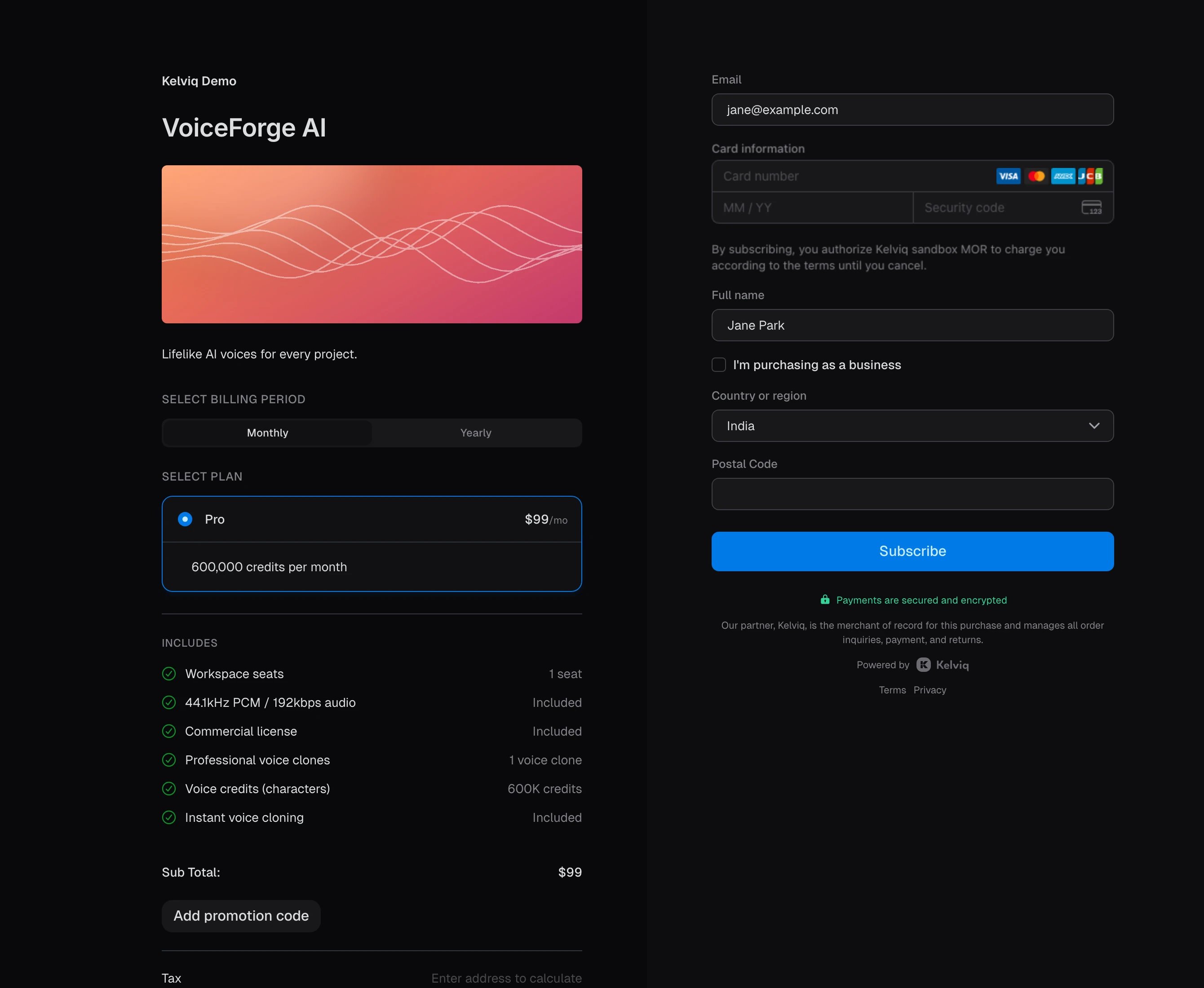
Addcustomer_id to the link for a customer your app already knows, and checkout fills in their name and email. The purchase is attached to that customer record.
Business purchase
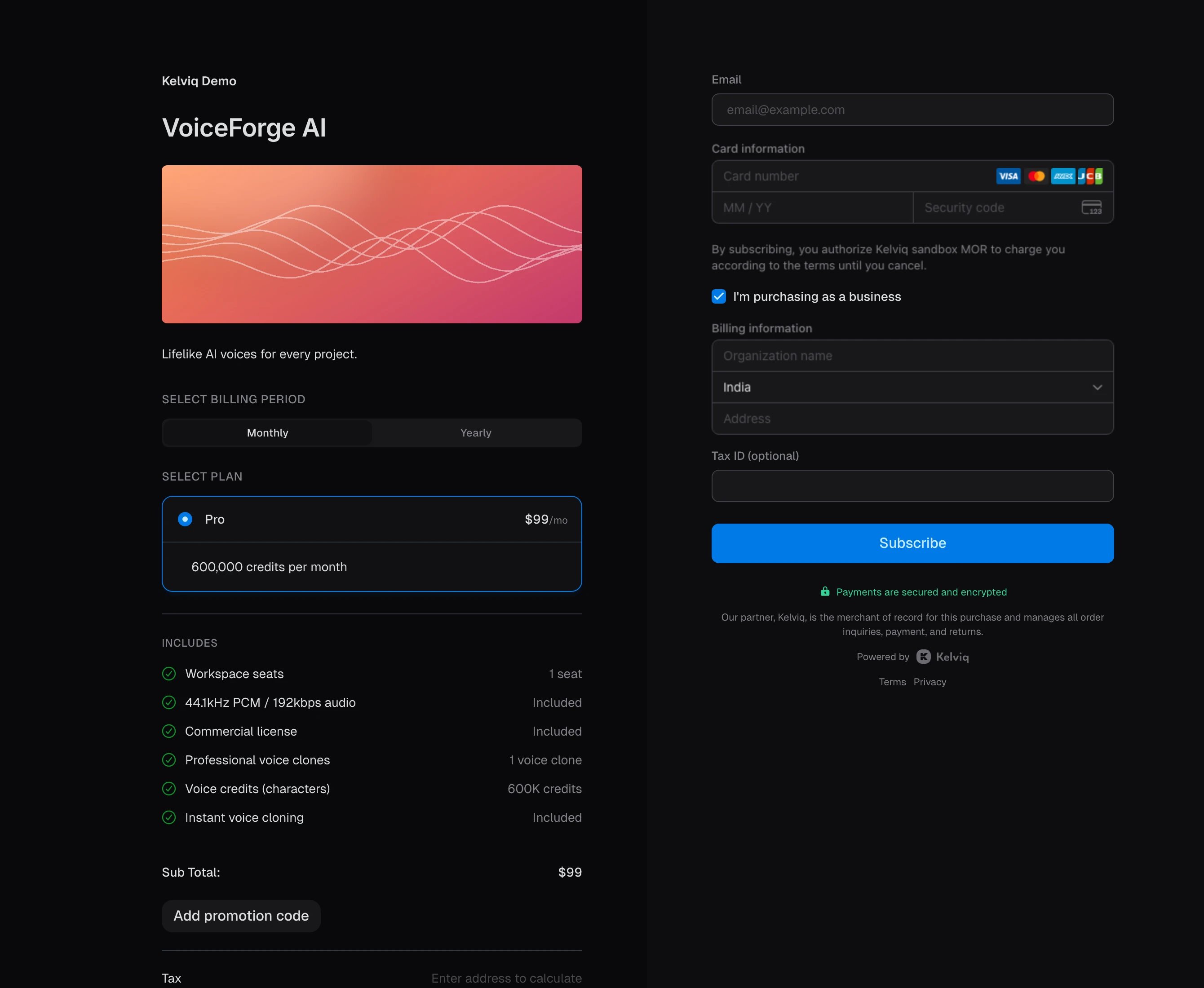
Every checkout has an I’m purchasing as a business box. Ticking it adds fields for the company name, address, and tax ID, which then appear on the invoice.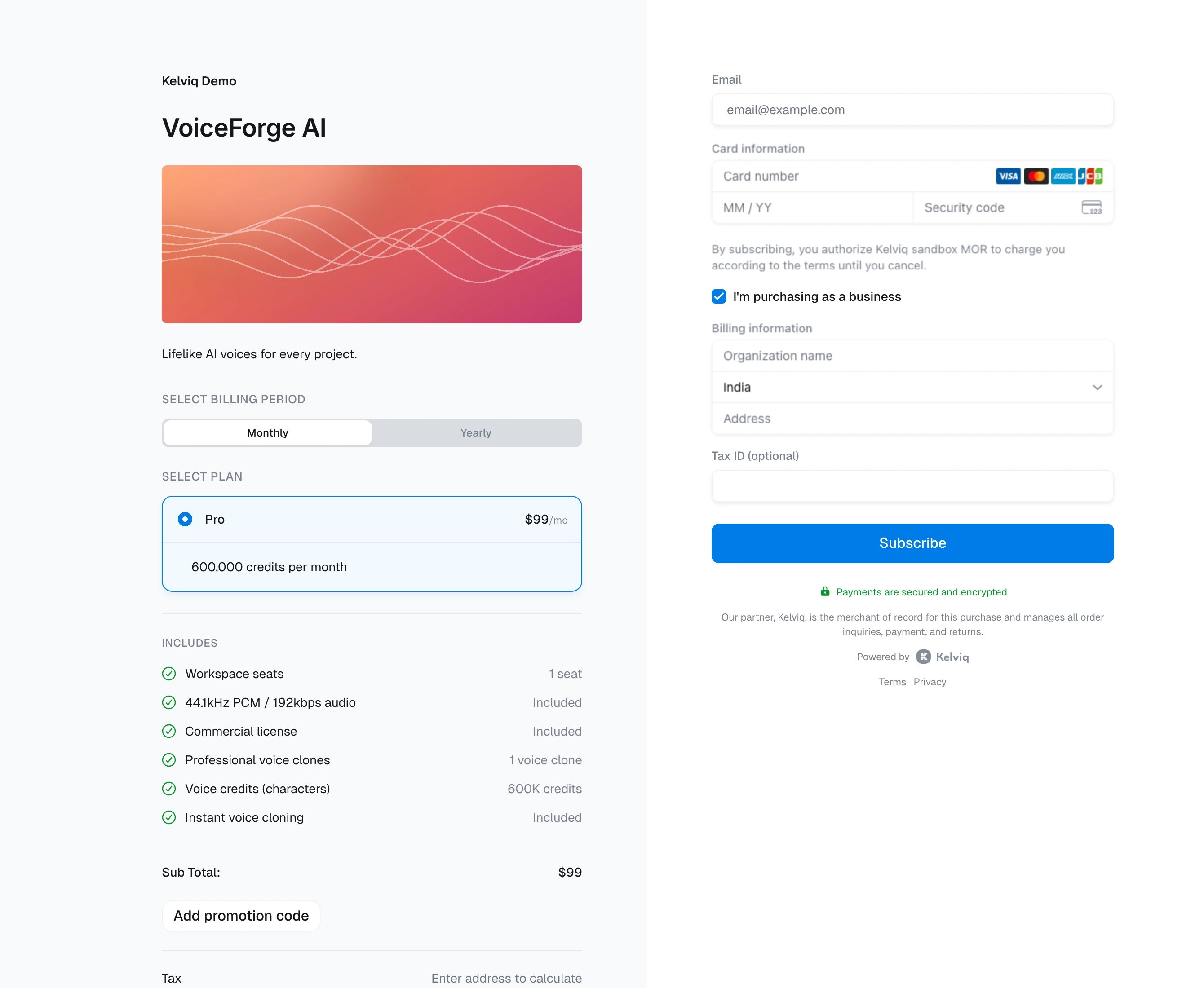
Redirect after payment
To send the customer back to your app after they pay, addsuccess_url with the address of your page. Checkout itself looks the same. This example sends the customer to https://example.com/welcome.
See example →