

Create a field
- Open Settings → Custom fields and click Create custom field.
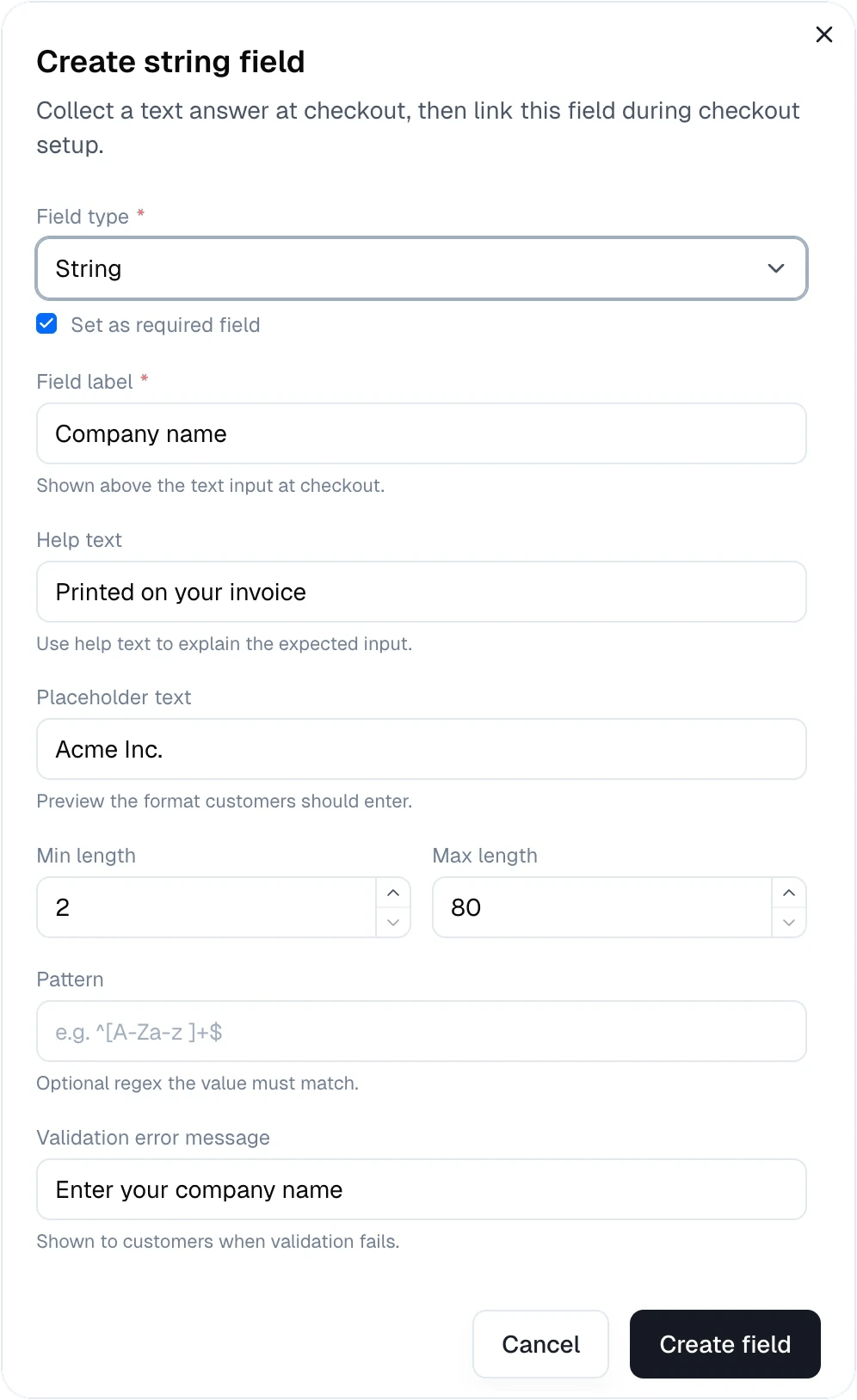
- Pick a Field type and decide whether the field is required.
- Enter the Field label, the question customers see above the input.
- Add optional Help text, shown below the input, and a Placeholder that shows the expected format.
- Set the validation for the type you picked, and the Validation error message customers see when their answer doesn’t pass.
- Click Create field.
Field types
Use a required Boolean field for “I agree to the terms” style checkboxes.
Add a field to checkout
Checkout links: on the product page, click Get Link. Under Assign custom field, choose the field, then copy the checkout link. Customers who open that link see the question. Checkout sessions from the API: pass the field identifiers incustomFields when you create a checkout session:
Where the answers go
Answers are saved with the checkout session and the order and subscription it creates. Through the API and webhooks they arrive keyed by field identifier:customFieldsDataon orders, checkout sessions, and invoices in the API.custom_fields_datain thecheckout.completed,order.created,order.updated, andorder.refundedwebhooks.